EasyManua.ls Logo

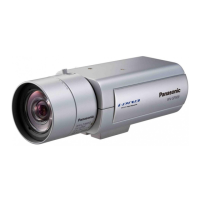
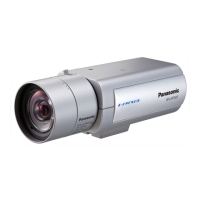
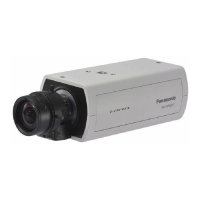
Panasonic WV-SPN311 - User Manual

Panasonic WV-SPN311
218 pages
Print Icon
To Next Page IconTo Next Page
Loading...
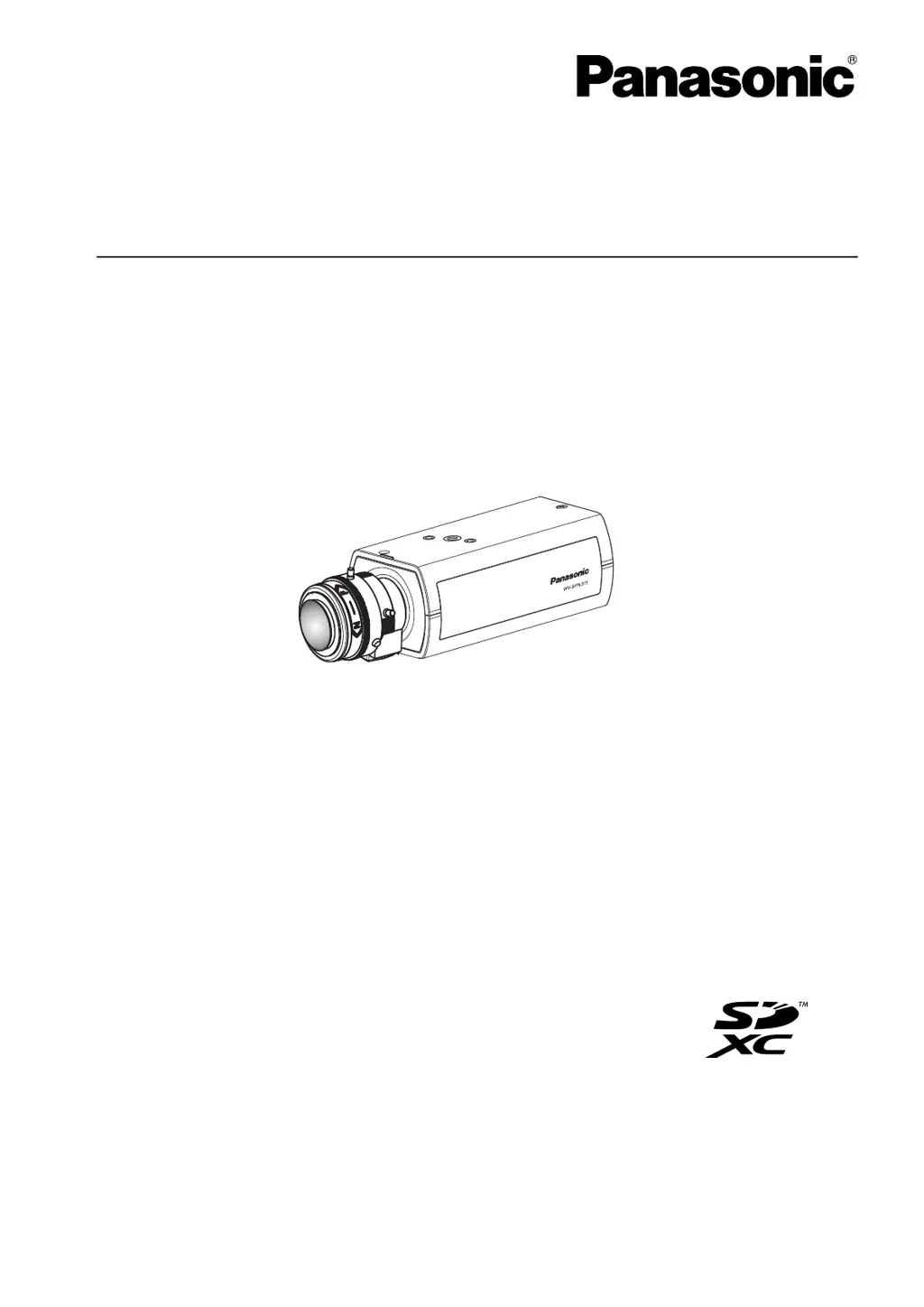
Operating Instructions
Network Camera
Model No. WV-SPN3 Series
WV-SPN311
This manual covers the models: WV-SPN3 Series(WV-SPN311,WV-SPN310)
Before attempting to connect or operate this product, please read these instructions
carefully and save this manual for future use.
The model number is abbreviated in some descriptions in this manual.

Table of Contents

Other manuals for Panasonic WV-SPN311

Questions and Answers

  • J
    Jennifer BauerAug 20, 2025
    How to troubleshoot Panasonic Other if power is not turned on?
    • J
      johncurtisAug 20, 2025
      If your Panasonic Other isn't powering on, here are a few things to check: * **PoE Power Supply:** If you're using a PoE (Power over Ethernet) device, make sure the connection is properly established and turn down the power supply from the PoE device. * **DC Power Supply:** If you're using a DC power supply, ensure the power plug is firmly connected. * **AC Adapter:** Check the specifications regarding the AC adapter to ensure it is the correct one.
  • J
    John CummingsAug 25, 2025
    Why can't I access my Panasonic WV-SPN311 Security Camera via the Internet?
    • C
      Courtney RodriguezAug 25, 2025
      If you cannot access the camera via the Internet, check if the network settings of the camera are correct. Ensure that the default gateway or DNS server address is set correctly. If you're using the DDNS service, verify that those settings are also correct. Also, make sure the setting for “Default gateway” on the “Network” page is configured correctly. When communicating using IPv4: Configure the setting for “Default gateway” of “IPv4 network” on the [Network] tab of the setup menu.
  • E
    emily30Aug 26, 2025
    What to do if authentication window is displayed repeatedly on Panasonic WV-SPN311 Security Camera?
    • L
      Laura SandersAug 26, 2025
      If the authentication window appears repeatedly, it could be due to a change in the user name or password. This happens when you change the user name and password of another user logging into the camera on another web browser. The authentication window will be displayed each time the screen is changed or refreshed. Also, if you've changed the [Authentication] setting, close the web browser and access the camera again.
  • G
    Garrett RobinsonAug 27, 2025
    What to do if user registration for the “Viewnetcam.com” service fails on Panasonic WV-SPN311 Security Camera?
    • C
      Cynthia SmithAug 28, 2025
      If the user registration for the “Viewnetcam.com” service fails, verify that the registered email address is correct. If you haven't received an email with the “Viewnetcam.com” website link, the registered email address may be incorrect. Visit the “Viewnetcam.com” website (http://www.viewnetcam.com/) to register the correct email address.
  • R
    Rebecca PearsonAug 29, 2025
    How to fix blurry images on my Panasonic Security Camera?
    • A
      Andrea JacksonAug 30, 2025
      If the images are blurry, ensure that the focus is adjusted correctly.
  • S
    sherri21Aug 31, 2025
    Why does it take so long to display the screen on my Panasonic Security Camera?
    • J
      John RobertsAug 31, 2025
      If it takes a long time to display the screen, it might be because you are accessing the camera in HTTPS mode. The refresh interval becomes slower in this mode due to decode procession.
  • D
    David WillisSep 2, 2025
    How to resolve cookie error during user registration for “Viewnetcam.com” on Panasonic WV-SPN311 Security Camera?
    • C
      Colleen WiseSep 2, 2025
      If a cookie error is displayed during user registration for “Viewnetcam.com”, ensure that your web browser is configured to allow cookies. In Internet Explorer, go to [Tools], select [Internet Options], and configure the cookie settings in the [Privacy] tab.
  • E
    Erika CarrSep 4, 2025
    Why can't I access my Panasonic Security Camera from a cellular phone?
    • T
      Tammy HillSep 4, 2025
      If you cannot access the camera from a cellular phone, verify that the URL is correct and includes “/mobile” at the end. Also, check if the SSL encryption method is different from that of the camera; select “HTTP” (Do not select “HTTPS”) for “HTTPS” - “Connection” on the “Network” page - the [Advanced] tab, and access the camera again. Finally, if using the HTTPS function, ensure you are accessing “https://” and that you have entered the port number.
  • A
    Amy KellySep 6, 2025
    Why can't I access my Panasonic WV-SPN311 from a mobile terminal?
    • C
      Cynthia SchmidtSep 6, 2025
      If you cannot access the camera from a mobile terminal, verify that the URL is correct and includes “/cam” at the end. Also, check if the SSL encryption method is different from that of the camera; select “HTTP” (Do not select “HTTPS”) for “HTTPS” - “Connection” on the “Network” page - the [Advanced] tab, and access the camera again. Finally, if using the HTTPS function, ensure you are accessing “https://” and that you have entered the port number.
  • T
    Tina WhiteSep 8, 2025
    Why can't I access the camera via the URL of the “Viewnetcam.com” service for my Panasonic Security Camera?
    • A
      Ann BakerSep 8, 2025
      To resolve the issue, check if the global address of the camera (or router) is notified to the “Viewnetcam.com” service server. Log into the “My Account” page of the “Viewnetcam.com” website (http://www.viewnetcam.com/) to check the information of the registered camera. If the global address is not displayed for the IP address, access the camera, and register the user information for the “Viewnetcam.com” service on the [Advanced] tab on the “Network” page of the setup menu. In addition, check the “Status” of “Viewnetcam.com” (on the [Status] tab) and the system log (on the [System log] tab) of the “Maintenance” page of the setup menu.

Summary

Viewer Software Installation

Monitoring Camera Feeds

PC Monitoring

Viewing live camera images on a PC via web browser.

Multi-Screen Display

Displaying multiple camera feeds simultaneously.

Image and Data Recording

SD Memory Card Recording

Instructions for manually recording images to the SD memory card.

Alarm System Configuration

Alarm Actions and Responses

Defines camera actions triggered by alarms.

Audio and VMD Detection

Configure audio detection and Video Motion Detection (VMD) settings.

Log Management and Playback

SD Memory Card Image Playback

Instructions for playing back recorded images from the SD memory card.

Network Security Configuration

Equipped Security Functions

Overview of security functions like access restrictions and HTTPS.

Accessing the Setup Menu via PC

Accessing and Operating the Setup Menu

Steps to launch, navigate, and configure settings within the setup menu.

Basic Camera Settings

Basic Settings [Basic]

Detailed configuration of basic camera settings on the 'Basic' tab.

Image Quality and Adjustment

Multi-Screen Display Configuration

User and Access Management

Network Configuration

Accessing Camera via HTTPS

Steps to access the camera securely via HTTPS.

Schedule Configuration

Camera Maintenance

System Log and Firmware Upgrade

View system logs and upgrade camera firmware.

Troubleshooting Common Issues

Panasonic WV-SPN311 Specifications

General IconGeneral
Camera TypeNetwork Camera
Compression FormatH.264, JPEG
ONVIF CompliantYes
Frame Rate30 fps
Sensor TypeMOS
Effective Pixels (Megapixels)1.3
Image Sensor1/3" MOS Sensor
Resolution1280 x 960
Focal Length2.8 mm
Minimum Illumination0.05 lx (B/W)
Network Interface10Base-T/100Base-TX
Power SupplyPoE (IEEE 802.3af)
Operating Temperature-10 °C to +50 °C
Day/Night FunctionYes
Wide Dynamic RangeYes
Dimensions60 mm

Related product manuals