GETTING STARTED
32
How to Load a Job
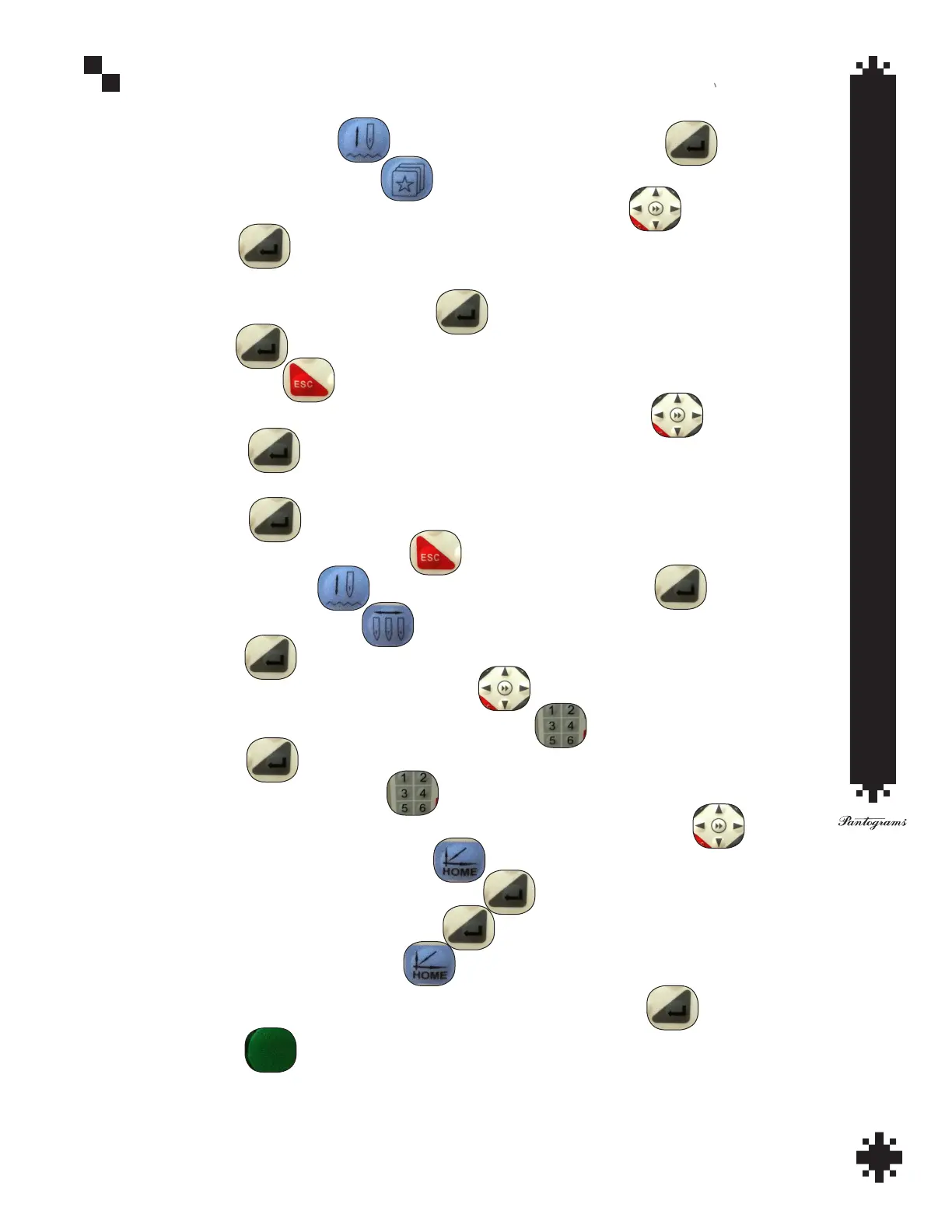
1. Plug the USB drive into side USB port and aach hoop with garment and backing.
2. Press the EMB status key - Exit EMB status? Yes. Press enter.
3. Press the design input key.
4. Arrow down (using posion arrows) to input design to memory.
5. Press enter.
6. Select design to embroider using arrow keys.
7. Press enter (design memory number).
8. Press enter.
9. Press escape.
10. Arrow up (using posion arrows) to select design for embroidery.
11. Press enter.
12. Conrm correct design.
13. Press enter.
14. Design parameter - press escape.
15. Press EMB status key - Enter EMB status - Yes. Press enter.
16. Set color change key.
17. Press enter.
18. Arrow over to one (using posion arrows).
19. Select colors using number key pad 1-9 or 10-15.
20. Press enter.
21. Press one on number key pad.
22. Using posion arrows, place needle number one in center of the hoop.
23. Press the home key (start point key).
24. Arrow down to set start - Press enter.
25. Set start posion? - Yes. - Press enter.
26. Press home key (start point key).
27. Arrow down to number four (contour range check) - press enter
(watch needle number one to make sure it will not hit the hoop).
28. Press start.


 To Next Page