31
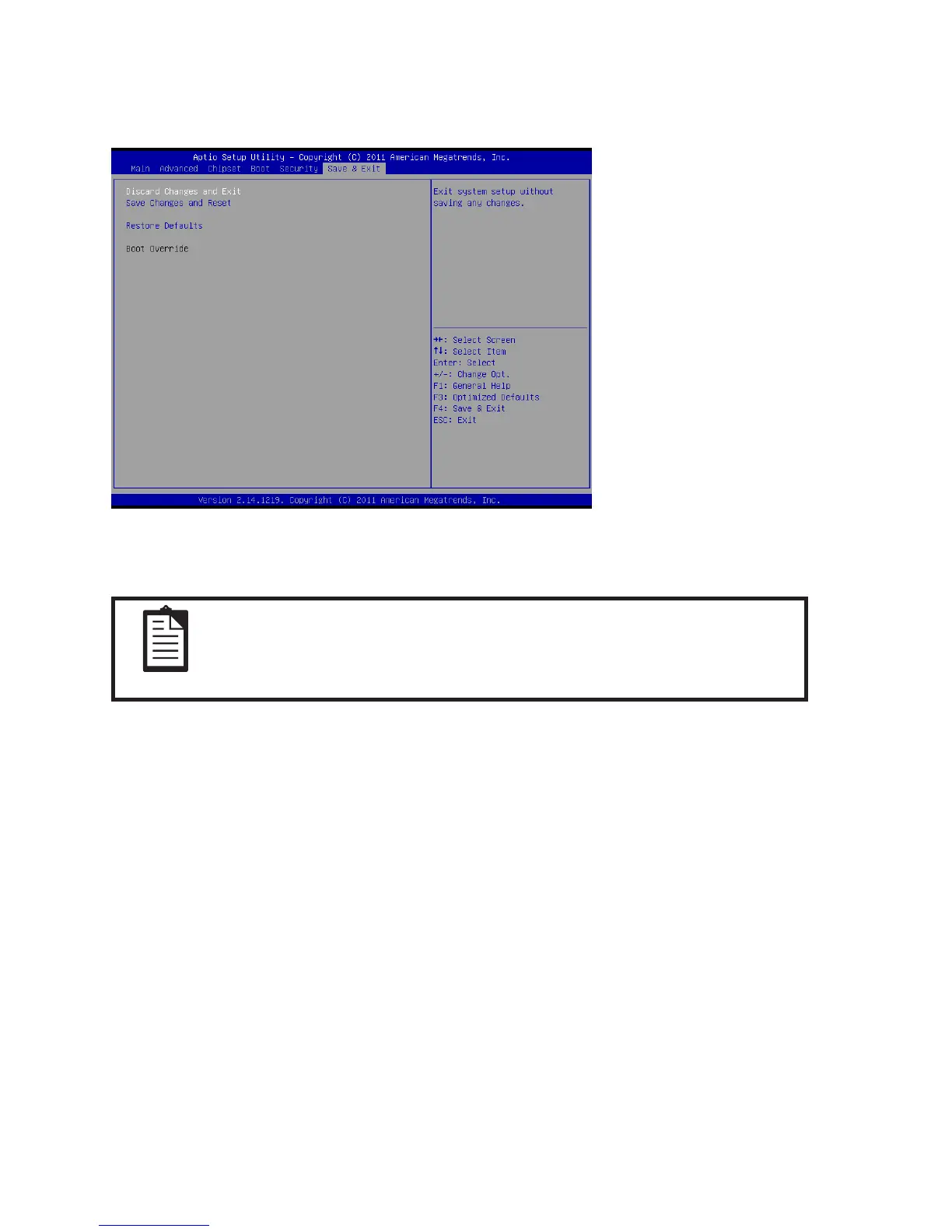
Discard Changes and Exit
Highlight this item and press <Enter> to discard any changes that you have made in the Setup Utility and exit.
When the dialog box appears, press <Yes> to discard changes and reset, or press <No> to return to the menu.
NOTE
If you have made settings that you do not want to save, use the “Discard
and Reset” item and press Yes to discard any changes you have made.
Save Changes and Reset
Highlight this item and press <Enter> to save the changes that you have made in the Setup Utility and restart
the system. When the dialog box appears, press <Yes> to save and exit, or press <No> to return to the menu.
Restore Defaults
This option opens a dialog box that lets you load optimized defaults for all appropriate items in the Setup
Utility. The optimized defaults place demands on the system that may be greater than the performance level
ofthecomponents,suchastheCPUandthememory.Ifyouonlywanttoloadsetupdefaultsforaspecic
option, select and display that option, and then press <F9>.
Follow these instructions to load the optimized defaults:
1. From the Save & Exit screen, scroll to Restore Defaults.
2. Press <Enter> to open the Load Optimized Defaults screen.
3. Select <Yes>.
4. Press <Enter> to load the defaults.
Save & Exit
This screen allows you to load default setting values, save changes and discard changes.
Figure 2.21 Save & Exit
Screen


 To Next Page