Table of Contents
PaymentCloud LLC. • 800-988-2215 • support@paymentcloudinc.com
Additional Information
Spec Sheet
Shop PAX SP30
V.022025 6
PAX SP30
User Manual & Setup Guide
Accept Payments Cont.
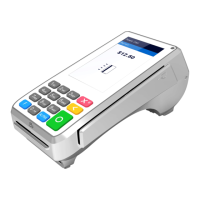
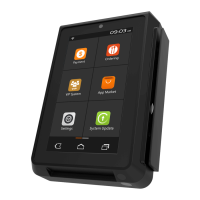
Note: Your PAX device must be paired with an auxiliary terminal
capable of voiding transactions, such as the PAX A80. If your SP30
is paired with such a device, proceed with the following steps:
Void Credit Transaction (Card Not Present)
How to Void Transaction
1.
You will be prompted to select a FUNCTION button on your
paired terminal. On the A80, this will be the device’s F or
FUNC button.
2. On your auxiliary terminal, select VOID.
3. Enter your password before pressing the green ENTER key to
conrm.
4. If prompted, select CREDIT.
5. Enter the TRANSACTION # for the transaction you wish to
void, then press the green ENTER key to proceed.
6. Press ENTER to print the customer receipt or CANCEL to skip.
7. Press CANCEL to return to your SP30 home screen.
How to Print Reports
Note: Your PAX device must be paired with an auxiliary terminal
capable of printing reports, such as the PAX A80. If your SP30 is
paired with such a device, proceed with the following steps:
1. To proceed, you will be prompted to select a FUNCTION
button on your paired terminal. On the A80, this will be the
device’s F or FUNC button.
2. From your auxiliary terminal’s home menu, select REPORTS.
3. Enter the device password, then press the SP30’s green
ENTER key to conrm.
4. Select the relevant report and follow the instructions to print.
Accept Payments
4
Setup
3
Rights Reserved
9
Settings
7
Troubleshooting
& Tips
8
Overview
2



 To Next Page