PDI-P20LCD User Manual
Document Number: PD196-040 Rev4
- 16 -
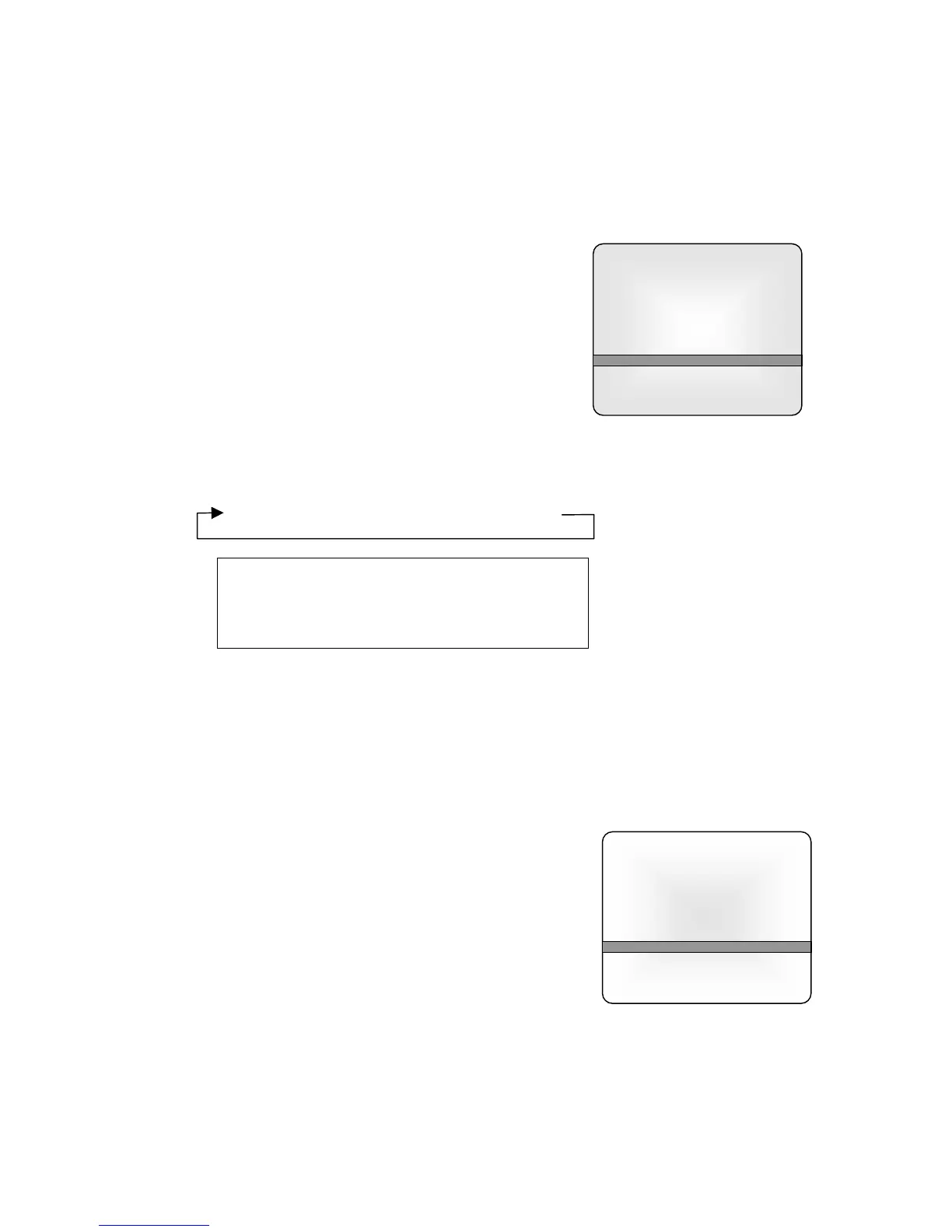
Picture
Contrast 90
Brightness 75
Color 70
Sharpness 50
Tint 0
▲▼:Move ◄►: Adjust
MENU:Return TV/AV Exit
Equalizer
Flat ■■
Music ■■■
Movie ■■■■
Speech ■■■■■
User ■■■■■■■
0.1 0.5 1.5 5.0 10Khz
▲▼:Move ◄►: Adjust
MENU:Return TV/AV Exit
Picture
You can adjust picture Contrast, Brightness, Color, Sharpness and Tint to the levels you prefer
using the on-screen menus or select PDI factory preset picture modes using the remote control.
USER PICTURE CONTROL
1. Press the MENU button.
2. Select the Picture Menu.
3. Press the CH▲▼ button to select a picture item.
4. Press the VOL◄► button to adjust the picture item to
the desired level.
5. Press the TV/AV button to store the picture values in
the User mode.
PSM – PICTURE STATUS MEMORY
1. Press the PSM button on the remote to view the current picture mode.
2. Press the PSM button repeatedly to select another PSM setting. The PSM setting will
cycle and the picture’s factory parameter settings will change accordingly.
Dynamic → Standard → Mild →Game → User
Dynamic
Vivid Picture Appearance
Standard
Standard Picture Appearance
Mild
Softer Picture Appearance
Game
External Video Game Appearance
User
Manual Picture Setup
3. Press the OK button on the remote to select the currently displayed picture mode.
Sound
You can adjust the sound using Equalizer levels via the on-screen menus or select PDI factory
preset sound modes using the remote control.
EQUALIZER
1. Press the MENU button on the remote.
2. Select the Sound menu.
3. Press the CH▲▼ button and select Equalizer. A listing
of available frequency bands and current settings will be
displayed. The Flat, Music, Movie, and Speech settings
are factory preset sound modes and cannot be adjusted.
Select User to adjust and customize the sound
equalization.
4. Press the VOL◄► button to select the desired sound
band.
5. Press the CH▲▼ button to adjust the strength of sound for that particular sound band.
Alternately, press VOL◄► to select the next desired sound band and adjust with the
CH▲▼ button.
6. Press the MENU button to return to the preceding Menu and the TV/AV button to return
to normal TV viewing.


 To Next Page