13
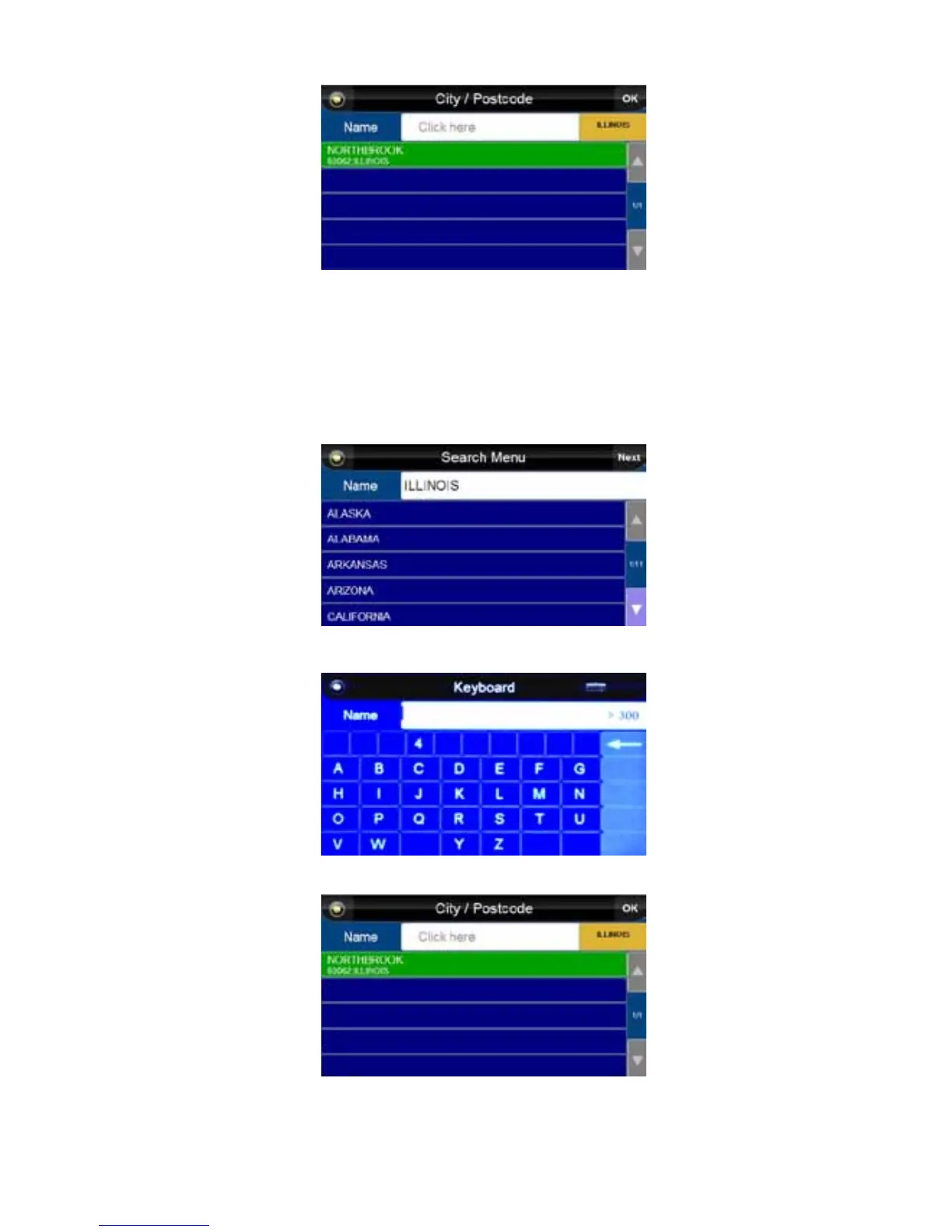
The “City / Postcode” screen appears after pressing the “Address” button.
The system defaults to the last city and state entered.
To choose a new location:
1. Press the yellow button containing the current state.
NOTE: Many functions in the “Navigation” system can be selected in multiple ways:
a. By pressing the desired item to highlight it, and then pressing the “Next” or “OK” button.
b. By quickly double-tapping the desired item.
Hereafter, the term “select” will be used.
2. Scroll to your desired state using the up and down arrows and select it.
3. The “Name entry” keyboard will appear. Start to enter the name of the city.
4. The matching results will display when the unit recognizes the city.
5. Select your desired city.
NOTE: After using the unit, it will store the last state entered, as well as a list of cities in that state
that have been searched. From that screen, you can select a city previously searched, or click in
the white “City/Pcode” bar and enter the city name or zip code.



 To Next Page