13
2
10
35
4
9
8
6
Legend
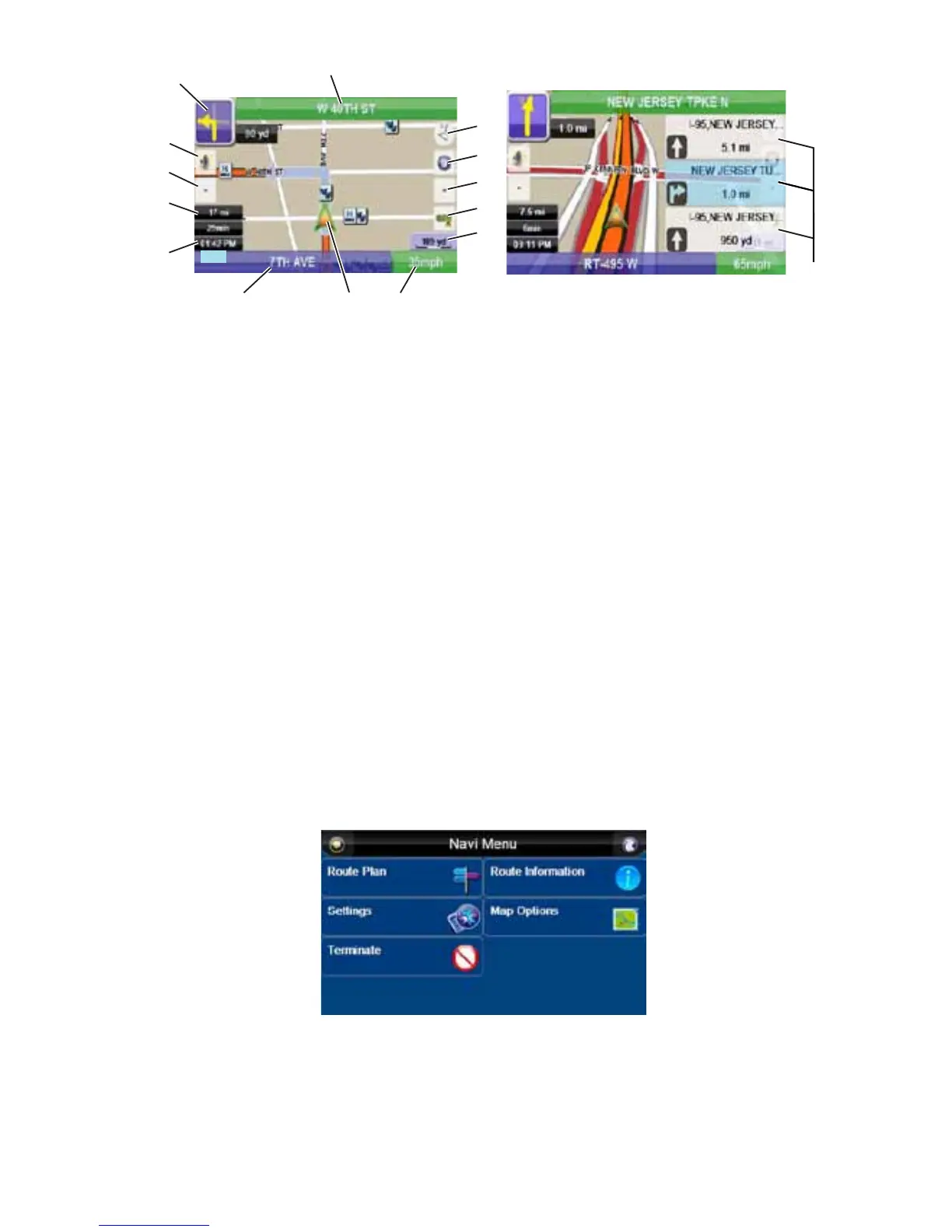
1. Traveling Direction – Indicates direction of vehicle movement.
2. Current Position – Displays your current position on the map.
3. Next Road – Displays the name of the next road along your route.
4. Volume Button – Press the button to change the volume of the
voice navigation.
5. GPS Status Button – Press the button to display GPS satellite
status.
6. Upcoming Roads/Turns – Displays the upcoming roads and
which way to turn on the roads when map option Highway
SignPost is selected.
7. Scale Bar – Indicates the scale of the map being displayed.
8. Current Time – Displays the current time for your location.
9. Distance and Time to Destination – Displays the remaining
distance and time to your destination.
10. Current Road – Displays the current road you are traveling.
11. Menu Button – Press the button to get to the Route Navi Menu.
12. Next Turn Distance and Layout – Displays how far the next turn
is and which way to turn. If you are o the road or in a parking
lot, a car icon will appear instead of the arrow. The arrow will not
appear until you drive closer to your navigation route.
13. Current Speed – Shows the current speed that you are traveling.
14. Zoom In – Press the plus sign to zoom in.
15. Zoom Out – Press the minus sign to zoom out.
Route Options
During navigation, press the “Menu” button to enter the “Navi Menu”.
Route Plan
Press the “Route Plan” button to take you back to the “Route Plan” screen.
Settings
The “Settings” button will take you to the “Settings” screen. See “Settings” on page 21.



 To Next Page