24
Photo
The “Photo” function allows you to view photos (JPG and BMP format) from an SD card.
1. Insert your memory card into the SD card slot.
2. From the “Main Menu”, press the “Photo” button.
3. The available photos or folders will appear as buttons.
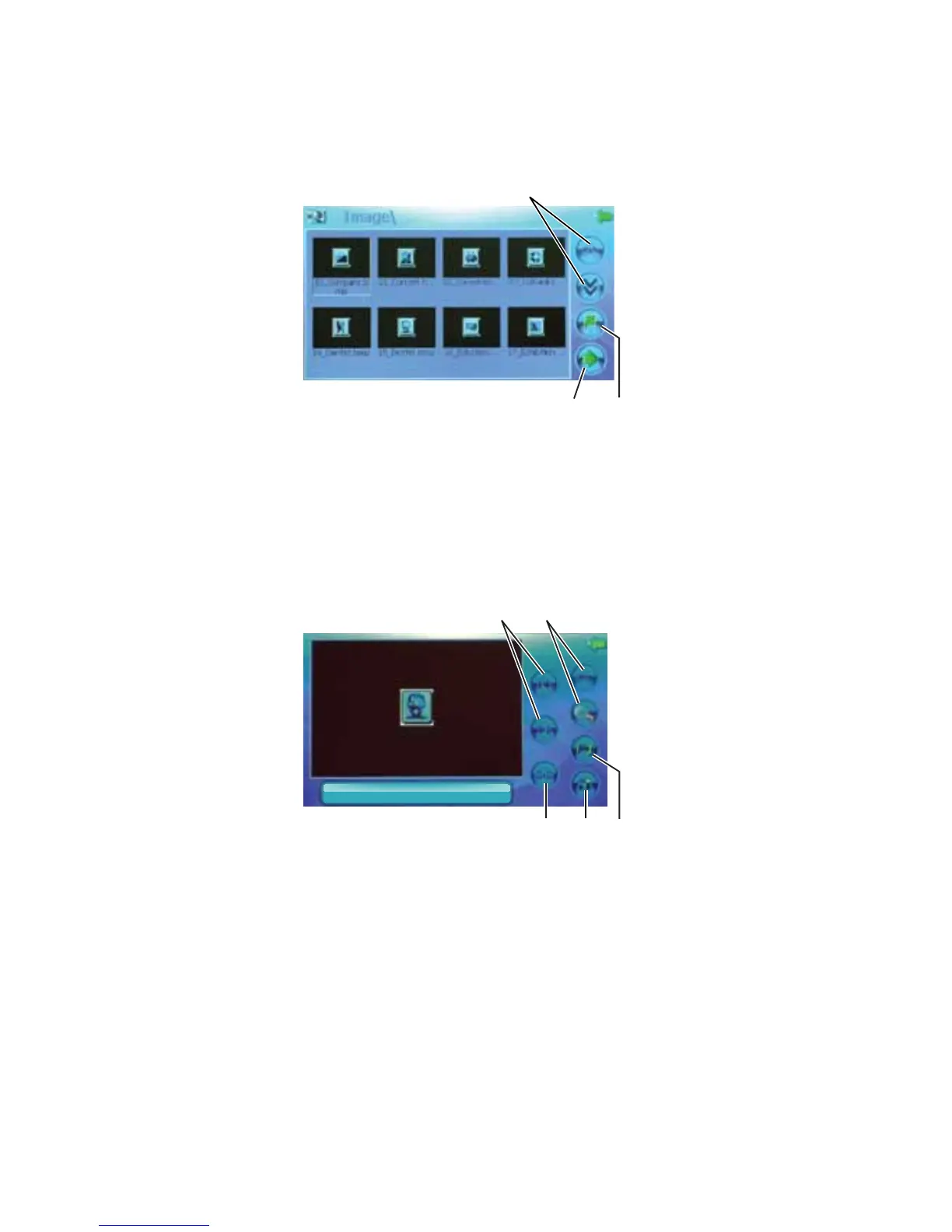
4. Double-tap the button you want to open. The screen will display up to eight photos at once.
1
2
3
I
m
a
g
e
\
Legend
1. Up and Down Arrows
2. Back Arrow
3. Select Arrow
• Press the up and down arrows to scroll through photos.
• Press the desired photo to select it.
• Press the right-facing arrow to display the selected photo in full-screen mode.
• Double-tap the desired photo to display the photo with options.
15_Doctor.bmp
3
4
5
Legend
1. Previous/Next Buttons
2. Zoom In/Zoom Out Buttons
3. Rotate Button
4. Slide Show Button
5. File Selection Button
• Press the “Zoom In” and “Zoom Out” buttons to change the view of the photo.
• Press the “Previous” and “Next” buttons to scroll through photos.
• Press the “Rotate” button to rotate the photo clockwise 90° at a time.
• Press the “Slide Show” button to view a full-screen slide show of all the photos on the card.
Double-tap the screen to exit the slide show.
• Press the “File Selection” button to go back to the previous screen.



 To Next Page