28
Automatically updating the clock
Your radio will normally update the clock automatically using the DAB or FM signal. If no signal is
available, then you need to set the time manually. After a power failure the radio will then set its
clock the next time that you turn on the radio in DAB or FM mode. Alternatively you may specify
that the time is not automatically updated. In this case the clock must always be set manually
after a power interruption.
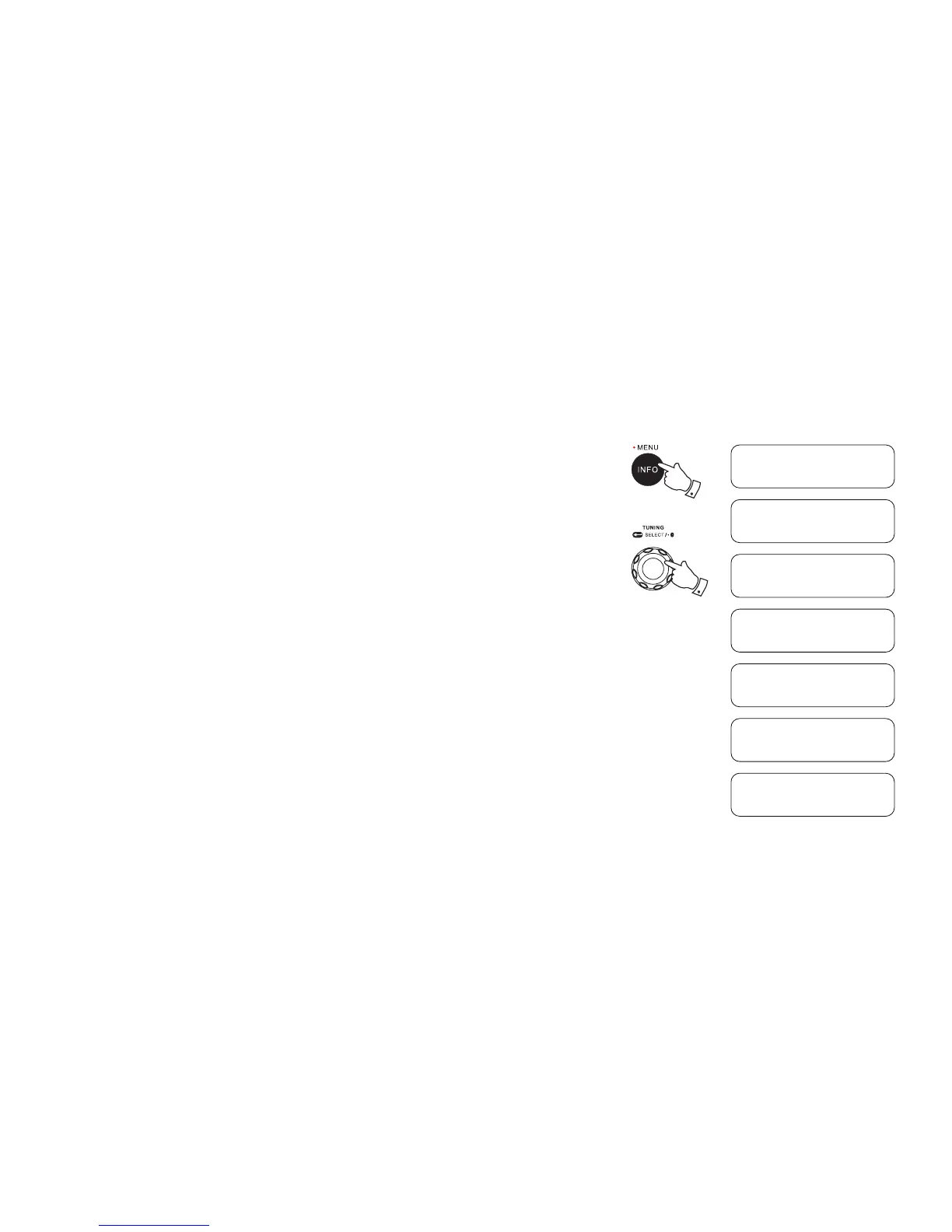
1. With your radio switched on, press and hold the Info/Menu button to access the menu for the
current mode.
2. Rotate the Tuning control knob to select “System” and press the Tuning control knob to enter
the system settings menu.
3. Rotate the Tuning control knob to select “Time”. Press the Tuning control knob to enter the
time setting menu.
4. Rotate the Tuning control knob to select “Set Time/Date” and press the Tuning control knob to
enter the setting.
5. Rotate the Tuning control knob to select “Auto”. Press the Tuning control knob to enter the
auto-update menu.
6. Rotate the Tuning control knob to choose an update option from “Update from Any” “Update
from DAB” or “Update from FM” as required. Press the Tuning control knob to conrm your
choice.
Note:
If you select “Update from Any”, “Update from DAB”, “Update from FM” the current time received
will be displayed. If no signal is found you should either position the radio or its aerial so that a
signal can be received, or revert to manual clock mode.
2-6
1
<System
>
FM
<Time
>
System
<Set Time/Date
>
Time
<Auto
>
Set Time/Date
<Update from Any
>
Auto *
<Update from DAB
>
Auto
<Update from FM
>
Auto


 To Next Page