Smart 32 Remote Control Panel User Guide
Publication 81-9059-0727-0, Rev. A
April 2014
Proprietary Information of
PESA
4-7
Table 4-1 Panel Key Types and Default Color Codes
Key Type
Assignment
Default
Backlight
Color
Function
Level Key Blue Keys assigned to a switching level select that level for breakaway
switching and panel status operations. You may press multiple keys
assigned to switching levels in order to select additional levels for
breakaway switching. All selected pushbutton keys will remain lit
to indicate the level is active, however, the Level display line on the
status display screen always indicates the highest ranking switching
level of all the selected levels. Panel status displays always indicate
status of the highest ranking switching level selected.
Source Key Green Selects a source group for the destination group currently
controlled by the panel. An illuminated source button indicates that
source group is active on the statused switching level
Destination
Key
Magenta Selects the destination group controlled by the panel. For panel
status, an illuminated destination button indicates the currently
controlled destination group.
Salvo Key Yellow Selects a salvo group.
Control Key White A panel key may be assigned to any one of the following router
control functions:
• Lock (toggles between lock, protect, unlock)
Page Key Cyan A pushbutton key may be assigned to select one of the panel key
pages for quick access between key pages. Cattrax does not allow
any key to be assigned the number of the key page on which it
resides.
When a key is assigned as a Panel Info page, pressing that key
accesses a non-configurable key assignment page that displays
various operating and control functions of the Smart 32 panel.
4.6 B
UTTON
I
MAGES
P
AGE
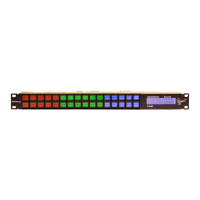
Each pushbutton key on the Smart 32 panel can display a dynamically programmable text or graphic
image label to identify the function of the key. Labels displayed by Smart 32 keys are created and
configured into the system controller through the Cattrax Button Images page. It is not possible to create
or edit a key label directly from the panel. An example button image configuration page is introduced
here to give the panel operator a better understanding of how key labels are assigned. For information
on configuring a button image page and downloading it to the system controller, refer to PERC3000
System Controller Installation and Operation User Guide.
A text label or graphic image is not created individually for each panel key. Labels are configured for
each router resource or function and displayed on any Smart 32 or Touch 72 panel key assigned to that
resource.


 To Next Page