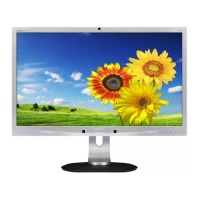
Electrical
instructions
(FW)
F/W upload instruction
Configuration and procedure (ISP Tool)
"ISP Tool" software is provided by NOVATEK to upgrade
the firmware of Scaler IC. It is a windows-based program,
which cannot be run in MS-DOS.
System and equipment requirements:
1. An i486 (or above) personal computer or compatible.
2. Microsoft operation system Windows 98/2000/XP.
3. ISP software " EasyUSB Writer V4.0 ".
(Need to install, it can not be performed directly.Double
press“EasyUSB Writer V4.0.exe”to start installing,then
chose the path that you want to install ,then it will perform
automatically.)
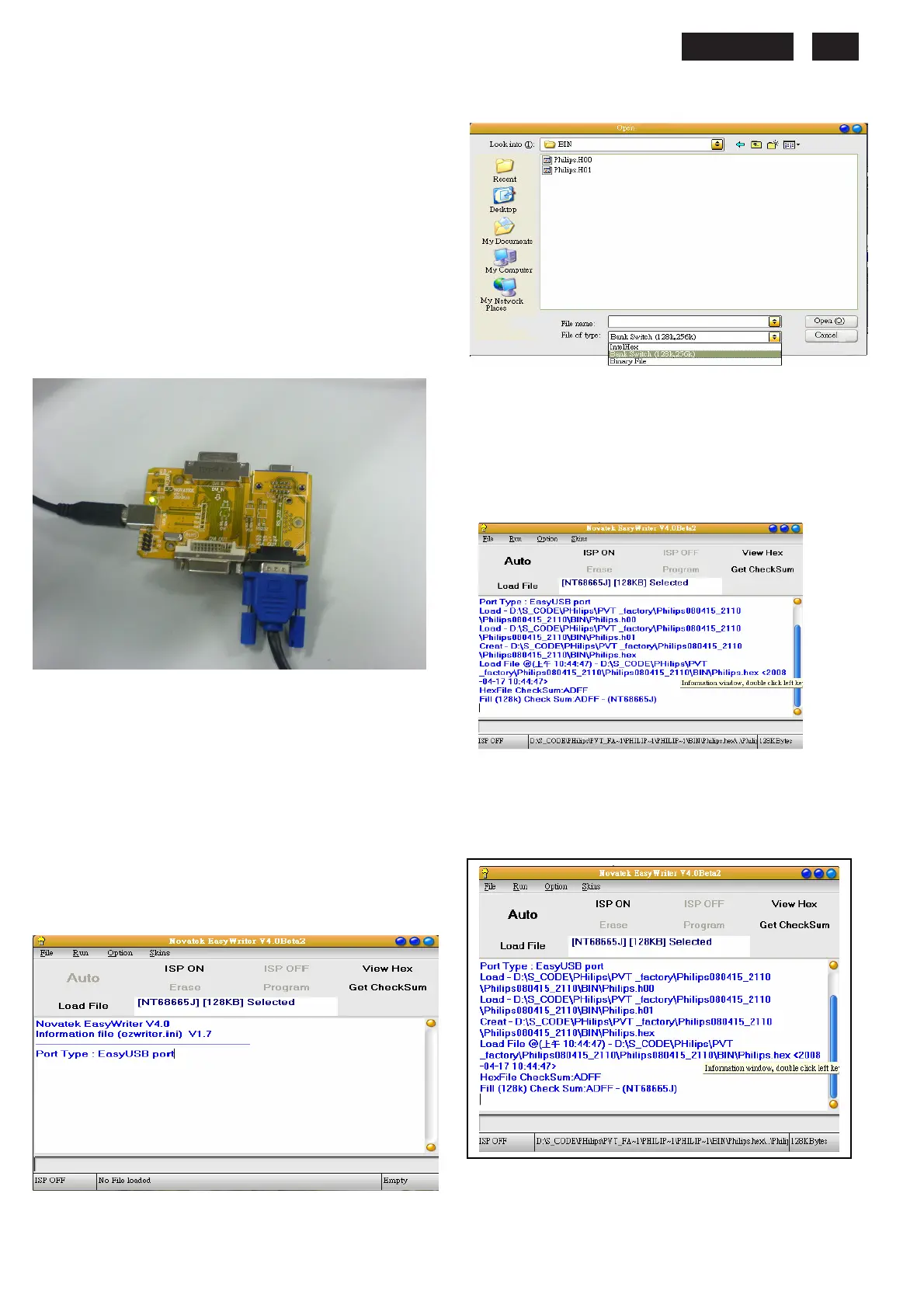
4. Firmware uploading tool, as shown in Fig1.
Fig1
* Connect the firmware uploading tool as Fig.1 shown.
* Before the servicer perform the ISP Tool program, the
Communicating connection must be well done.The USB
port connects to the computer. VGA port connects to the
Monitor.
* When the connection fixed, power on the monitor.
Setup and perform the ISP Tool program
1. Save the software in your PC, and create a shortcut
on the desktop.
2. Double click the ISP Tool. exe icon at the desktop then
appears window as shown in Fig. 2.
Fig.
2
3. Press the “Load File”button then select the path that
save hex file , then chose file type as “Bank
Switch(128K,256K)”as shown:
Fig3
4. Double press the “H00” file or “H01 file” ,then it acquires
the hex file automatically, and a message will be showed in
the dialog box to notice the operator. At this moment,
please verify the checksum of the hex file with the firmware
control table to make sure the suitable file will be used.
Mentioned firmware control table will be provided by
suppliers shown in Fig. 4.
Fig4
5. Press the “ISP ON” button ,then the dialog box will has the
information “ISP ON”,else has the information “ISP Fail”.If the
information is“ISP Fail ,check the connectivity ,then try it
again as shown in Fig. 5.
Fig. 5.
6. Press “Auto”button of the toolbox. Program will perform
the loading process automatically. When the loading process
completed, and the dialog box appeared the message of
Programing Success. If Program perform fail ,resume step 5.









 To Next Page