Troubleshooting Information and Safety
Safety
precautions
and
maintenance
WARNING:
Use
of
controls,
adjustments
or
procedures
other
than
those
specified
in
this
documentation
may
result
in
exposure
to
shock,
electrical
hazards
and/or
mechanical
hazards.
Read
and
follow
these
instructions
when
connecting
and
using
your
computer
monitor:
a.
To
protect
your
display
from
possible
damage,
do
not
put
excessive
pressure
on
the
LCD
panel.
When
moving
your
monitor,
grasp
the
frame
to
lift;
do
not
lift
the
monitor
by
placing
your
hand
or
fingers
on
the
LCD
panel.
b.
Unplug
the
monitor
if
you
are
not
going
to
use
it
for
an extensive
period
of
time.
c.
Unplug
the
monitor
if
you
need
to
clean
it
with
a
slightly
damp
cloth.
The
screen
may
be
wiped
with
a
dry
cloth
when
the
power
is
off.
However,
never
use
alcohol,
solvents
or
ammonia-based
liquids.
d.
Consult
a
service
technician
if
the
monitor
does
not
operate
normally
when
you
have
followed
the
instructions
in
this
manual.
e.
The
casing
cover
should
be
opened
only
by
qualified
service
personnel.
f.
Keep
the
monitor
out
of
direct
sunlight
and
away
from
stoves or
any
other
heat
source.
g.
Remove
any
object
that
could
fall
into
the
vents
or
prevent
proper
cooling
of
the
monitor’s
electronics.
h.
Do
not
block
the
ventilation
holes
on
the
cabinet.
i.
Keep
the
monitor
dry.
To
avoid
electric
shock,
do
not
expose it
to
rain
or
excessive
moisture.
j.
When
positioning
the
monitor,
make
sure
the
power
plug
and outlet
are
easily
accessible.
Installation
Locations
Avoid
exposure
to
heat
and
extreme
cold.
Do
not
store
or
use
the
LCD
monitor
in
locations
exposed
to
heat,
direct
sunlight
or
extreme
cold.
Avoid
moving
the
LCD
monitor
between
locations
with
large
temperature
differences.
Choose
a
site
that
falls
within
the
following
temperature
and
humidity
ranges.
Temperature:
0-35°C
32-95°F
Humidity:
20-80%
RH
Do
not
subject
the
LCD
monitor
to
severe
vibration
or
high
impact
conditions.
Do
not
place
the
LCD
monitor
in
the
trunk
of
a
car.
Take
care
not
to
mishandle
this
product
by
either
knocking
or
dropping
it
during
operation
or
transportation.
Do
not
store
or
use
the
LCD
monitor
in
locations
where
there
is
a
high
level
of
humidity
or
in
dusty
environments.
Do
not
allow
water
or
other
liquids
to
spill
on
or
into
the
LCD
monitor.
Trouble
Shooting
This
page
deals
with
problems
that
can
be
corrected
by
the
user.
If
the
problem
still
persists
after
you
have
tried
these
solutions,
contact
your
nearest
Philips
dealer.
k.
If
turning
off
the
monitor
by
detaching
the
power
cable
or
DC
power
cord,
wait
for
6
seconds
before
attaching
the
power
cable
or
DC
power
cord
for
normal
operation.
l.
To
avoid
the
risk
of
shock
or
permanent
damage
to
the
set,
do
not
expose
the
monitor
to
rain
or
excessive
moisture.
m.
IMPORTANT:
Always
activate
a
screen
saver
program
during
your
application.
If
a
still
image
in
high
contrast
remains
on
the
screen
for
an
extended
period
of
time,
it
may
leave
an
'after-image'
or
'ghost
image'
on
front
of
the
screen.
This
is
a
well-known
phenomenon
that
is
caused
by
the
shortcomings
inherent
in
LCD
technology.
In
most
cases,
the
afterimage will
disappear
gradually
over
a
period
of
time
after
the
power has
been
switched
off.
Be
aware,
that
the
afterimage symptom
cannot
be
repaired
and
is
not
covered
under warranty.
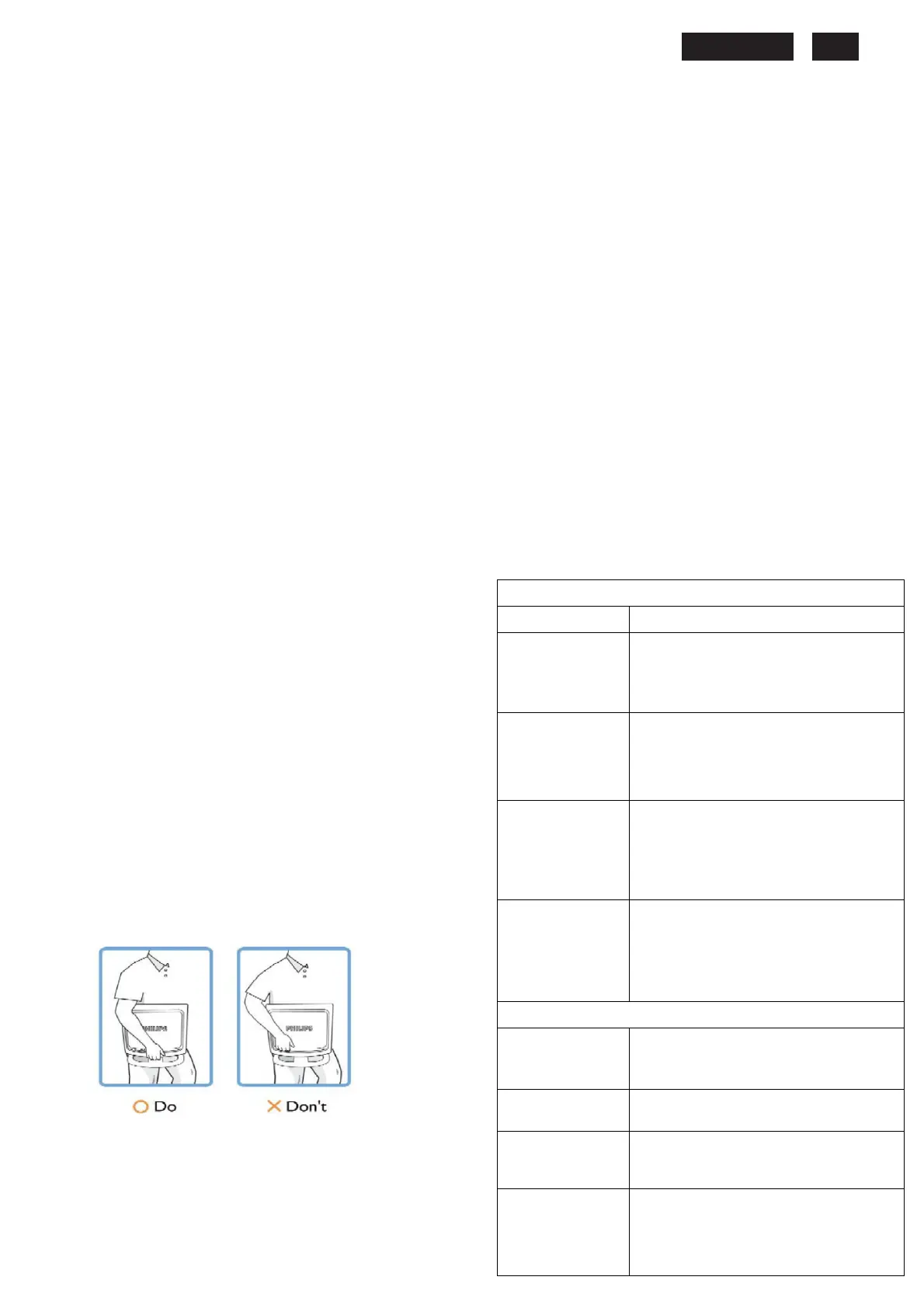
o. Warning
for
lifting
monitor
-
Do
not
use
the
area
underneath
the
logo
cover
to
grip
or
lift
the
monitor.
Placing
weight
on
the logo
cover
can
cause
it
to
break
away
from
the
body
and
cause
the
monitor
to
fall.
When
lifting
the
monitor,
place
one
hand
under
the
monitor's
frame.
*Consult
a
service
technician
if
the
monitor
does
not
operate
normally
when
the
operating
instructions
given
in
this
manual
have
been
followed.
Common
Problems
Having this problem
Check these items
No Picture
(Power LED not lit)
a. Make sure the power cord is plugged into the
power outlet and into the back of the monitor.
b. First, ensure that the power button on the front
of the monitor is in the OFF position, then
press it to the ON position.
No Picture
(Power LED is amber
or yellow)
a. Make sure the computer is turned on.
b. Make sure the signal cable is properly
b. connected to your computer.
c. Check to see if the monitor cable has
bent pins. d. The Energy Saving feature
may be activated.
a. Make sure the monitor cable is properly
connected to your computer.(Also refer to the
Quick Set-Up Guide).
b. Check to see if the monitor cable has bent
pins.
c. Make sure the computer is turned on.
AUTO button not
working properly
a. The Auto Function is designed for use on
standard Macintosh or IBM-compatible PCs
running Microsoft Windows.
b. It may not work properly if using nonstandard
PC or video card.
c. Make sure the computer is turned on.
Imaging Problems
Display position is
incorrect
a. Press the Auto button.
b. Adjust the image position using the
Phase/Clock of More Settings in OSD Main
Controls.
Image vibrates on the
screen
a. Check that the signal cable is properly
connected to the graphics board or PC.
Vertical flicker appears
a. Press the Auto button.
b. Eliminate the vertical bars using the
Phase/Clock of More Settings in OSD Main
Controls.
Horizontal flicker
appears
a. Press the Auto button.
b.Eliminate the vertical bars using the
b. Phase/Clock of More Settings in OSD Main
Controls.


 To Next Page
 Loading...