5�3�4 Change picture format
Change the picture format to suit your content.
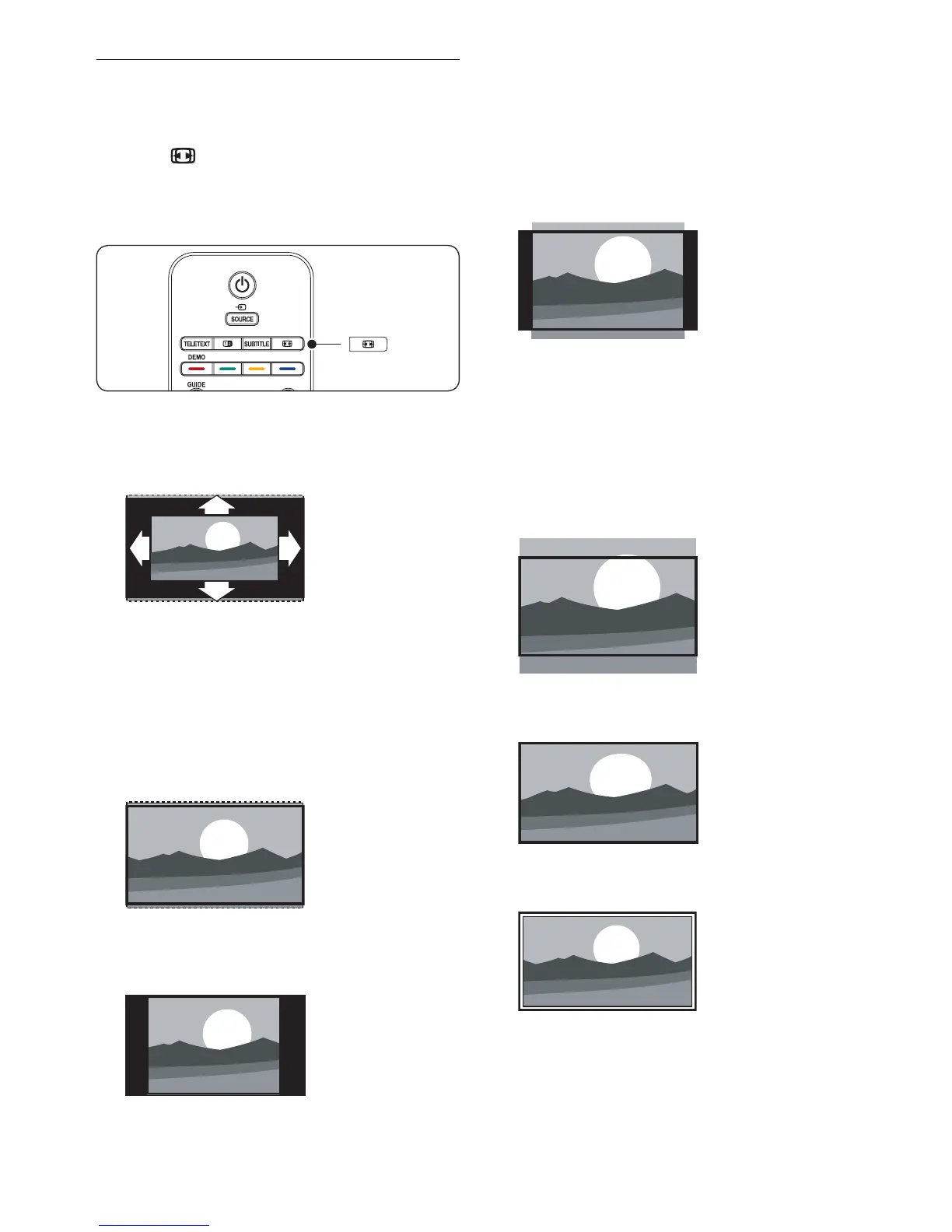
Press
1. PICTURE FORMAT on your
remote control. Alternatively, press MENU
and select TV menu > TV settings >
Picture > Picture format.
Press 2. Î or ï to select one of the following
picture formats:
Auto format• (Not for PC)
Enlarges the picture automatically to fill the
screen. Subtitles remain visible.
Note
D
We recommend you use Auto format for
minimal screen distortion.
Super zoom • (Not for HD)
Removes the black bars on the side of 4:3
broadcasts with minimal distortion.
4:3• (Not for HD)
Displays the classic 4:3 format.
Note D
Constant use of the 4:3
picture format can
cause screen distortion. We recommend
you use Auto format.
Movie expand 14:9• (Not for HD)
Scales the classic 4:3 format to 14:9.
Note
D
Constant use of the 14:9
picture format
can cause screen distortion. We recommend
you use Auto format.
Movie expand 16:9 • (Not for HD)
Scales the classic 4:3 format to 16:9.
Wide screen•
Stretches the classic 4:3 format to 16:9
Unscaled•
(Only for HD and PC)
Maximum sharpness though distortion may
appear on borders. Also, black bars may
appear with pictures from your PC.





 To Next Page