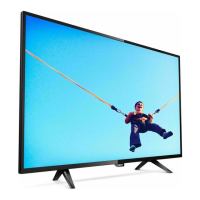
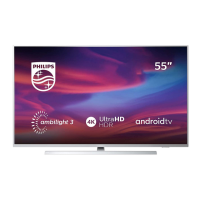
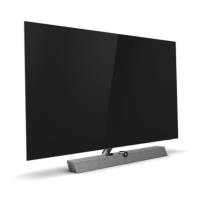
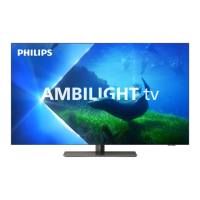
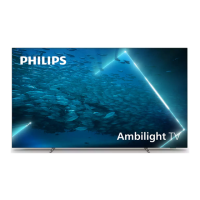
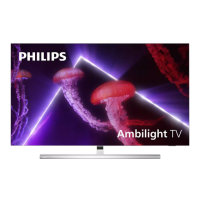
This document serves as a user manual for a Philips 5800 Series television, providing comprehensive instructions for its setup, operation, and maintenance. It is designed to help users maximize their viewing experience and ensure the longevity of their device.
Function Description
The Philips 5800 Series TV is a versatile entertainment hub, offering a wide range of functions for both casual and advanced users. Its primary function is to display television content, supporting various channel types including analog and digital (DVB-T/T2). Users can perform automatic or manual channel searches to set up their preferred channels. The TV also features an Electronic Program Guide (EPG), which allows users to view broadcast schedules, set program reminders, and even schedule recordings of their favorite shows.
Beyond traditional TV viewing, the device excels as a multimedia center. It can play various media files—pictures (JPEG), audio (MP3), and video (MPEG 2/4, H.264, H.265)—directly from USB storage devices. This feature enables users to enjoy their personal photo albums, music libraries, and video collections on the big screen. The TV supports different playback modes for music, including background music while viewing pictures, and offers options for video playback such as fast forward, rewind, and previous/next track selection.
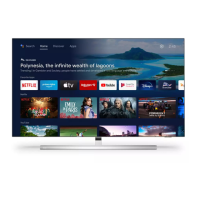
A key feature of the Philips 5800 Series is its "Smart TV" functionality. By connecting the TV to the internet, users can access a variety of applications from an app store, manage installed apps, and quickly switch between them. This opens up a world of online content and services, transforming the TV into an interactive platform. The Smart TV interface is designed for ease of use, though some apps may require mouse operation.
The TV also incorporates Philips EasyLink, which utilizes HDMI CEC (Consumer Electronics Control) to allow users to operate connected devices with the TV's remote control. This simplifies the control of multiple devices, such as Blu-ray players or sound systems, through a single remote. Users can enable or disable EasyLink and configure HDMI audio output settings.
Screen Sharing is another innovative feature, enabling multi-screen interaction where content from a mobile device can be mirrored onto the TV screen, with sound playing synchronously through the TV speakers. This is particularly useful for sharing photos, videos, or presentations from a smartphone or tablet.
For personalized viewing and listening, the TV offers extensive picture and sound settings. Users can choose from predefined picture styles (Vivid, Standard, Natural, Personal) or manually adjust parameters like contrast, brightness, color saturation, sharpness, and color temperature. Advanced picture settings include noise reduction. Similarly, sound settings can be customized with predefined sound styles (Standard, News, Cinema, Personal) or manually adjusted for bass, mid-range, treble, balance, and surround sound. Advanced sound options include SPDIF mode selection and settings for hearing impaired functions.
The TV also includes practical utility functions such as a Sleep Timer, which automatically switches the TV to standby after a specified period, and an Auto Standby mode. A Quick Boot feature is available to reduce TV rebooting time. Software updates can be performed automatically via network connection or manually using a USB storage device, ensuring the TV's software remains current and optimized.
Usage Features
Operating the Philips 5800 Series TV is designed to be intuitive, primarily through its remote control. The remote control features dedicated buttons for common functions, including power on/off/standby, volume control, channel switching, input source selection, and multimedia playback controls (stop, pause, fast backward, play, fast forward). Navigation keys (up/down/left/right) and an OK button are central to menu navigation and selection. Numeric keys allow for direct channel input.
The TV's control panel also includes an OK joystick key for basic operations like turning on the TV, displaying the source menu, and navigating auxiliary menus. An indicator/remote signal receiving window ensures reliable communication with the remote control.
Switching between different content sources is straightforward. Users can press the "SOURCES" button on the remote to bring up a list of connected devices and select their desired input. Adjusting volume is done with the volume +/- keys, and muting/unmuting with the dedicated mute button. Channels can be switched sequentially using the channel +/- keys or directly by entering a channel number. The channel list can also be accessed and navigated for selection.
The TV menu, accessed via the "SETUP" button, provides a structured interface for configuring all aspects of the TV. This includes settings for picture, sound, ECO settings, TV functions, language, network connection, channel management, and parental control. The menu is navigated using the remote's navigation keys and OK button.
For multimedia playback from USB, users simply connect a USB storage device to the TV's USB port. The TV's browser then allows for easy navigation through folders and files to select pictures, music, or videos for playback. Specific controls for multimedia playback are available on the remote.
Network setup is crucial for Smart TV features and screen sharing. The TV supports both wired (Ethernet) and wireless (Wi-Fi) network connections. Users can configure network settings manually or use DHCP for automatic configuration. Wireless network installation includes options for connecting to WPS networks.
Screen sharing involves enabling the function on the TV and then initiating a connection request from a compatible mobile device using its WLAN/wireless display function. Once connected, the mobile device's screen content is mirrored.
Maintenance Features
The manual emphasizes several key aspects of TV maintenance to ensure safe and optimal performance.
Safety Precautions:
- Electrical Safety: Never expose the TV to rain or water, and keep liquid containers away. Disconnect the TV from the power outlet immediately if liquid spills on or into it. Always pull the power plug, not the cord, when disconnecting. Ensure full access to the power plug and outlet.
- Heat and Fire Safety: Keep the TV, remote, and batteries away from naked flames or other heat sources, including direct sunlight. Never install the TV in a confined space; maintain at least 4 inches (10 cm) of ventilation space around it.
- Physical Safety: Two people are required to lift and carry TVs weighing over 25 kg (55 lbs). Use only the supplied stand and secure it tightly. For wall mounting, use only a compatible wall mount that can support the TV's weight. Never lay the TV on its back with the stand installed. Handle glass parts with care.
- Children's Safety: Follow precautions to prevent the TV from toppling over, such as not placing it on surfaces covered by pullable cloths, ensuring no part hangs over edges, and anchoring tall furniture. Educate children about climbing hazards.
- Battery Safety: Keep coin-type batteries (found in the remote) out of reach of children to prevent swallowing.
- Hearing Safety: Avoid using earphones or headphones at high volumes for prolonged periods.
Screen Care:
- Avoid Stationary Images: Minimize the display of stationary images (e.g., on-screen menus, black bars, time displays) for extended periods to prevent screen damage. If stationary images are necessary, reduce screen contrast and brightness.
- Cleaning: Unplug the TV before cleaning. Use a soft, damp cloth for the TV and frame. Avoid alcohol, chemicals, or household cleaners.
- Physical Protection: Never touch, push, rub, or strike the screen with any object. Wipe off water drops immediately to prevent deformations and color fading.
Troubleshooting:
The manual provides a troubleshooting section for common issues:
- Power Issues: If the TV won't switch on, check the power cable connection and try disconnecting/reconnecting it.
- Remote Control Issues: Check battery orientation, replace weak batteries, and clean the remote and TV sensor lens.
- Language Issues: Instructions are provided to change the TV menu language.
- Creaking Sounds: Explains that creaking sounds during power on/off are normal due to expansion/contraction and do not impact performance.
- Channel Issues: If channels don't appear, verify the correct channel list is selected.
- Picture Issues: For no picture or poor picture quality, check antenna connection, source selection, and picture settings. For poor reception, check antenna connection and try adjusting its direction or moving interfering devices. Fine-tuning channels may help. For connected devices, ensure proper connection and correct picture settings. For incorrect picture size or position, try different picture formats or check the device's signal output.
- Sound Issues: For poor sound quality, check cable connections, volume level, mute status, and sound settings. For sound from only one speaker, verify sound balance is centered.
- HDMI Connection Issues: Addresses delays, non-recognition of devices, and intermittent sound disruptions, advising to switch signal sources or check output settings.
- Network Connection Issues: For internet connection failures, check the router's connection to the internet. For slow network speed, refer to the router manual and consider upgrading broadband speed.
Recycling:
The product is designed with high-quality, recyclable materials. Users are instructed to dispose of old products and batteries according to local regulations, separate from normal household waste, to prevent negative environmental and health consequences.
Environmental Protection Use Period:
The manual indicates an Environmental Protection Use Period of 10 years, during which toxic and hazardous substances within the product are not expected to leak or cause serious pollution or harm, provided the product is used according to the manual. This period does not cover consumable parts like batteries.
Open Source Software:
The document also includes a section on open source software used in the TV, offering information on how to obtain the corresponding source code and providing license statements.



 To Next Page
 General