Direction of Use
8-3
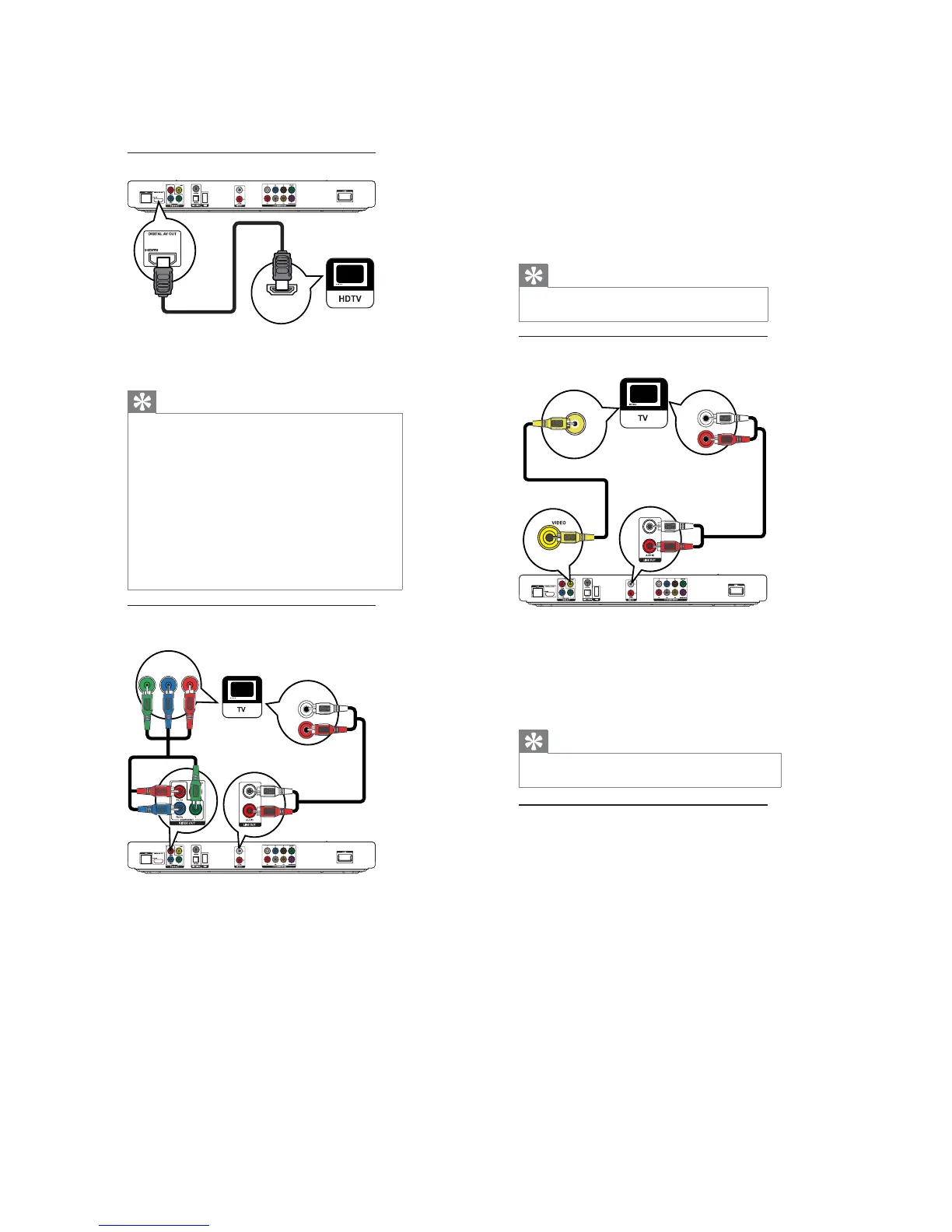
Option 1: Connect to the HDMI jack
1 Connect an HDMI cable (not supplied) to:
the• HDMIjackonthisproduct.
the HDMI input jack on the TV.•
Tip
If the TV has a DVI connector only, connect via an HDMI/•
DVI adaptor. Connect an audio cable for sound output.
Youcanoptimizethevideooutput.Pressthe
• HDMI
button repeatedly to select the best resolution the TV
can support.
If this product connects to a TV compatible with 1080p
•
or 1080p/24Hz, Philips recommends HDMI category 2
cable, also known as High Speed HDMI cable, for optimal
video and audio output.
To play the digital video images of a BD-video or DVD-
•
video via an HDMI connection, it is necessary that both
this product and the display device (or an AV receiver/
amplL¿er) support a copyright protection system called
HDCP (high-bandwidth digital content protection system).
This type of connection provides best picture quality.
•
Option 2: Connect to the component
video jack
1 Connect the component video cables
(not supplied) to:
HDMI IN
PbY
Pr
AUDIO IN
the• YPb/CbPr/Crjacksonthisproduct.
the COMPONENT VIDEO input jacks•
on the TV.
2 Connect the audio cables to:
the• LINEOUT/AUDIO -L/Rjackson
this product.
the AUDIO input jacks on the TV.•
Tip
ThecomponentvideoinputjackontheTVmightbe•
labeled as Y Pb Pr or YUV.
Option 3: Connect to the composite
video jack
1 Connect a composite video cable to:
the• VIDEOjack on this product.
theVIDEOinputjackontheTV.•
2 Connect the audio cables to:
the• LINEOUT/AUDIO-L/Rjacksonthis
product.
the AUDIO input jacks on the TV.•
Tip
The video input jack on the TV might be labeled as A/V•
IN,VIDEOIN,COMPOSITEorBASEBAND.
Route audio to other devices
You can route the audio from this product to other
devices.
AUDIO IN
VIDEO IN


 To Next Page