16 EN
Control play
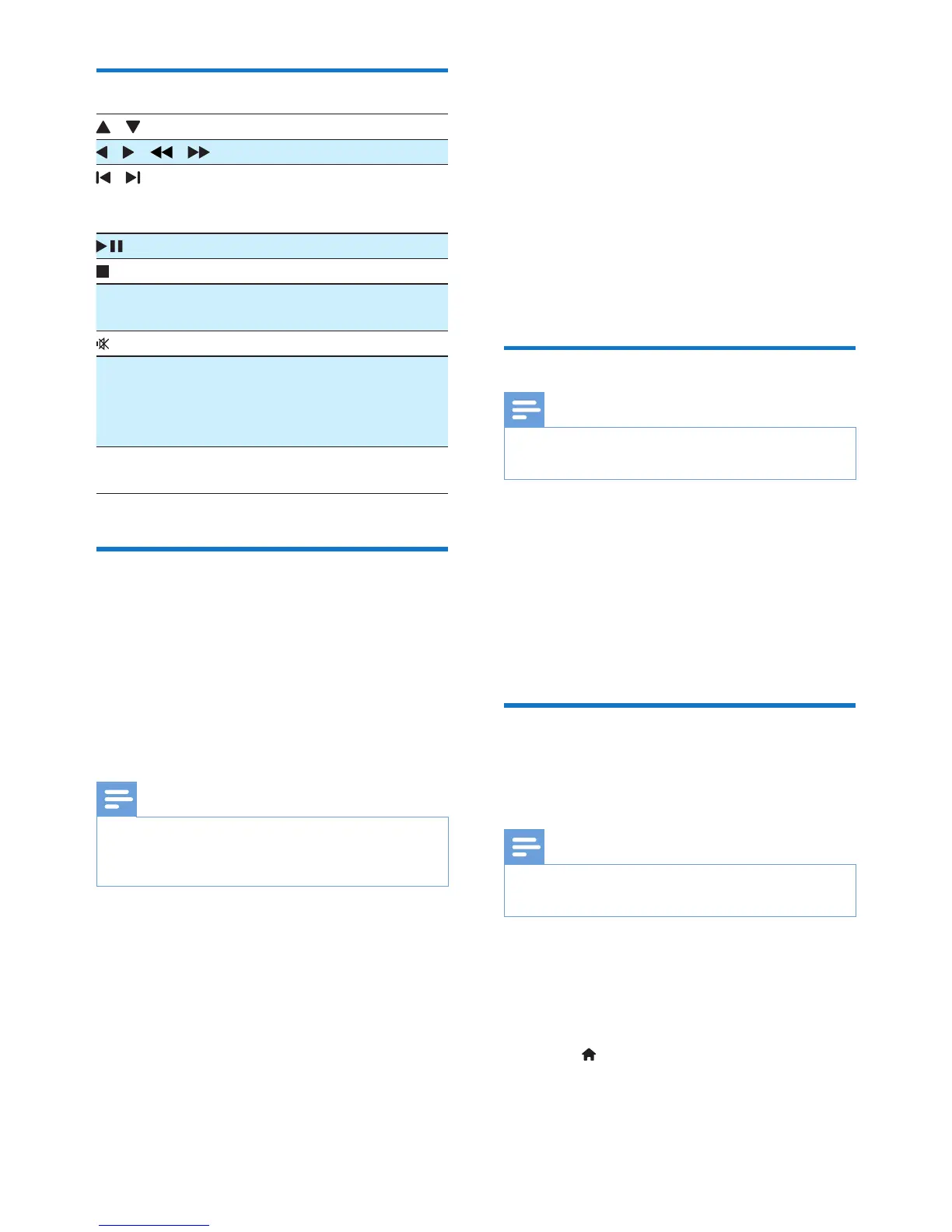
/ Select a folder.
/ ( / ) Fast backward/forward.
/ Skip to the previous or
next title/chapter/track/
le.
Pause or resume play.
Stop play.
+/- Increase or decrease
volume.
(mute) Mute or restore sound.
SOUND Enrich sound effect with
DSC: balanced, clear,
powerful, warm, and
bright.
DISPLAY View playback
information.
Play options
In DISC/USB play mode, press OPTION to
select different play options.
• [PBC]: turn PlayBack Control on/off.
• [Aspect Ratio]: select a picture display
formattottheTVscreen.
• [Angle]: switch between camera angles.
Note
• Some DVDs contain alternate scenes, such as scenes
recorded from different camera angles. For such DVDs,
you can select from the available alternate scenes.
• [Microphone]: turn on or off the
microphone sound output.
• [Karaoke Setup]: increase or decrease the
volume level and echo level of microphone
input, and the key level of music.
• [Vocal]: select various Karaoke audio
modes, or turn off the original vocal.
• [Zoom]: during video play, zoom in/out to
pan through the image.
• [Repeat]: choose a repeat play option or
turn off the repeat function.
• [GOTO]: during video play, specify a
position to start play by entering the
desired time or number.
• [Slow Backward] & [Slow Forward]:
during video play, select a slow backward/
forward speed.
Change the audio channel
Note
• This feature is only available for VCDs and DivX (Home
Theater3.1)videos.
During play, press AUDIO repeatedly to select
an audio channel available on the disc:
• [Mono Left]
• [Mono Right]
• [Mix-Mono]
• [Stereo]
Enjoy karaoke
Youcanconnectamicrophone(notsupplied)
to sing along with a music source.
Note
• Before you connect a microphone, set the microphone
volume to the minimum level to prevent howling.
1 Insert a Karaoke disc.
2 Connect a microphone to the MIC IN
socket on the front panel.
3 Press , and then select [Karaoke].
4 Turn on the microphone sound output
(see “Adjust karaoke settings“).


 To Next Page