14 EN
Change the audio channel
Note
• This feature is only available for VCDs and DivX (Home
Theater 3.1) videos.
During play, press AUDIO repeatedly to select
an audio channel available on the disc:
• [Mono Left]
• [Mono Right]
• [Mix-Mono]
• [Stereo]
Play from USB or recored
discs
You can play DivX (Home Theater 3.1)/MP3/
JPEGpicturelescopiedontoaCD-R/RW,
recordable DVD, or USB storage device (Cable
USB device is not applicable for this unit).
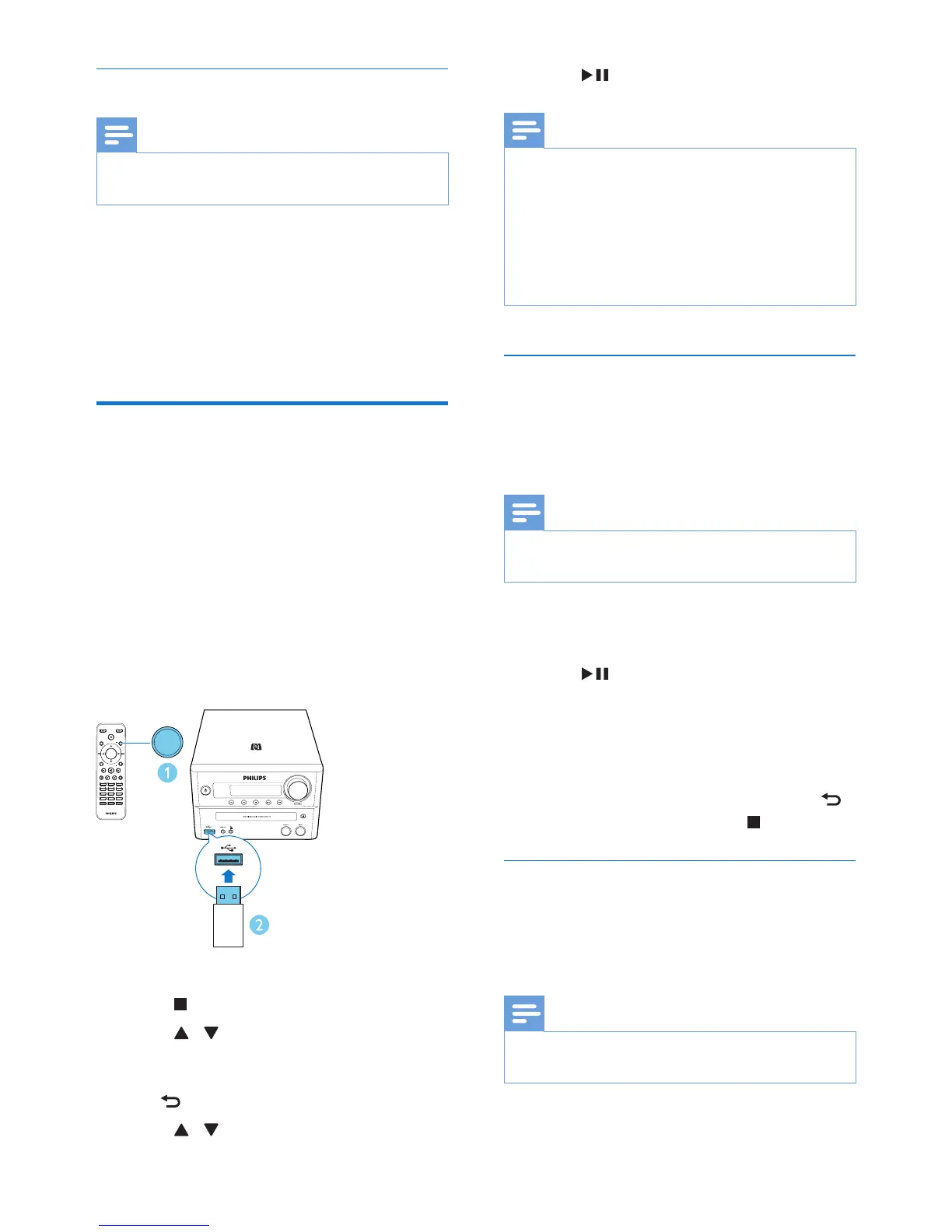
1 Press SOURCE repeatedly to select the
DISC or USB source.
2 Insert a disc or a USB storage device.
» Play starts automatically.
To play a specied le:
1 Press to stop play.
2 Press / to select a folder, and then
press OKtoconrm.
• To return to the previous menu, press
.
3 Press / toselectalefromthefolder.
SOUND
DISPLAY
STANDBYEJECT
OK
1
4
7
0
2
5
8
3
6
9
TIME
RDS
PROG
CLOCK SETSLEEP
OPTION
MENU
PRESET
AUDIO/
PRESET
SUBTITLE/
SOURCE
SOURCE
4 Press to start play.
Note
• You can only play DivX (Home Theater 3.1) videos
rented or purchased through the DivX registration
code of this unit.
• Subtitleleswiththefollowinglenameextensions(.srt,
.smi, .sub, .ssa, .ass) are supported but do not appear on
thelenavigationmenu.
• Thesubtitlelenamehastobethesameasthele
name of the video.
Play a slideshow with background
music
ThisdevicecanplayMP3lesandJPEGphotos
simultaneously.
Note
• TheMP3andJPEGlesmustbestoredonthesame
disc or USB storage device.
1 PlayanMP3le.
2 Navigate to the photo folder/album and
press to start the slideshow.
» Slideshow begins and continues till the
end of the photo folder or album.
» Audio continues till the end of the last
le.
• To return to the previous menu, press .
• To stop the slideshow, press .
Charge your device
You can charge your device through the USB
socket on this unit with a USB cable (not
supplied).
Note
• The maximum current for USB charging is 1 A.
• All devices for USB charging are not guaranteed.



 To Next Page