21EN
7 Adjust settings
1 Press .
2 Select the [Setup] page.
3 Select a setting and press OK.
• To return to the previous menu, press
.
• To exit the menu, press .
General setup
On the [General] page, you can set the
following options:
[Disc Lock]: Lock or unlock a disc.
[OSD Language]: Select the preferred language
for on-screen display.
[DivX(R) VOD Code]: Display the DivX(R)
registration code.
Note
• Enter this DivX registration code when you rent or
purchase a video from http://vod.divx.com/. The DivX
videos rented or purchased through the DivX
®
VOD
(Video On Demand) service can be played only on the
device to which it is registered.
Video setup
On the [Video] page, you can set the following
options:
[TV System]: Change this setting if the video is
not displayed correctly. By default, this setting
matches the most common setting for TVs in
your country.
• [PAL]: For TV with PAL color system.
• [Multi]: For TV that is compatible with both
PAL and NTSC.
• [NTSC]: For TV with NTSC color system.
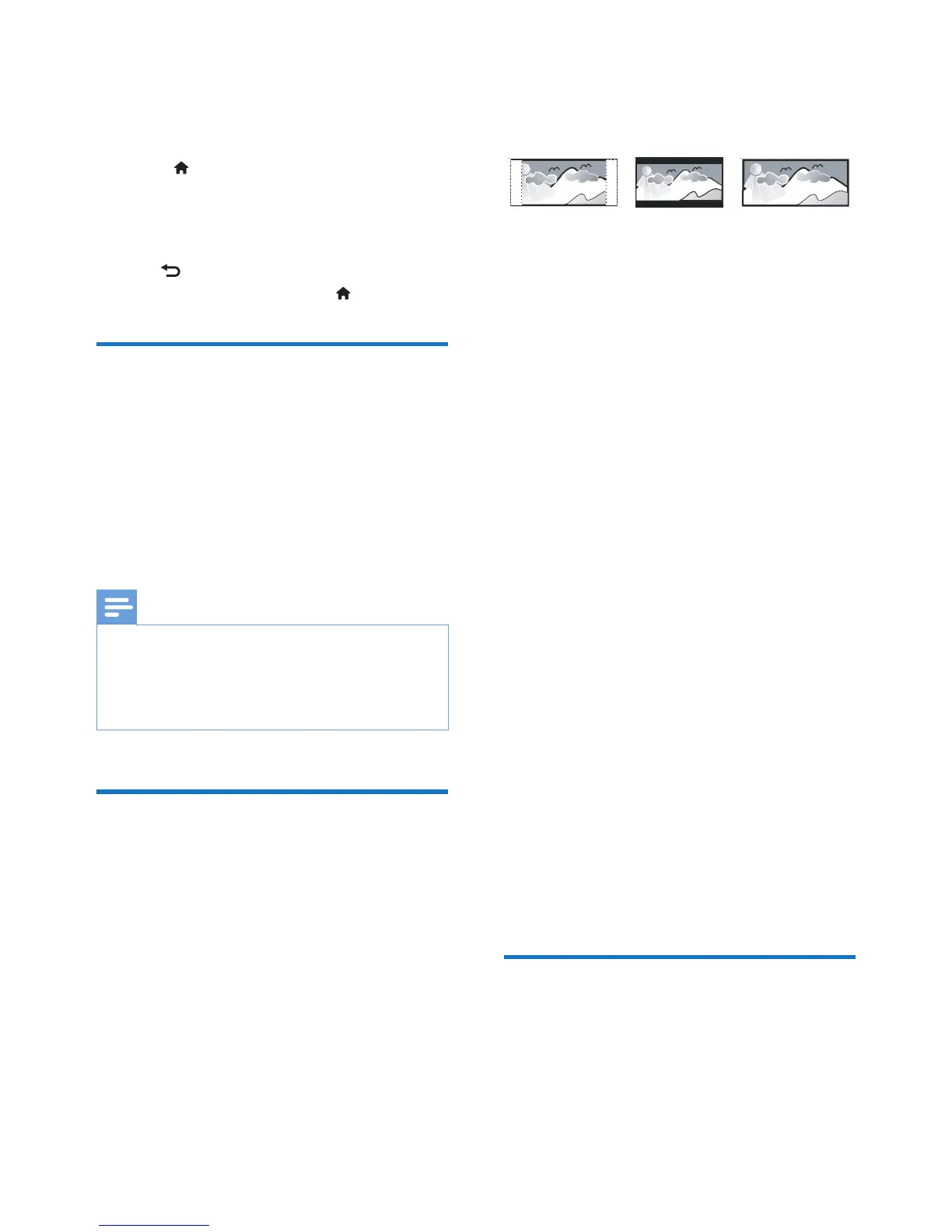
[TV Display] (TV display):The TV format
determines the aspect ratio of display according
to the type of TV you have connected.
• [4:3 Pan Scan]: full-height display with the
trimmed sides.
• [4:3 Letter Box]: wide-screen display with
black bars on the top and bottom of the
screen.
• [16:9]: display ratio 16:9.
[Picture Setting]:Selectapredenedsetof
picture color settings.
• [Standard]: original color setting.
• [Bright]: vibrant color setting.
• [Soft]: soft color setting.
• [Personal]: customizes the color setting.
Set the level of brightness, contrast, tint,
and color saturation, and then press OK.
[HD JPEG](HDJPEG):Selectapredenedset
of picture color settings.
[HDMI Setup]: Access the following setup
through HDMI connection.
• [Resolution]: Select a resolution for high
denitionvideos.
• [HDMI Deep Color] (HDMI deep color):
Recreate the natural world on your TV
screen by displaying vivid images using
billion colors. Your home theater must be
connected to a Deep Color enabled TV
through an HDMI cable.
• [Wide Screen]: Select a display format for
wide screen videos.
• [EasyLink Setup]: Set up EasyLink control.
Audio setup
On the [Audio] page, you can set the following
options:
[HDMI Audio]: Set the HDMI audio output
from your TV, or disable HDMI audio output
from the TV.
4:3 Letter Box (LB)
4:3 Pan Scan (PS)
16:9 (Wide Screen)



 To Next Page