22 EN
3 Tap
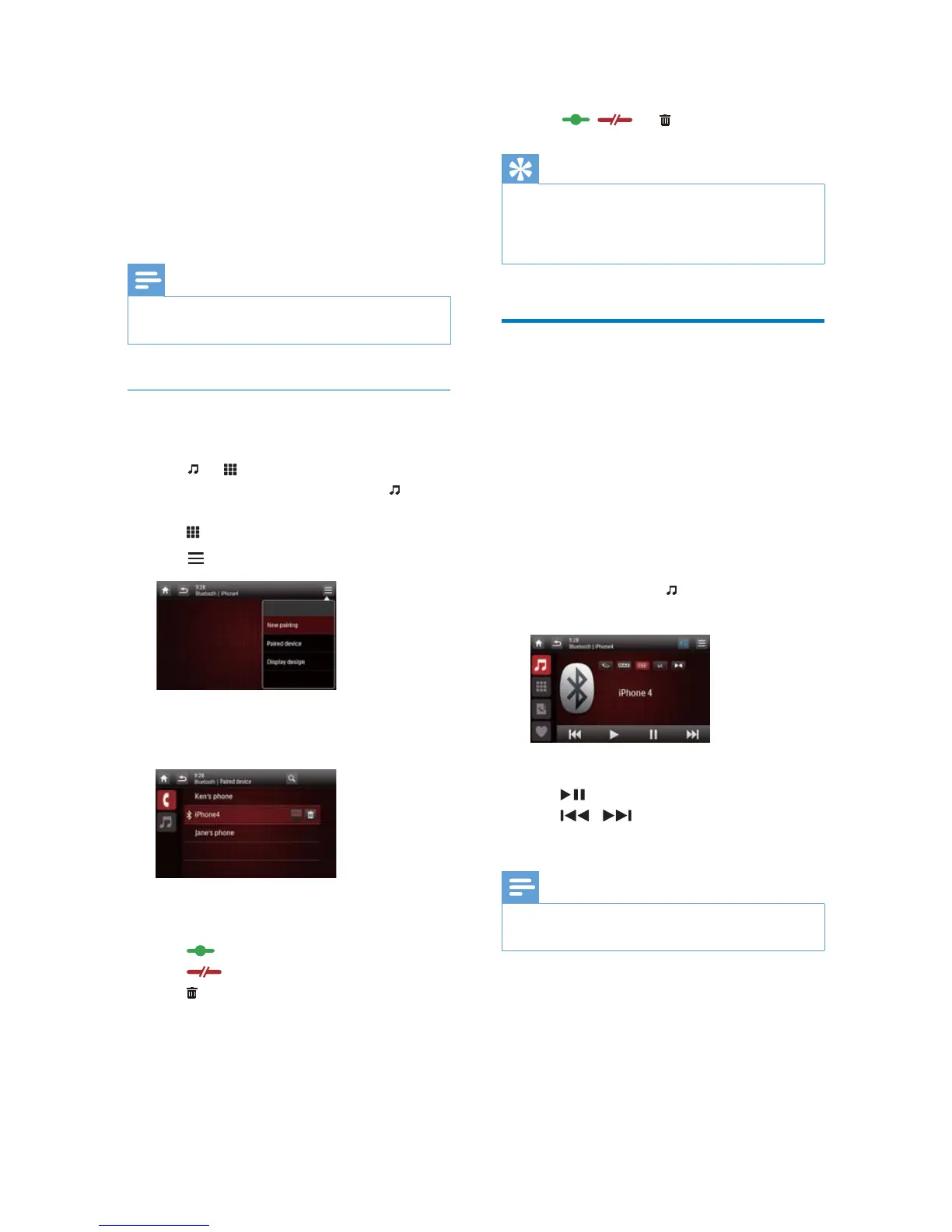
[New pairing]
to start searching for
Bluetooth devices.
4 Repeat steps 3 to 5 that are indicated in
WKHDERYHVHFWLRQ3DLUWKHÀUVWGHYLFH
VHH3DLUWKHÀUVWGHYLFHRQSDJHWR
complete the connection.
Note
You can connect a music player and a mobile phone
simultaneously.
Manage paired devices
1 Activate the Bluetooth function.
2 Tap or .
To manage paired players, tap
.
To manage paired mobile phones, tap
.
3 Tap on the top right corner.
4 Tap [Paired Device].
» The list of paired devices is displayed.
5 Tap the name of the paired device that you
want to reconnect, disconnect, or delete.
: Tap to reconnect the device.
: Tap to disconnect the device.
: Tap to delete the device from the
list of paired devices.
6 Tap , , or .
Tip
If you want to manually reconnect a device after the
connection is interrupted, disable the function of
automatic connection (see 'Adjust Bluetooth settings'
on page 29).
Play audio from a connected
device
If the connected Bluetooth device supports
$GYDQFHG$XGLR'LVWULEXWLRQ3URÀOH$'3
you can listen to tracks that are stored on the
device through the system. If the device also
VXSSRUWV$XGLR9LGHR5HPRWH&RQWURO3URÀOH
$95&3SURÀOH\RXFDQFRQWUROSOD\RQWKH
system or with its remote control.
1 Play a track on the connected device.
2 On this system, tap to display the music
playback interface.
3 Tap icons on the interface to control play.
: Pause or resume play.
/ : Select the previous or
next track.
Note
If the connected device does not support the AVRCP
SURÀOHFRQWUROSOD\RQWKHFRQQHFWHGGHYLFH


 To Next Page