21
English
EN
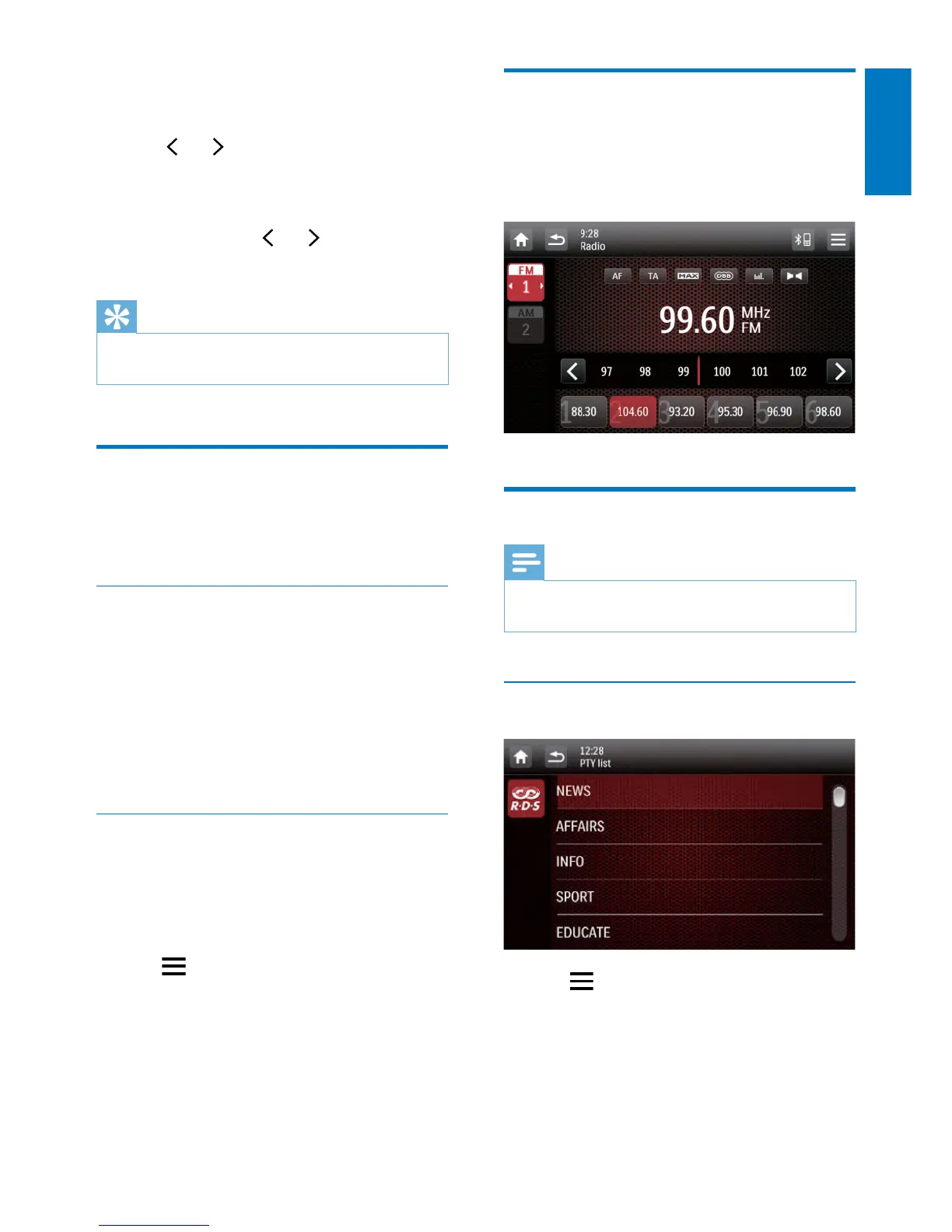
1 Tap FM or AM to select a band.
• FM bands: FM1, FM2, FM3
• AM bands: AM1, AM2
2 Tap or repeatedly until the
frequency of target radio station is
displayed.
• To tune to a radio station automatically,
tap and hold
or until the
frequency digits start change.
Tip
•
You can also press BAND on the remote control
repeatedly to select a band.
Store radio stations in
memory
You can store up to 6 stations in each band.
Store radio stations manually
1 Select a band.
2 Tune to the target radio station.
3 Tap and hold one of the channels (1 to 6)
over two seconds.
» The radio station is saved under the
selected channel.
Store radio stations automatically
You can search for a radio station with intro
search, which broadcasts a 10-second preview
of each detected radio station.
1 Select a band.
2 Tap .
3 Tap [Auto Store].
» Auto search starts. The six strongest
stations of the selected band are saved
in preset channels automatically.
Tune to a preset radio station
1
Select a band.
2 Tap one of the preset channels (1 to 6) to
select a preset radio station.
Use RDS related features
Note
•
Only after RDS feature is enabled, you can use RDS
related features.
Search for RDS programs of a specic
type
1 Tap > [PTY list] to display the list of
program types.
2 Tap the name of a program type to start
search.
» Once an RDS station that transmits
programs of the selected type is


 To Next Page