28 EN
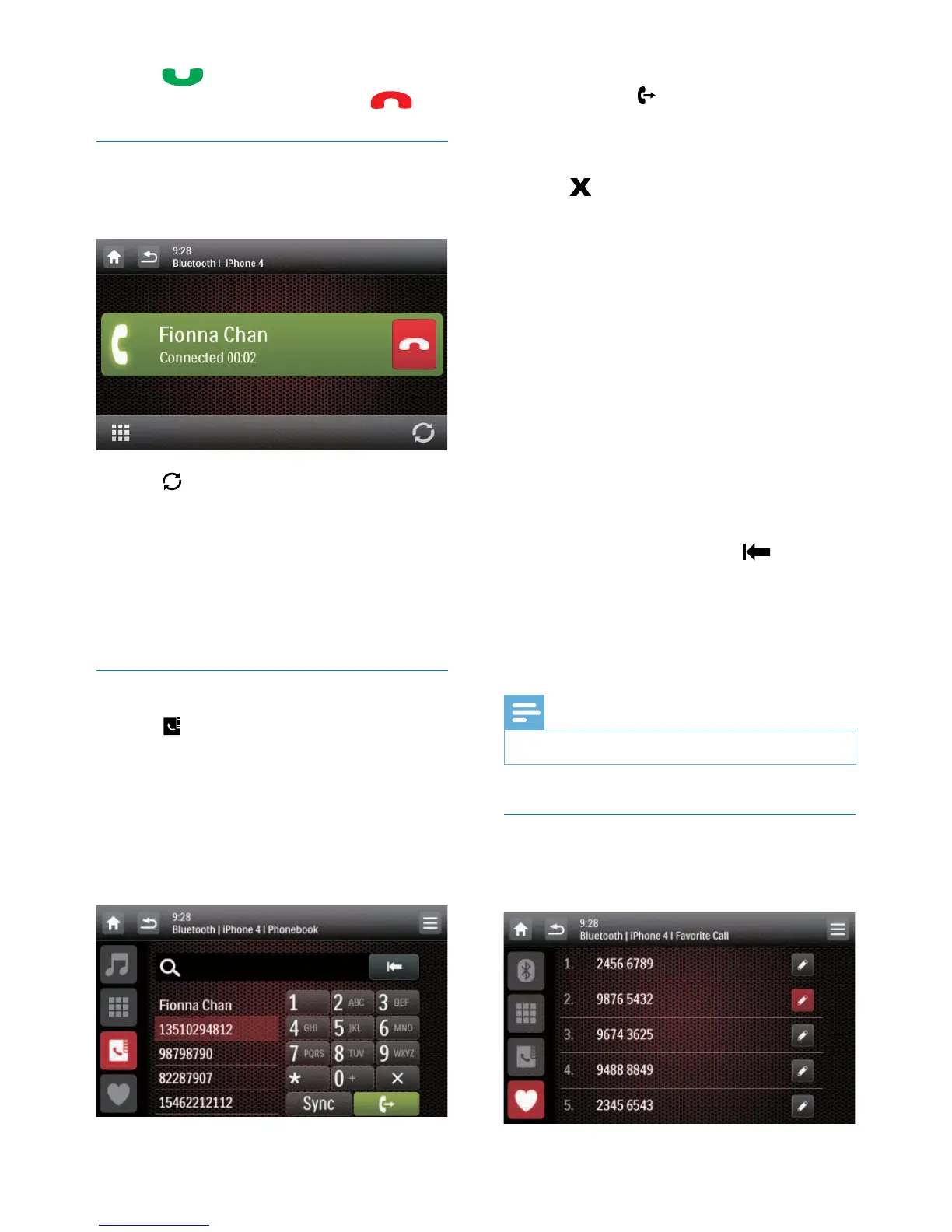
2 Tap to answer the call.
• To reject or end the call, tap
.
Transfer a phone call to mobile phone
By default, the voice comes from the
loudspeakers during a call.
1 Tap to transfer the phone call to your
mobile phone.
» The loudspeakers are muted, and the
voice comes from the mobile phone
only.
2 Take up your mobile phone for the
conversation.
Use the on-screen phone book
1 Tap to display the phone book
interface.
2 Tap [Sync] to start synchronizing the
phone book with your mobile phone.
» [Synchronizing...] is displayed.
» After the synchronization is complete,
the contact list is displayed.
3 Tap the name of a contact from the list,
and then tap
to send a call.
Manage the phone book
1 Tap the name of a contact from the list.
2 Tap .
» The following options are displayed.
• [Delete one]: Delete the selected
contact.
• [Delete all]: Delete all contacts.
• [Cancel]: Return to the phone book
interface.
3 Tap one of the options and conrm.
Search for a contact
Tap the alphanumeric icons to enter the
keyword.
• To enter the rst letter displayed on the
icon, tap it once.
• To switch between letters and the digit, tap
an icon briey and repeatedly.
• To delete the last input, tap
.
» The system searches for contacts
whose name include the keyword.
» If no contact is found, [No match] is
displayed.
Note
•
Up to 5 characters can be entered as the keyword.
Edit the favorite call list
Save the number of a contact into the favorite
call list, and then you can send a call quickly.


 To Next Page