4
2. Operation
NOTE: Thecontrolbuttondescribedinthissectionismainlyonthe
remotecontrolunlessspeciedotherwise.
2.1. Watch the Connected Video Source
1. Press
[ ] SOURCEbutton.
2. Press[ ]
or[ ]buttontochooseadevice,thenpress[ ]
button.
2.2. Change Picture Format
Youcanchangethepictureformattosuitthevideosource.Eachvideo
sourcehasitsavailablepictureformats.
Theavailablepictureformatsdependonthevideosource:
1. Press[ ] FORMATbutton.
2. Press[ ]
or[ ]buttontochooseapictureformat,thenpress
[ ]button.
• PCmode:{Full}/{4:3}/{1:1}/{16:9}/{21:9}/{Custom}.
• Videomode:{Full}/{4:3}/{1:1}/{16:9}/{21:9}/{Custom}.
2.3. Overview
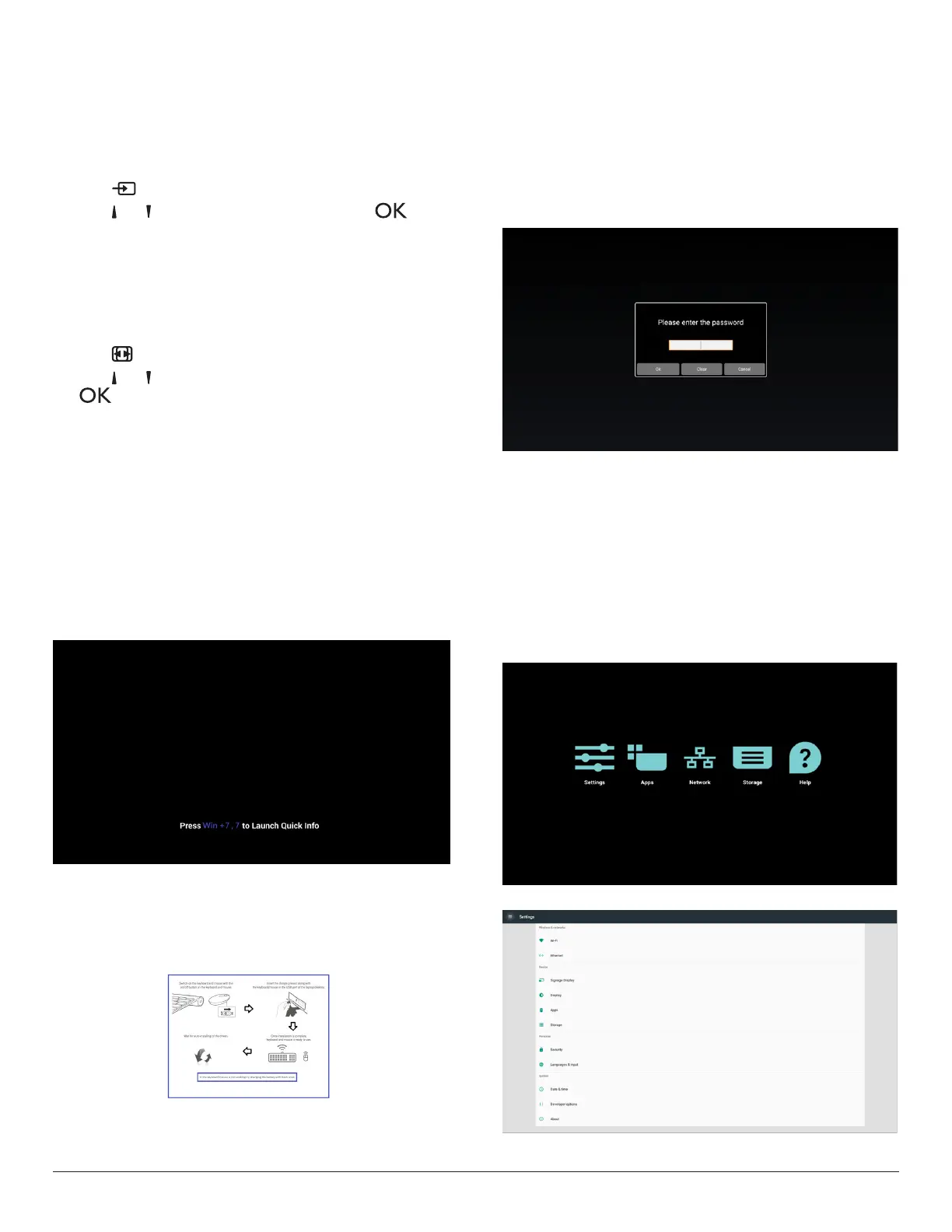
1. Androidlauncher:
• Androidlauncherasbelow:
(SourceisoneofBrowser,MediaPlayer,PDFPlayer,SmartCMS
andCustomAPKs)
Whenbootinganimationnished,launchercanappear.Ifa
sourcewasselected,thenitwilllaunchtheselectedsource
immediately.Ifnosourceselected,thenitgoestothefollowing
page.
• Forafewseconds,itwillbeablackscreen.
Note:anytime,systemwillshowthefollowingpictureifnoHID
inputdevice(USBkeyboardormouse),canbedetectedby
system.
2. Adminmode:
• Youcanpress“WIN,1,8,8,8”tostartupadminmode.(Or
byup/downdragging,verticaldistance>screenheight/4to
startupadminPINqueryfortouchhostPD.)Youhavetoinput
passwordbeforeAdminmode.
Note:Defaultpasswordis0000
Inputcorrectpasswordforvalidation,thenyoucanSelect
Settings >> Signage Display >> System tools >> Password
tochangepassword.
• Adminmodewillshowveicons:“Settings”,“Apps”,“Network”,
“Storage”and“Help”.
• Whenyouleaveadminmode,systemwillreturntoLauncher.
1)Homepageofadminmode,thispagehasveitems:“Settings”,
“Apps”,“Network”,“Storage”and“Help”.
Settings:gotosettingsapp.
Applications:showallapps.
Network:setWi-,EthernetandMobilenetwork(optional).
Storage:gotostoragepage
Help:displayQRcode.
2.)Settingspage:


 To Next Page