7
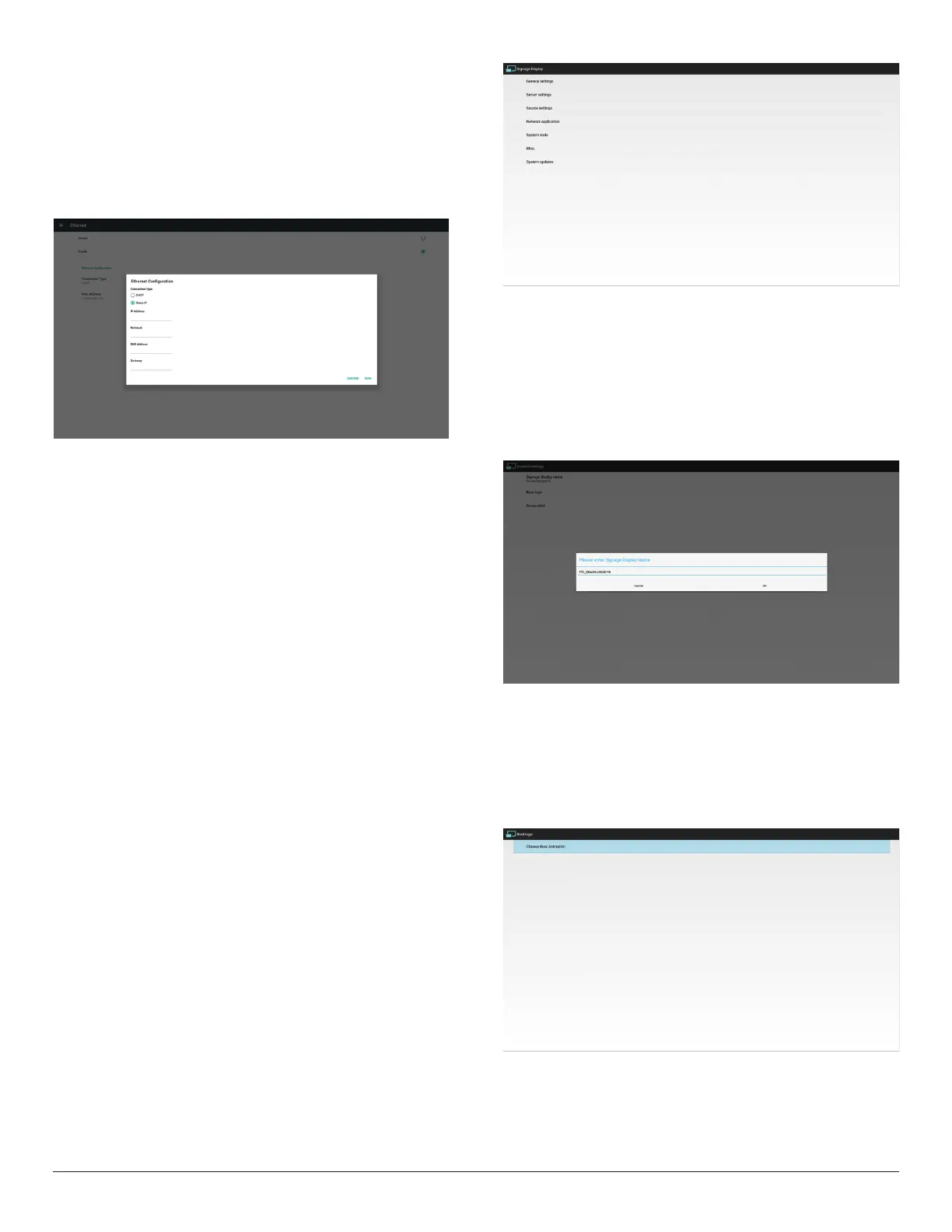
3.3.2. Static IP
InStaticIPmode,usercaninputIPAddress,Netmask,DNSaddressand
Gateway
Note:
IPaddress,netmask,DNSaddressandgatewayaddressinputlimitation
(1)Format:
I. number0-9
II. decimalpoint“.”
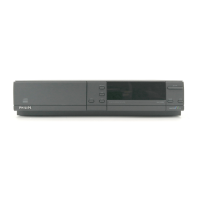
3.4. Signage Display
Divideinto4groups:GeneralSettings/ServerSettings/SourceSettings
/Security
(1)GeneralSettings
A. SignageDisplayName
B. BootLogo
C. Screenshot
(2)ServerSettings
A. EmailNotication
B. FTP
(3)SourceSettings
A. MediaPlayer
B. Browser
C. CMND&Play
D. PDFPlayer
E. CustomApp
F. BootonSource
(4)Networkapplication
A. Proxy
B. PlatformWebAPI
C. SICPNetworkPort
(5) Systemtools
A. ClearStorage
B. Reset
C. Import&Export
D. Clone
E. Security
(6)Misc.
A. TeamViewerSupport
(7)Systemupdates
A. LocalUpdate
3.4.1. General Settings
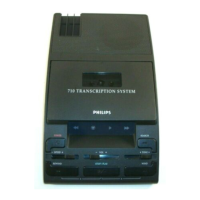
1. SignageDisplayName
SetupPDname“PD_”+EthernetMacAddress.
Note:
Inputlimitation:
(1)length:Max36characters
(2)format:nolimit
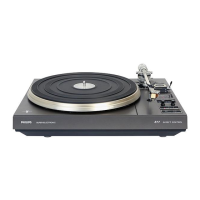
BootLogo
TochangeAndroidbootlogo,usercanchangetotheirownboot
logoanimationle.
Note:
(1)Bootanimationlename:bootanimzation.zip
(2)Willpop-upawindowforusertoselectUSBandSDcard.No
priorityissue.


 To Next Page