English
48 Language
You can select different languages for the Audio or Subtitles
of DVDs,as well as languages for DVD Disc Menus and the
Setup Menus of the DVD player.
1
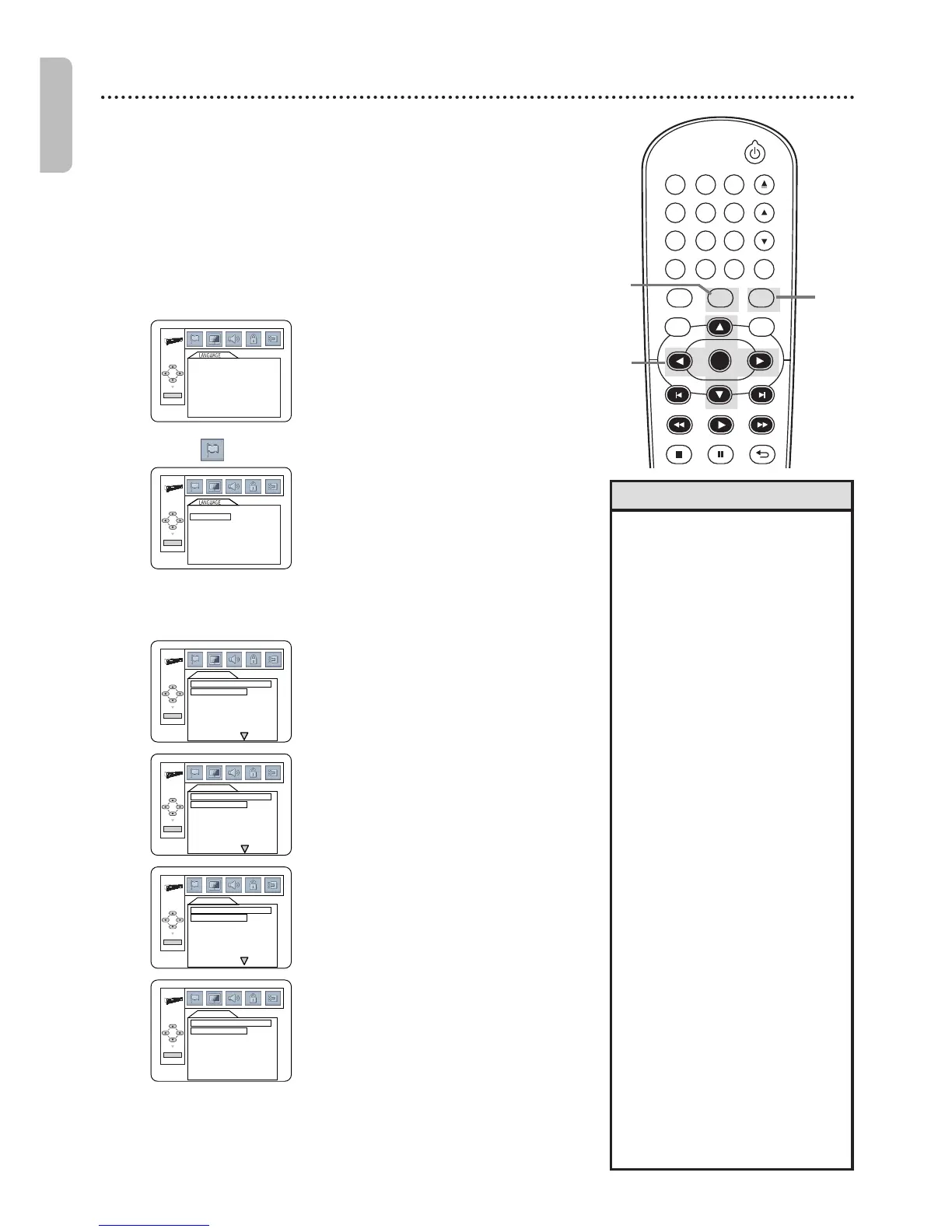
Press DVD to put the DVD/VCR in DVD mode.
DVD light will appear on the front of the DVD/VCR.
2
While playback is stopped, press SETUP.
The QUICK SETUP Screen appears.
3
Press s or B to select CUSTOM at the top
of the menu, then press OK.
5
Press
KK
or
LL
to select AUDIO, SUBTITLE,
DISC MENU or OSD LANGUAGE. Press OK.
The language options for the selected item will appear.
AUDIO: The DVD’s audio plays
in the selected language.
The default setting is
ORIGINAL.
SUBTITLE: Subtitles appear in
the selected language.
The default setting is OFF.
DISC MENU: A DVD’s Disc
Menu appears in the selected
language.
The default setting is ENGLISH.
OSD LANGUAGE: The DVD
player’s Setup Menu can be in
English,French or Spanish only.
The default setting is ENGLISH.
•
If the DVD’s default settings for
Audio and Subtitle are the same
language,the subtitles may not
show unless you turn them on.
•
Use the AUDIO and SUBTITLE
buttons to select Audio and
Subtitles available on the DVD.
Details are on pages 39-40.
•
If you set AUDIO to ORIGINAL,
the default setting of the DVD
Audio will play.
•
If you set OSD LANGUAGE to
FRANÇAIS (French) or
ESPAÑOL (Spanish) and need
English:Follow steps 1-2. At step
3,the IDIOMA or LANGUE
Menu will appear.Press OK.
Press L to select LANGUE OSD
or IDIOMA PANT.,then press
OK.Press K to select ENGLISH,
then press OK. The menus will
change to English.Press SETUP to
remove the menus.
•
You can change the OSD
LANGUAGE in the QUICK
SETUP Menu that appears when
you first press SETUP. With
QUICK selected,press OK.
OSD LANGUAGE will be
selected.Press OK.Press K or L
to choose a language,then press
OK.Press SETUP to remove the
menu.
•
The Language Settings may not
take effect until you restart disc
playback from the beginning.
Helpful Hints
4
With (LANGUAGE) selected, press OK.
3-5
1



 To Next Page