18
Computers and the Internet
Connect your home theater to your computer
network and the internet, and enjoy:
• Multimedia content streamed from your
computer: Play music, photo, and video
from a computer or other media server
onyournetwork(see‘BrowsePCthrough
DLNA’onpage30).
• Online TV: Browse Online TV services to
access online information, games, news,
music,andotherservices(see‘Browse
OnlineTV’onpage32).
• Software update:Update the home theater
softwarethroughthenetwork(see‘Update
softwarethroughtheInternet’onpage39).
Caution
• Before you try to connect the home theater to
a computer network, familiarize yourself with
the network router, media server software
and networking principles. If necessary, read
documentation that accompanies the network
components. Philips is not responsible for lost,
damaged, or corrupt data.
Wired connection
Connect your home theater to your router
through a network cable.
What you need
• A network router (with DHCP enabled).
• A network cable (RJ45 straight cable).
• A computer with media server software
installed(see‘BrowsePCthroughDLNA’
on page 30).
• For Online TV and software updates, make
sure that the network router has access
to the Internet, and is not restricted by
rewallsorothersecuritysystems.
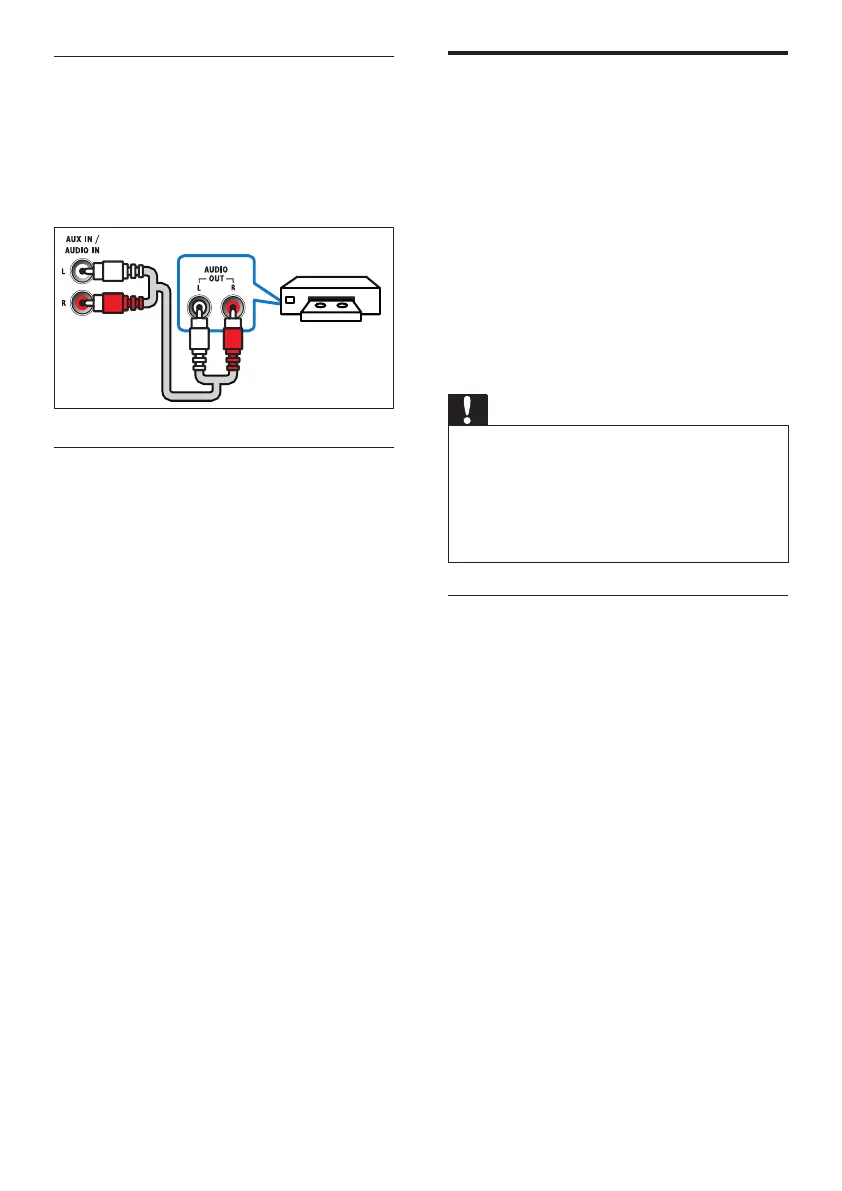
Option 3: Connect audio through analog
audio cables
Basic quality audio
Using an analog cable, connect the AUX
connectors on your home theater to the
AUDIO OUT connectors on the TV or other
device.
Set up audio for connected devices
When you connect a device to your home
theater, check the audio settings.
1 On your TV and other devices, turn on
HDMI-CEC. For details, see the user
manual of the TV and the other device.
2 Select‘Amplier’fromtheTVspeakers
menu. For details, see the TV user manual.
3 On your home theater, turn on System
Audio Control, and then map the audio
of the connected device to the correct
connectorsonyourhometheater(see‘Play
audiofromhometheater’onpage35).
If the connected device is not HDMI-CEC
compliant, press SOURCE repeatedly on your
home theater to select the correct audio input.
EN


 To Next Page