32
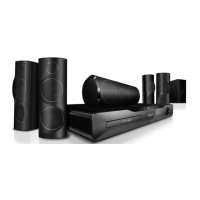
6 Browse and select folders to share, and
then select Save Changes.
» Your Macintosh rescans the folders
automatically so that they are ready to
share.
PlaylesfromyourPC
Note
• Before you play multimedia content from the
computer, make sure that the home theater
is connected to the home network, and the
media server software is properly set up.
1 Switch your TV to the correct HDMI source
for your home theater.
2 Press (Home).
» The home menu is displayed.
3 Select [browse PC], and then press OK.
» A content browser is displayed.
4 Selectale,andthenpressOK.
5 Press the playback buttons to control play
(see‘Playbuttons’onpage24).
Browse Online TV
Use Online TV to access variety of internet
applications and specially adapted internet websites.
For interactive discussions on Online TV services,
visit the Online TV forum at www.supportforum.
philips.com
Note
• Koninklijke Philips Electronics N.V. bears no
responsibility for content provided by Online
TV service providers.
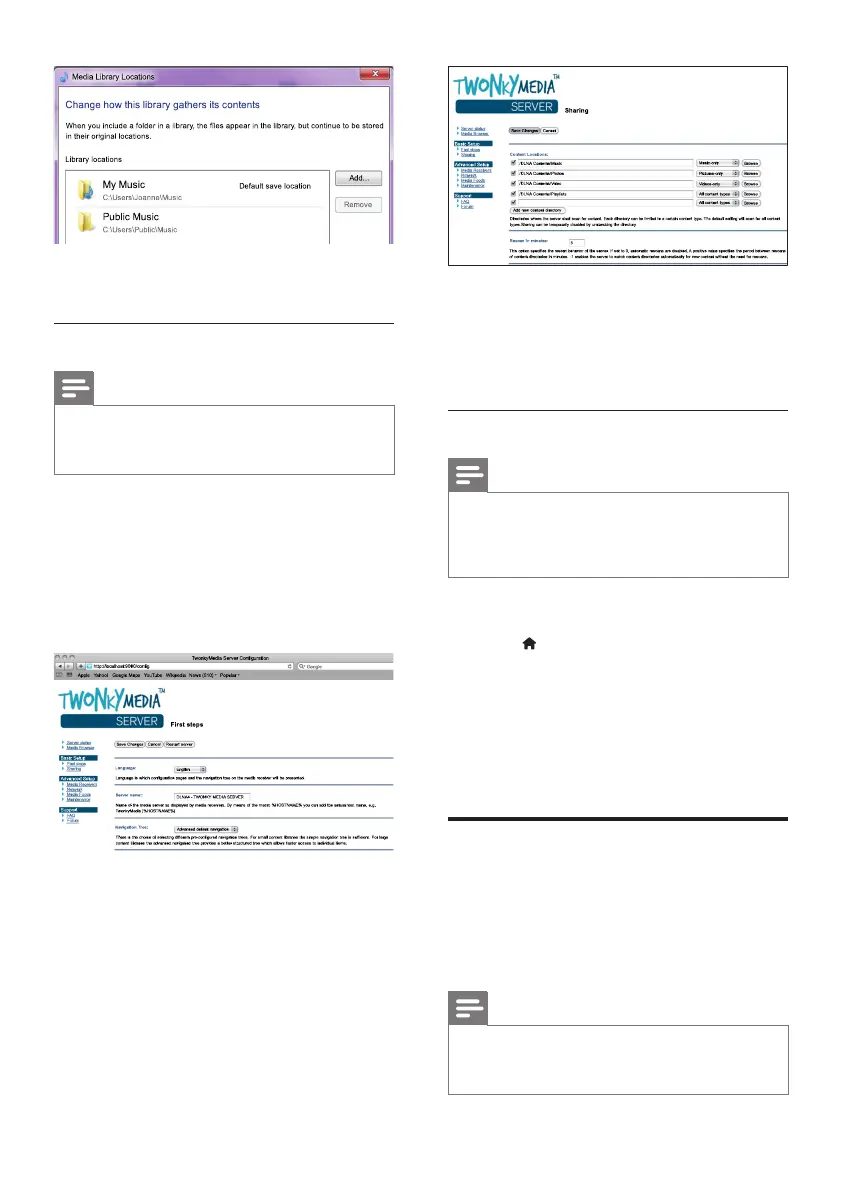
Follow the onscreen instructions to add the
otherfoldersthatcontainyourmediales.
Macintosh OS X Twonky Media (v4.4.2)
Note
• Depending on which version of the Mac
operating system you use, your screens might
look different to the following screens.
1 Visit http://www.twonkymedia.com to
purchase the software, or download a free
30-day trial to your Macintosh.
2 Start Twonky Media on the Macintosh.
3 In the Twonky Media Server screen, select
Basic Setup and First Steps.
» The First steps screen is displayed.
4 Type a name for your media server, and
then click Save changes.
5 Back in the Twonky Media screen, select
Basic Setup and Sharing.
» The Sharing screen is displayed.
EN



 To Next Page