VOL
Main
Picture
Sound
Features
Install
Brightness
Color
Picture
Sharpness
Tint
More...
Main
Picture
Sound
Features
Install
Language
Tuner Mode
Auto Program
Channel Edit
Install
Language
Tuner Mode
Auto Program
Channel Edit
English
OR
Instalar
Idioma
Sinton a
Auto Programa
Editar Canal
Espa ol
6
2
4
3
5
1
2
4
Installation
Langue
Mode synt.
Progr. auto.
diter progr.
Fran ais
OR
F
or French and Spanish speaking
TV owners an onscreen
Language option is present. With the
Language control you can set the
TV’s on-screen menu to be shown in
English, French, or Spanish.
1
Press the MENU button on
the remote control to show the
on-screen menu.
2
Press the CURSOR UP 3 or
DOWN 4 buttons to scroll
though the on-screen menu
until the word Install is high-
lighted.
3
Press the CURSOR RIGHT
2 button to display the
Install menu features.
4
Press the CURSOR UP 3 or
DOWN 4 buttons to scroll
through the Install features until
the word Language is high-
lighted.
5
Press the CURSOR RIGHT
2 button repeatedly to
select English, Francais
(French), or Español
(Spanish).
6
When finished, press the
STATUS/EXIT button to
remove the menu from the
TV’s screen.
HOW TO USE THE LANGUAGE CONTROL
11
The Language control only
makes the TV’s on-screen Menu
items appear in English, Spanish,
or French text.
It does not change the other on-
screen text features such as
Closed Caption (CC) TV shows.
HELPFUL HINT
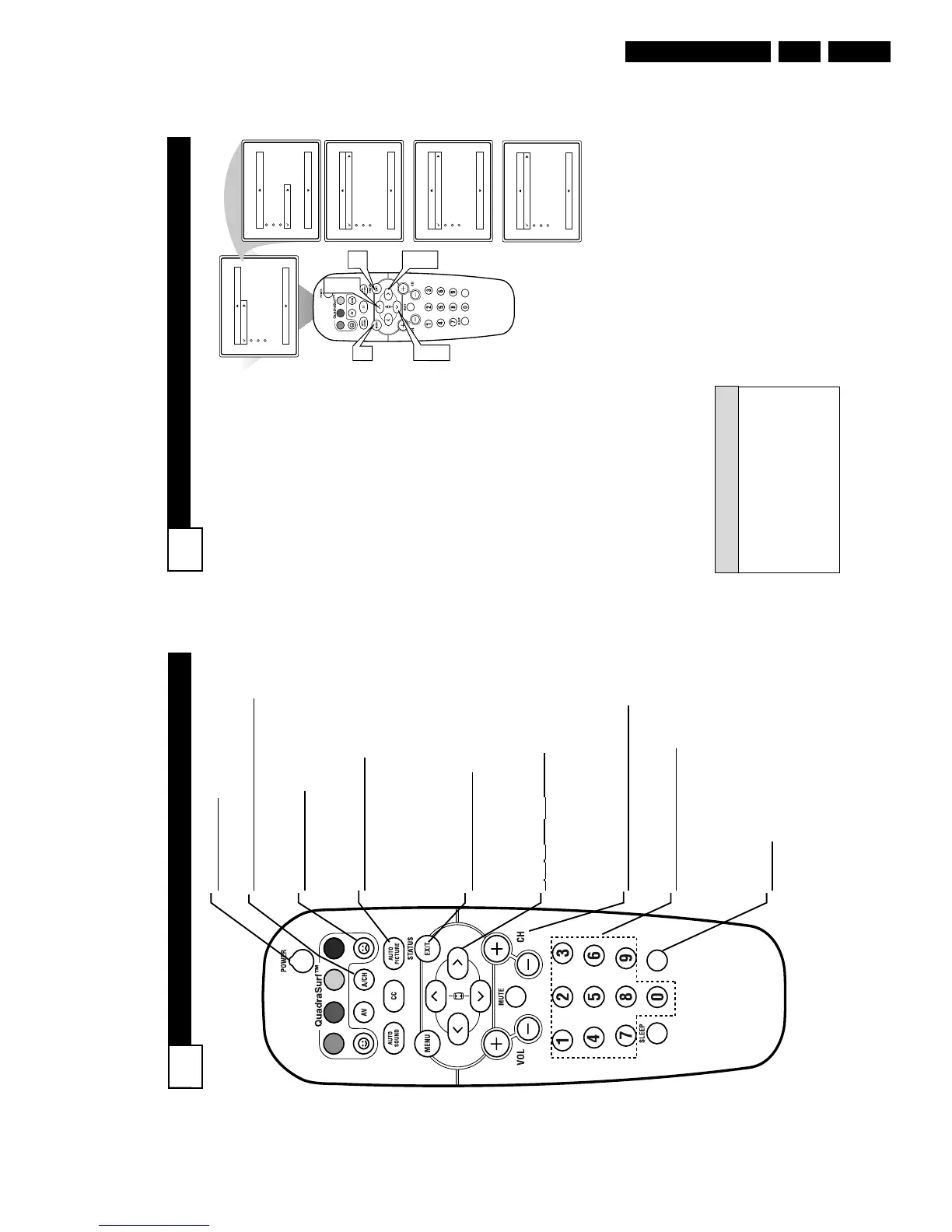
POWER Button
Press to turn the TV on or off.
A/CH
Button (Alternate Channel)
Press to toggle between the last viewed channel
and the channel presently being viewed.
FROWNIE Button
Allows you to delete channels from the “Quadra
Surf” lists for the colored buttons. Works with
all colored buttons.
AUT
O PICTURE Button
Press repeatedly to choose from 5 different fac-
tory predefined picture settings. Choose from
Personal (how you set the Picture Menu
Adjustment controls), Movies (for movies),
Sports (for any sporting event), Weak Signal
(used when the signal being received is not
great), or Multimedia (for video games).
ST
A
TUS/EXIT Button
Press to display the current channel number. If
the on-screen menu is displayed, press the
Status/Exit button of remove it from the TV’s
screen.
3
, 4, 1, and 2 Buttons
Press to navigate, select, and adjust controls
within the on-screen menu. Also use the CUR-
SOR 3 or CURSOR 4 to activate or deacti-
vate the EXPAND 4:3 screen formatting con-
trol.
CH(annel) + or
CH(annel)- Buttons
Press to select channels in ascending or
descending order.
NUMBERED
(0-9) Buttons
Press the numbered buttons to select TV chan-
nels or to enter certain values within the on-
screen menu. For single channel entries, press
the numbered button for the channel you desire.
The TV will pause for a second or two before
changing to the chosen channel.
CLOCK:
Press to display the “Timer” menu. Within this
menu, set the time, set the TV to tune to a cer-
tain channel at a certain time once or daily.



 To Next Page