T
ROUBLESHOOTING
No Power
• Check the TV power cord. Unplug the TV, wait 10 seconds, then reinsert
the plug into the outlet and push the POWER button again.
• Check that the outlet is not on a wall switch.
• Be sure the fuse is not blown on the AC power strip, if one is being used.
No Picture
• Check antenna connections. Are they properly secured to the TV's ANT
751 plug?
• Check the TUNER MODE control for the correct tuner setting.
• Try running the Auto Program feature to find all available channels.
• Press the AV button on the remote to make sure the correct signal source is
selected (FRONT or Current Channel).
No Sound
• Check the VOLUME buttons.
• Check the MUTE button on the remote control.
• If you’re attempting to hook up auxiliary equipment, check the audio jack
connections located on the front of the TV.
Remote Does Not Work
• Check the batteries. If necessary, replace them with AA Heavy Duty (Zinc
Chloride) or Alkaline batteries.
• Clean the remote control and the remote control sensor window on the TV.
• Check the TV power cord. Unplug the TV, wait 10 seconds, then reinsert
the plug into the outlet and push the POWER button again.
• Be sure the fuse is not blown on the AC power strip, if one is being used.
• Check to be sure the TV outlet is not on a wall switch.
TV Displays Wrong Channel or No Channels Above 13
• Repeat channel selection.
• Add the desired channel numbers (using the CHANNEL EDIT control) into
the TV’s memory.
• Check to be sure the TUNER MODES are set to the CABLE option and run
the Auto Program feature to find all available channels.
35
Q
UADRA
S
URF
34
T
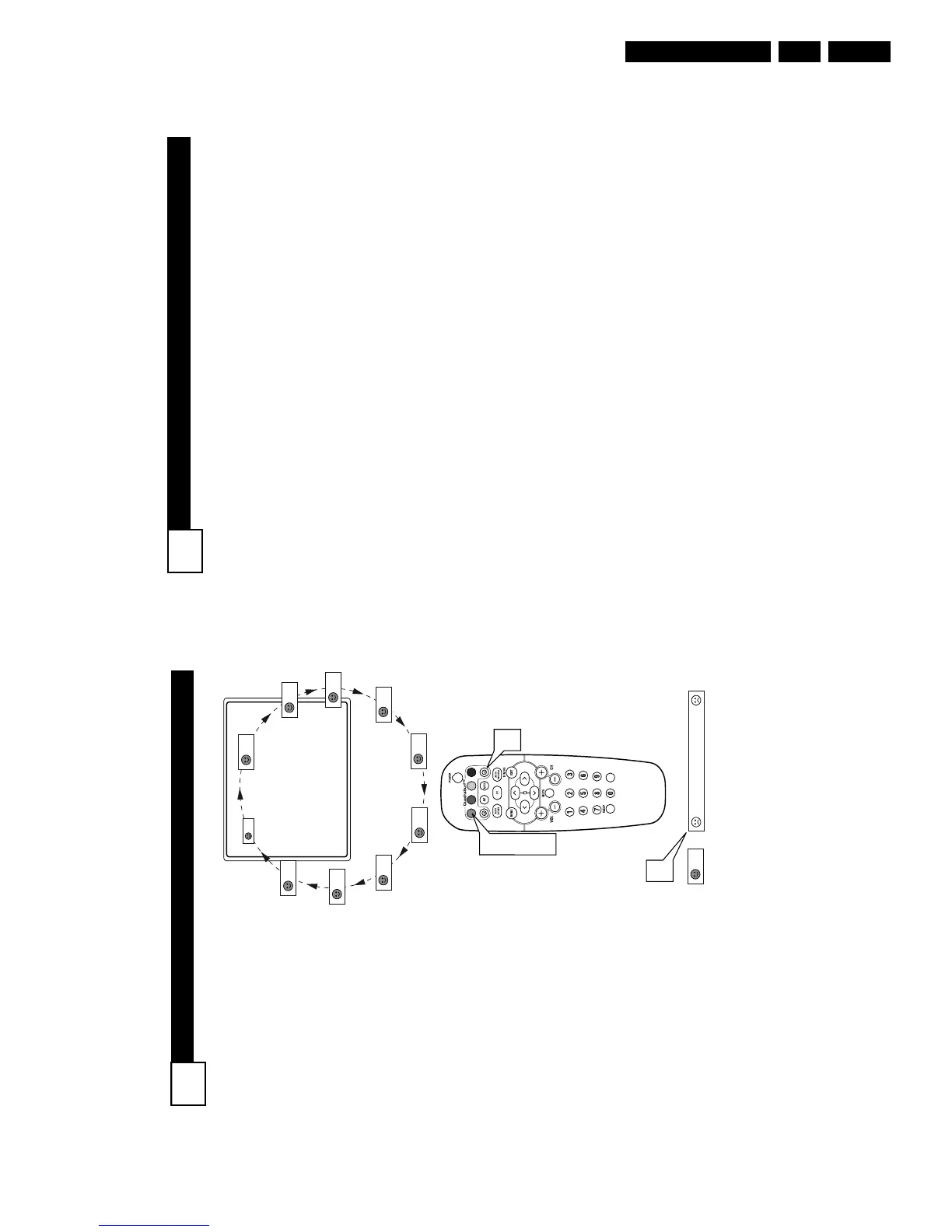
he Quadra Surf buttons on your
remote control allow you to store
up to 10 channels per button (40
total). You can even program the
A/V Input channels for each button
making them a “source” button.
Assuming channels have now been
added to the four Quadra Surf lists
(the four colored buttons, see the
previous page), let’s review how the
feature works.
1
Press one of the pre-pro-
grammed COLORED buttons
on the remote (Red, Green,
Yellow or Blue). The screen
will display a smiley face with
the first programmed channel
for that surf list.
2
While the colored “smiley”
face still appears on the
screen, press the same COL-
ORED button on the remote to
tune the second channel pro-
grammed for that specific surf
list.
3
Repeatedly pressing the same
COLORED button while the
“smiley” face appears will tune
all the programmed channels.
Pressing the COLORED button
again will return you to the first
channel in the list.
If the “smiley” face disappears from
the screen and the same COLORED
button is pressed, the surf channels
will be displayed starting with the
FIRST programmed channel again.
4
Repeat steps 1-3 for the other
three COLORED buttons (Surf
lists) if desired.
5
Any time the “smiley” face
appears with the channel num-
ber, pressing the “frownie”
face button will allow you to
remove it from the list (see the
previous page for more details).



 To Next Page