S
IDE
AV C
ONNECTIONS
5
A
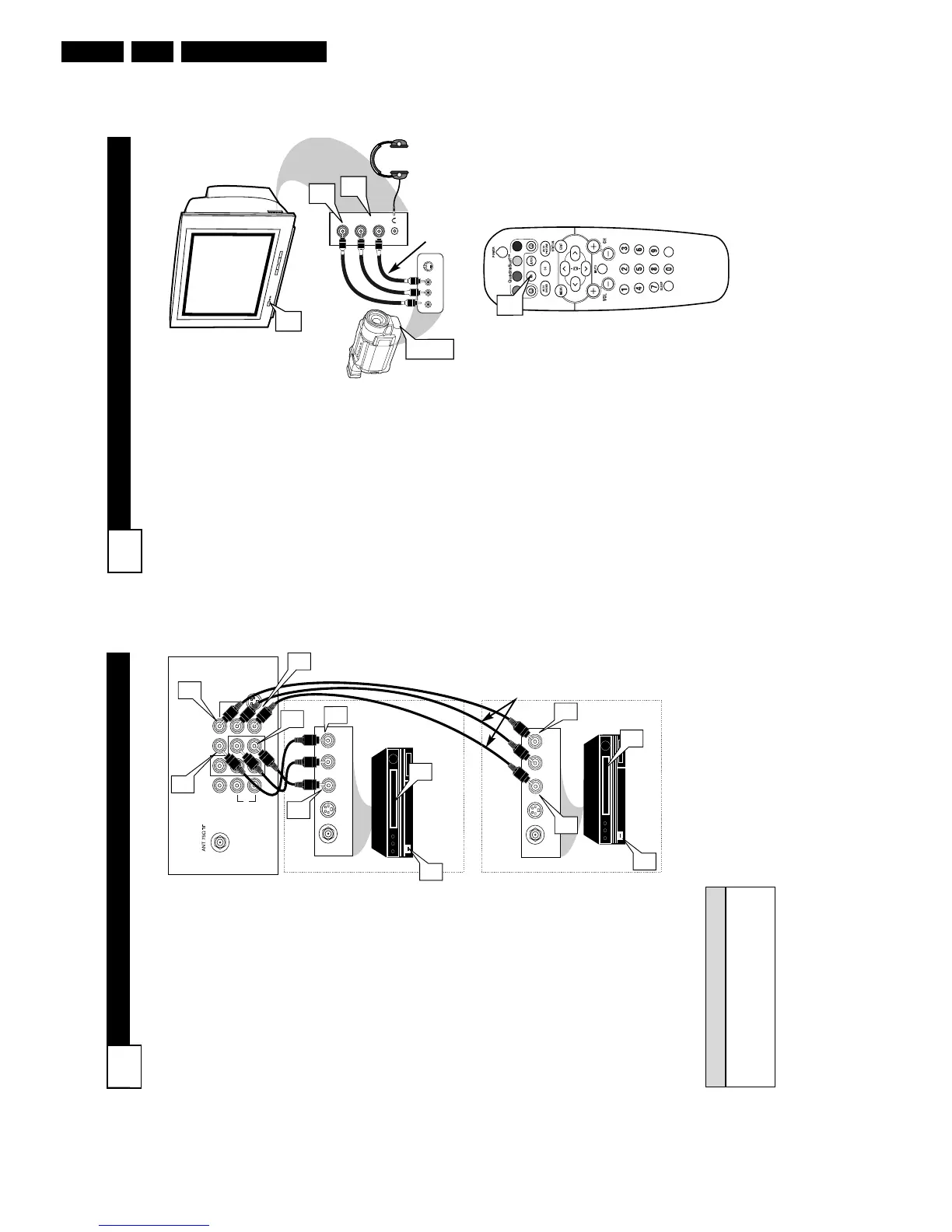
udio and Video Side Inputs are
available for a quick connec-
tion of a VCR, to playback video
from a camera, or attach a gam-
ing device. Use the AV button on
the remote control to tune these
inputs.
1
Connect the video (yellow)
cable from the Video output
on the Camera (or accessory
device) to the Video (yellow)
Input located on the SIDE of
the TV.
2
For Stereo Devices: Connect
the audio cable (red and
white) from the Audio Left
and Right Outputs on the
Camera to the Audio In
(white) jack on the SIDE of
the television.
For Mono Devices: Connect
one end of the audio cable
from the Audio Out jack on
the device to the Audio In
(white) jack on the SIDE of
the television.
3
Turn the TV and the accesso-
ry device ON.
4
Press the AV button on the
remote control to tune the TV
to the side input jacks.
“Front” will appear on the
TV screen.
5
Press the PLAY 䊳 button
on the accessory device to
view playback, or to access
the accessory device (camera,
gaming unit, etc.).
VIDEO
AUDIO
L
R
Front
S-VIDEO
VIDEOAUDIO
LEFT RIGHT
3
1
2
3
5
VOL
4
Side Jack panel
of TV
Audio
Cables
Video
Cable
Jack Panel of Accessory Device
Optional
Headphones
Audio and video cables are not sup-
plied with the TV, but are available
from Philips or electronics retailers.
HELPFUL HINT
Audio In
(Red and
White)
VCR Two (or accessory
device) (Equipped with
Video and Audio Output Jacks)
Video In
(Yellow)
Back of VCR
Back of TV
AV 1
Connection
AV2 Connection
VCR One (or
accessory device) (Equipped
with Audio and Video Output
Jacks)
T
he TV’s audio/video input jacks
are for direct picture and sound
connections between the TV and a
VCR (or similar device) that has
audio/video output jacks. Both the
AV1 and AV2 Input Jack connections
are shown on this page, but either
one can be connected alone. Follow
the easy steps below to connect your
accessory device to the AV1 and AV2
IN Jacks located on the back of the
TV.
1
Connect the VIDEO (yellow)
cable to the VIDEO AV 1 IN (or
AV2 IN) jack on the back of the
TV.
2
Connect the AUDIO (red and
white) cables to the AUDIO (left
and right) AV 1 IN (or AV2 in)
jacks on the rear of the TV.
3
Connect the VIDEO (yellow)
cable to the VIDEO OUT jack on
the back of the VCR (either one
or two) or accessory device being
used.
4
Connect the AUDIO (red and
white) cables to the AUDIO (left
and right) OUT jacks on the rear
of the VCR (either one or two) or
accessory device being used.
5
Turn the VCR (either one or
two) or accessory device and
the TV ON.
6
Press the AV button to set the
TV to its AV1or AV2 channel.
7
With either of the VCRs (or
accessory devices) ON and a pre-
recorded tape (CD, DVD, etc.)
inserted, press the PLAY button
to view the tape on the television.



 To Next Page