16
PlayfromtheUSBashdevice
1 On MCD900, ensure that the USB mass storage
device is properly connected.
2 On the remote control, press USB.
The le sorting process may take some time. »
During le sorting, the le folders are displayed.
Audio les are displayed under different »
categories (e.g. Artist, Album, Genre), if meta/
ID3 tags are edited for the les.
Picture les are also organized. »
3 Select your desired track or album.
4 Press to start play.
Play starts from the beginning of the album,
•
if you press on an album.
Play screen appears when play starts. »
5 To stop play, press .
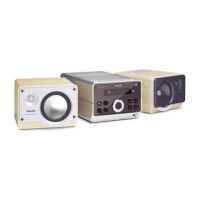
Play photos
Press
• / to rotate the picture;
Press
• / to move to previous/next picture;
Press
• to start playing all pictures in slideshow
mode.
Search for music/pictures
To navigate through menus during music play, do the
following:
1 On the remote control, press and then, use
the Navigation buttons.
2 To return to Play screen, press NOW PLAYING.
Tip
On Play screen, you can also press • and
repeatedly to select songs.
In a list of options, you can do one of the following to
search for what you need:
Tip
When doing searching in the following ways, •
ensure that MCD900 is in the mode of USB.
Use the navigation keys • , , , .
Start quick search by using the
• alphanumeric
search, Superscroll, and Quickjump.
6 Play from a USB
flash device
ConnectaUSBashdevice
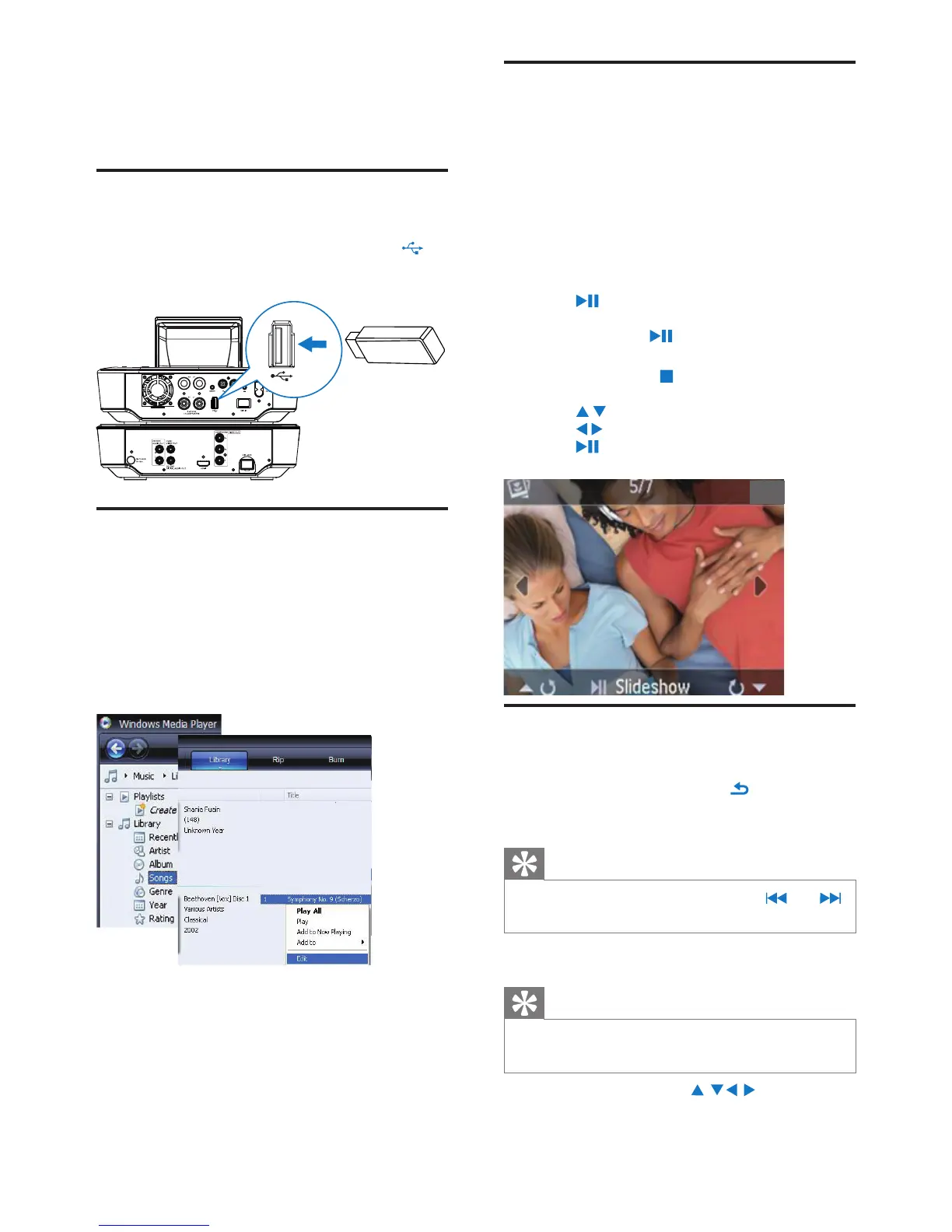
On MCD900, you can play music/photos
stored on a USB ash device. To do so, do the following:
Connect the USB ash device to the
•
socket on MCD900;
Select the
• [USB] mode on MCD900.
LibraryontheUSBashdevice
OrganizelesontheUSBashdevice
Audio les:
•
If the les contain le information (meta tag or ID3
tag), the les can be sorted automatically by the le
information, like Artist, Album, Genre, and others.
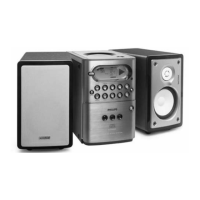
Launch media management software to check
or edit the le information. For example, click as
shown in Windows Media Player 11. Select the
desired song, and then, double click it to edit.
If necessary, you can also organize audio les in
different folders as desired.
Picture les:
•
Organize les in different folders as desired. The
folders are sorted in an alphabetical order.
EN


 To Next Page