9EN
4 Basics
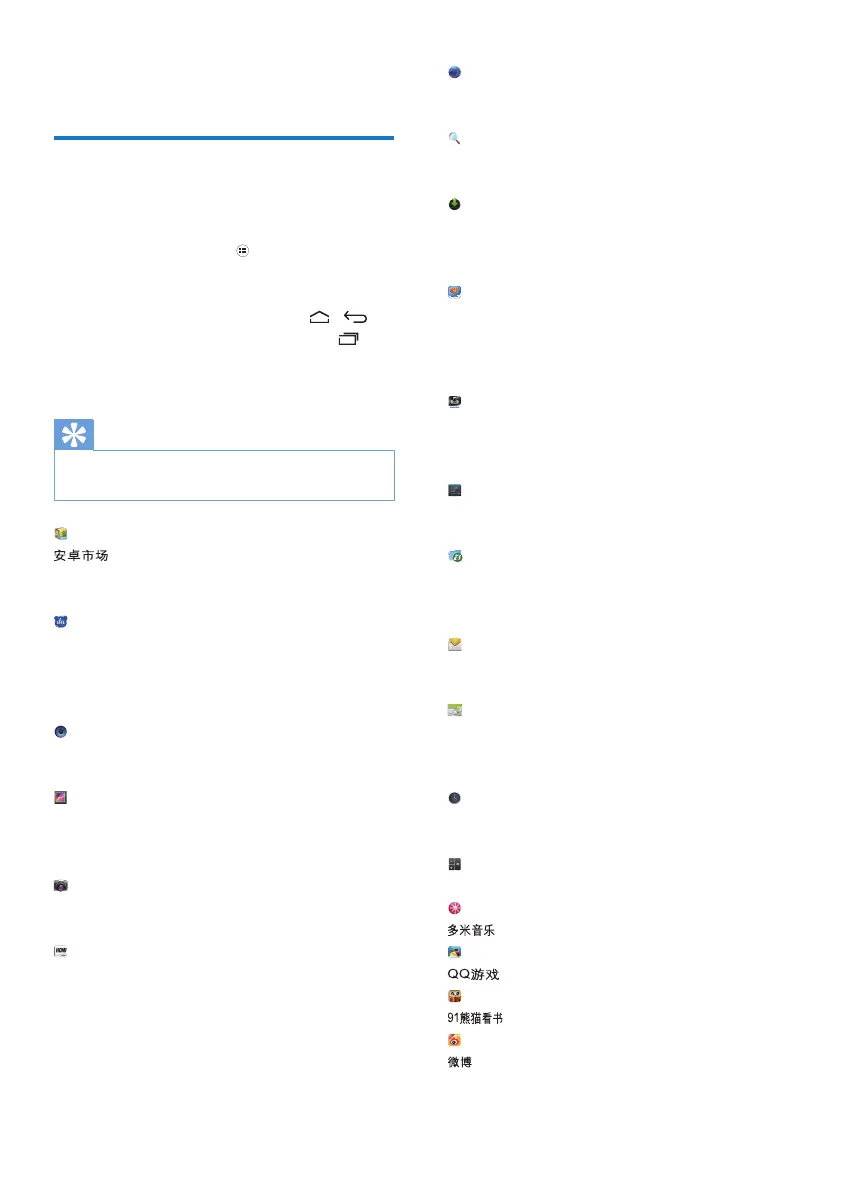
Find apps
1DYLJDWHRQWKH+RPHVFUHHQWRÀQGDQDSS
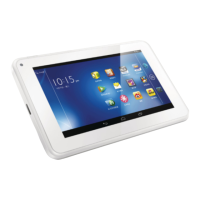
Swipe left/ right to select a page;
Alternatively, tap
to open the list of
apps. Swipe left/ right to scroll through
the list;
Use the navigation buttons
/
to switch between screens. Tap
to
go to the apps that you have accessed
recently.
Tip
On Pi3900, you can install apps from the HiMarket or
other sources.
:
Download different apps, games, and
others.
Baidu Input:
Set Baidu Input as the default input
method, or select your options of
Baidu Input.
Music:
Play music that you store on Pi3900.
Gallery:
View pictures and videos that you
store or make on Pi3900.
Camera:
Take photos or record videos.
HDMISwitch:
Select the HDMI output options for
your Pi3900. Select the resolution that
your TV supports.
Browser:
Browse Web pages.
Search:
Search on Pi3900 or the Web.
Downloads:
View the list of your downloads from
the Web.
SimplyShare:
Through a Philips HD media player,
stream media play from Pi3900 to a
KLJKGHÀQLWLRQ79+'79
DockStudio:
Use Pi3900 with Philips Android
docking speakers.
Settings:
Customize the settings of Pi3900.
ES File Explorer:
%URZVHWKHÀOHVIROGHUVRQPi3900,
LQVWDOODSSVDQGPDQDJHÀOHV
Email:Set up your email account on
Pi3900.
Calendar:
Add events, and set reminders for your
events.
Clock:
Set the alarm clock.
Calculator
: Online music service
: Online games
: Online book store
: Social networking service


 To Next Page