15EN
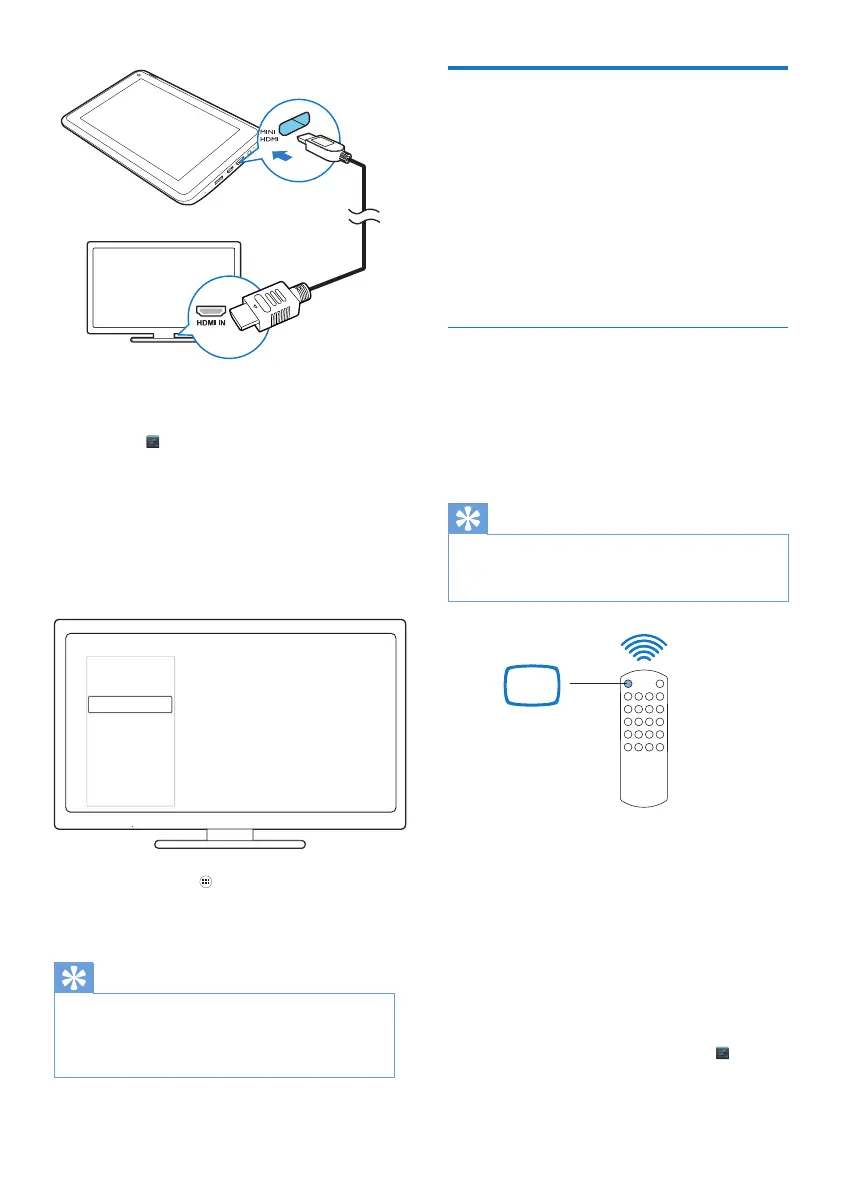
b Make sure that you have switched on
the HDMI output:
Tap
Settings > HDMI. Switch on
Enable auto switch.
2 On the TV, switch to the input source of
Pi3900:
On the remote control of your TV, use
the source button to select the input
connector that connects to Pi3900.
3 On Pi3900, tap APPS > HDMI Switch.
Select the output resolution that your TV
supports.
Tip
As a compact audio/video interface, HDMI transmits
uncompressed digital data. With the HDMI connection,
KLJKGHÀQLWLRQYLGHRDXGLRFRQWHQWVFDQSUHVHQW
optimum video and audio quality on an HDTV.
SOURCE
TV
AV
HDMI 1
HDMI 2
HDMI 3
Side HDMI
Side AV
Connect to Bluetooth
Through Bluetooth, you can do the following
wirelessly on Pi3900:
5HFHLYHRUVHQGÀOHVIURPRUWR
another connected Bluetooth device;
Listen to music through stereo
Bluetooth headphones;
Listen to music through Bluetooth
speakers, like Philips SHOQBOX.
Connect with Bluetooth devices
You can connect Pi3900 with Bluetooth devices
in the following ways:
Connect another Bluetooth device;
Get connected by another Bluetooth
device.
Tip
Before the connection, consult the user manual of the
Bluetooth device to get its Bluetooth pairing passcode.
Or, try 0000 or 1234.
Connect another Bluetooth devices
1 Make sure that the device is discoverable
by another Bluetooth device.
Consult the user manual of the
Bluetooth device for information.
2 On Pi3900, search for the Bluetooth
device:
a From the Home screen, tap
Settings > Bluetooth.


 To Next Page