11EN
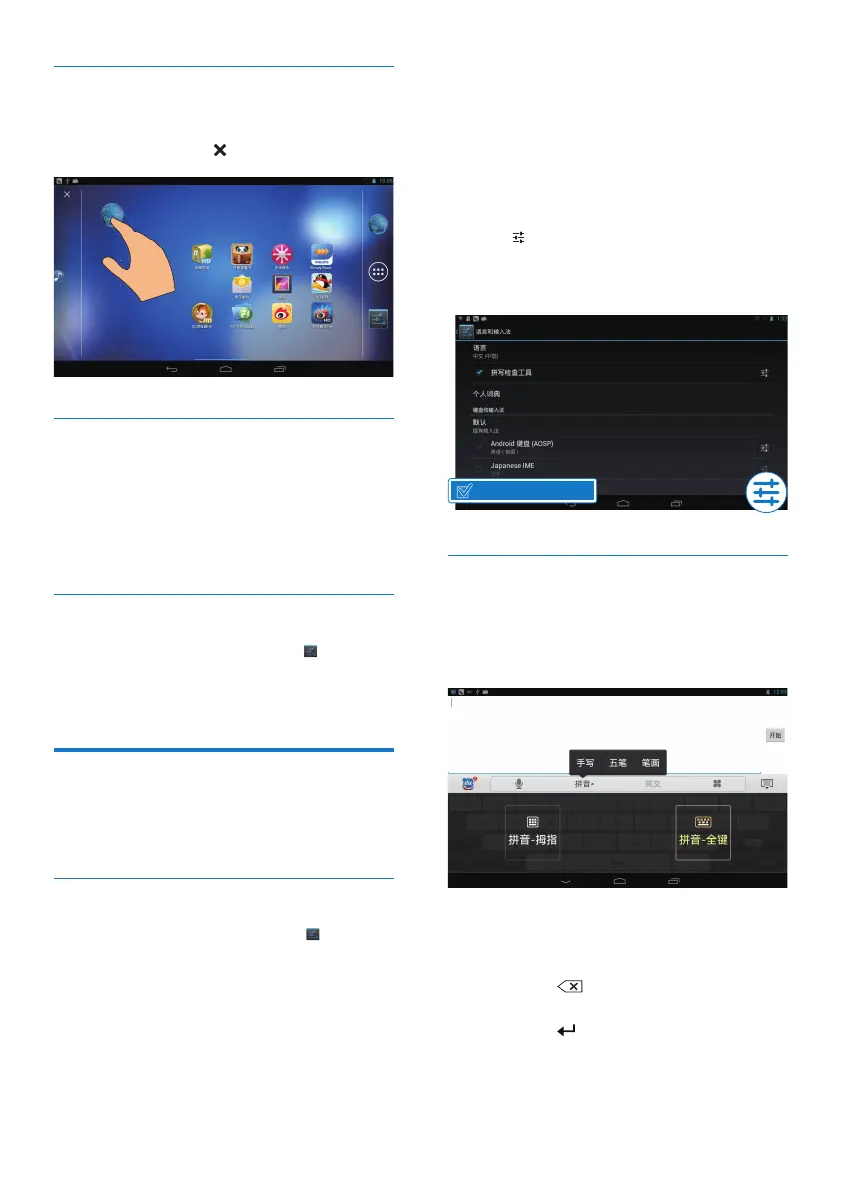
Delete items
1 Tap and hold an item to unlock.
2 Drag the item to .
Relocate items
1 Tap and hold an item to unlock.
2 Drag the item to a space on the page.
3 Release the item.
» The item moves to the space.
Add wallpapers
1 From the Home screen, go to > Display
> Wallpaper.
2 Select your options.
Text entry
With the onscreen keyboard, you can enter
text in multiple languages.
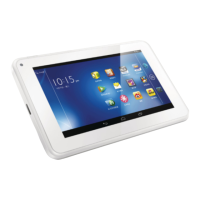
Select input methods
1 From the Home screen, select Settings
> Language & input.
2 Select your input methods:
Android keyboard: for multiple languages
other than Chinese
Baidu input: for Chinese input through
handwriting recognition, stroke, and Pinyin,
and English input
Google Pinyin: for Chinese Pinyin input
and English input
To useBaidu input,
1 Select Baidu input in Step 2 above.
2 Tap next to the input method.
3 Follow the onscreen instructions to set
Baidu input as the default input method.
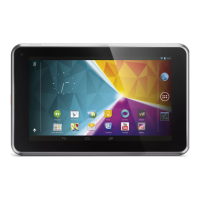
Enter text
1 Tap the text box to show the onscreen
keyboard.
2 Select text input modes as needed.
3 Tap keys or drag on the screen to enter
text.
To delete the entry before the cursor,
Select
.
To move to the next line,
Select
.
چ૿ҵࡣ


 To Next Page