EasyManua.ls Logo

Philips PicoPix Micro PPX320 - Wireless Projection - iOS Devices; iOS Screen Mirroring Requirements

Philips PicoPix Micro PPX320
20 pages
Print Icon
To Next Page IconTo Next Page
To Previous Page IconTo Previous Page
Loading...
10 Philips · PicoPix Micro
6 Wireless
projection with
iOS devices
What you need
Turn on WiFi on your iPhone.
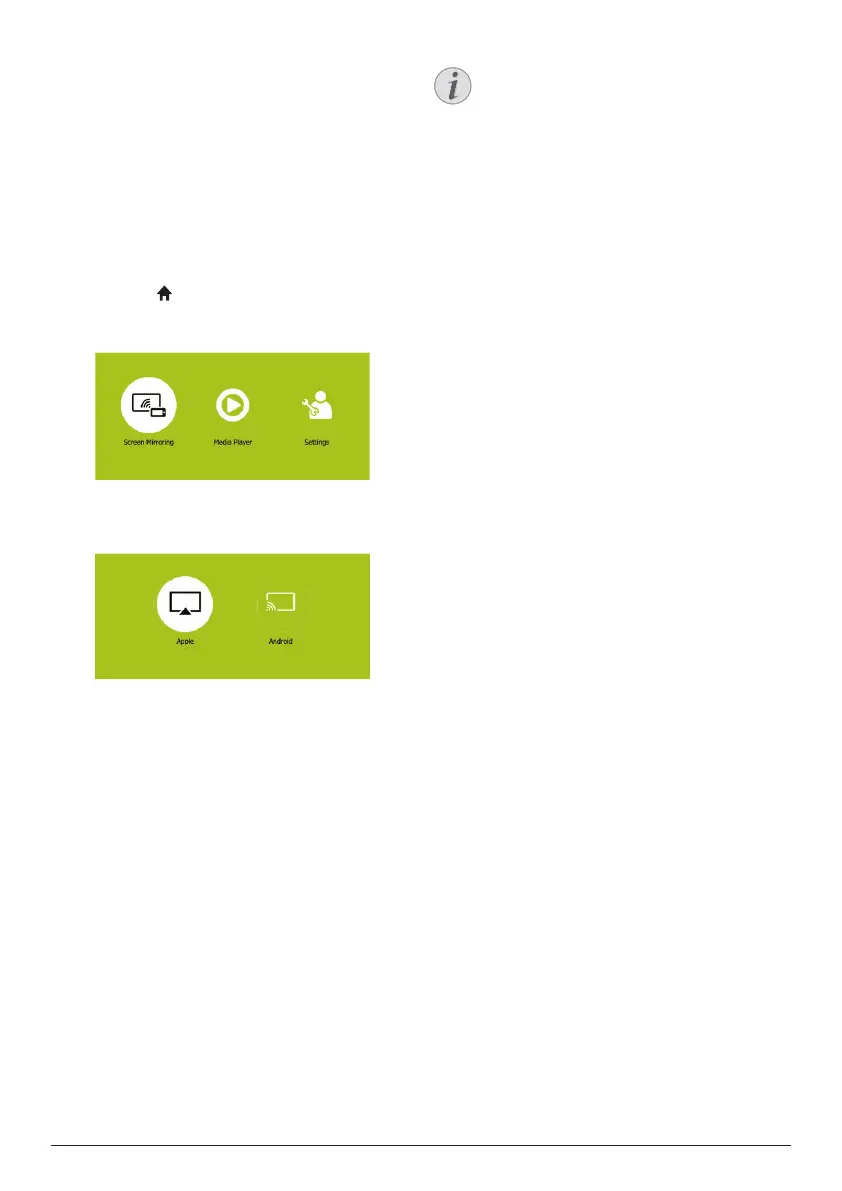
1 Turn on the projector. The home menu is
displayed.
Or when the projector is in operation,
press to display the home menu.
2 Use the Navigation buttons to select
Screen Mirroring, and then press OK.
3 The window for selecting iPhone and
Android device is displayed. Select Apple to
enter the screen mirroring interface.
Apple
Android
PicoPix ›ScreenMirroring
App
App
App
p
l
l
l
l
e
e
Ad
And
Ad
d
Ad
d
r
r
o
o
i
i
id
Pi
P
P
P
Pi
P
Pi
Pi
i
Pi
P
P
Pi
P
Pi
Pi
i
i
Pi
Pi
Pi
P
Pi
P
P
i
Pi
Pi
P
Pi
P
P
P
i
i
P
P
Pi
P
P
P
i
P
P
P
i
Pi
P
P
P
Pi
i
P
P
P
Pi
i
Pi
P
P
i
i
P
P
i
i
P
c
c
c
c
c
c
c
c
c
c
c
c
c
c
c
c
c
c
c
c
c
c
c
c
c
c
c
c
c
c
c
c
c
c
c
c
c
c
c
c
c
o
o
o
o
o
o
o
o
o
o
o
o
o
o
o
o
o
o
o
o
o
o
o
o
o
o
o
o
o
o
o
o
o
o
o
o
o
o
o
o
o
o
o
o
o
o
o
o
o
o
o
Pi
Pi
P
P
P
Pi
Pi
Pi
i
P
P
Pi
P
P
P
Pi
Pi
P
Pi
Pi
P
Pi
P
P
Pi
i
i
P
Pi
Pi
P
Pi
P
P
P
i
P
i
P
P
P
i
P
i
i
i
P
PiPi
x
x
x
x
x
x
x
x
x
x
x
x
x
x
x
x
x
x
x
x
x
x
x
x
x
x
x
x
x
x
x
x
x
x
x
i
i
i
i
i
i
Sc
Sc
S
Sc
Sc
Sc
S
Sc
c
Sc
Sc
S
S
Sc
Sc
Sc
S
S
c
c
Sc
c
Sc
Sc
S
S
Sc
Sc
c
Sc
c
Sc
Sc
S
c
c
c
c
S
S
c
c
c
S
S
c
S
S
Sc
S
Sc
r
re
re
e
r
r
re
r
r
re
re
re
e
re
re
re
r
r
r
r
e
e
e
e
e
e
e
e
e
r
r
re
e
e
e
e
re
e
e
e
re
e
e
r
e
e
e
e
e
e
e
r
re
e
e
e
e
e
e
e
e
e
e
e
e
e
e
e
e
e
e
e
e
e
e
e
e
e
e
e
e
e
e
e
e
e
e
e
e
e
e
e
e
e
e
e
e
e
n
n
n
n
n
n
n
n
n
n
n
n
n
n
n
n
n
n
M
M
M
M
M
M
M
M
M
M
M
M
M
M
M
M
M
M
M
M
M
M
M
M
M
M
M
M
M
M
M
M
M
M
M
M
M
M
M
M
M
M
M
M
M
M
M
M
M
M
M
M
M
M
M
M
M
M
M
M
M
M
M
M
M
M
M
M
ir
i
i
i
i
ir
r
r
r
r
r
r
ir
i
ir
r
r
r
i
i
i
i
r
r
r
r
r
i
i
r
i
i
i
r
r
i
r
i
ir
r
r
r
ir
r
r
r
r
r
r
r
r
r
r
r
r
r
r
r
r
r
r
r
r
r
r
r
r
r
r
r
r
r
r
r
r
r
r
r
oring
or
r
orin
or
o
ori
ori
o
o
or
o
r
orin
orin
ori
in
i
orin
n
orin
orin
orin
o
o
o
rin
orin
r
ori
in
ori
n
rin
o
o
orin
orin
i
r
o
o
ori
orin
r
i
ori
n
orin
o
r
i
r
o
i
i
n
o
o
o
r
i
r
o
r
i
i
i
n
o
r
i
i
n
ri
4 In the screen mirroring interface, you are
prompted to connect your iPhone to the
projector. The projector name to be shown
in the WiFi network and the password are
given in the message.
5 On your iPhone, access the WiFi settings
and select the WiFi network of the projector
to connect your iPhone to the network.
6 On your iPhone, access ‘Control Center’ by
sliding the screen up, and select the ‘Screen
Mirroring’ option. Then select the projector
name under ‘Screen Mirroring’ to connect
your iPhone to the projector.
7 After successful connection, the screen
content of your iPhone is casted to the
projection surface.
Notice
To enable your iPhone to access the
Internet when your iPhone is wirelessly
projected, connect the projector to the
Internet (see Connect to WiFi network,
page 11).
Trademark notice
Apple, AirPlay and the AirPlay logo are
trademarks or registered trademarks of Apple,
Inc. in the US and other countries.
Google, Android and the Android logo are
trademarks or registered trademarks of Google,
Inc. in the US and other countries.

Other manuals for Philips PicoPix Micro PPX320

Related product manuals