6 Philips · PicoPix Micro
+
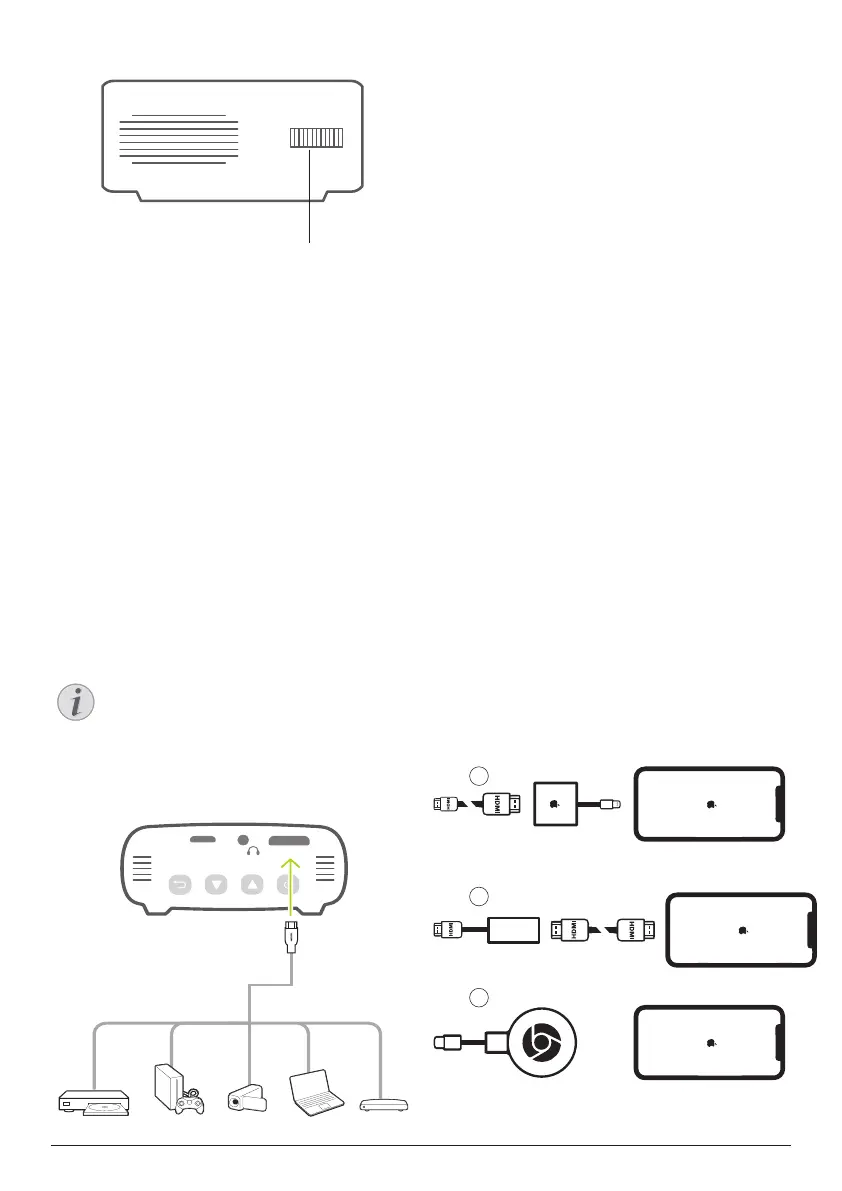
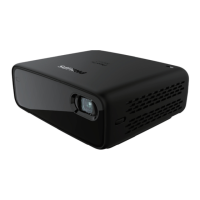
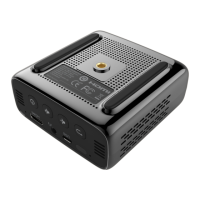
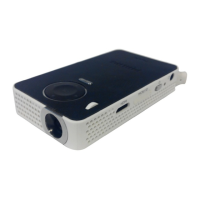
Side view
a
a
Focus adjustment knob
Adjust image sharpness.
3 Connect
Notice
You need to connect the projector to
an HDMI device, so that the projection
screen can show images.
Make sure all devices are disconnected
from the power outlet before establishing
or changing any connections.
Connection for your
smartphone
iPhone or iPad with Lightning Port:
Use the Official Lightning Digital AV Adapter
• Option 1: an HDMI to mini HDMI cable
from the Apple adapter to the projector.
• Option 2: an normal HDMI cable to the
HDMI to Mini HDMI adapter (included in
the box).
• Option 3: Google Chromecast dongle
connected directly to the projector, the
iPhone will then cast any content to the
projector.
HDMI connection for image
projection
Connect a playback device (e.g. a Blu-ray
player, gaming console, camcorder, digital
camera or PC) to the projector through HDMI
connection. With this connection, images are
shown on the projection screen, and audio is
played on the projector.
• Using an HDMI cable, connect the HDMI
connector (mini HDMI port) on the projector
to the HDMI output on the playback device.
Use an HDMI mini plug adapter for HDMI
connection if necessary.
1
2
3


 To Next Page