English
EN 9
Image resolution
You can set different image resolutions for
photos/videos taken via the webcam:
160 x 120 (SQVGA)•
176 x 144 (QCIF)•
320 x 240 (E-mail size)•
352 x 288 (CIF)•
640 x 480 (VGA)•
1280 x 1024 (1.3MP, for photo only)•
2560 x 2048 (for photo only)•
Note
For video recording, the maximum resolution is •
up to 640 x 480 (VGA).
1 In the Philips CamSuite Capture window,
click the drop-down arrow.
The provided resolution options are listed. »
2 Select a preferred resolution option.
To apply another resolution setting, •
repeat Step 1 and Step 2.
Gallery
Photos and videos taken via the webcam are
stored in the photo or video gallery and in the
selected photo or video folder ( multimedia
folders ).
To access the gallery :
1 In Philips CamSuite Capture, click
to show gallery.
2 Click to show the photo gallery.
Click •
to show the video gallery.
To hide the gallery, click •
.
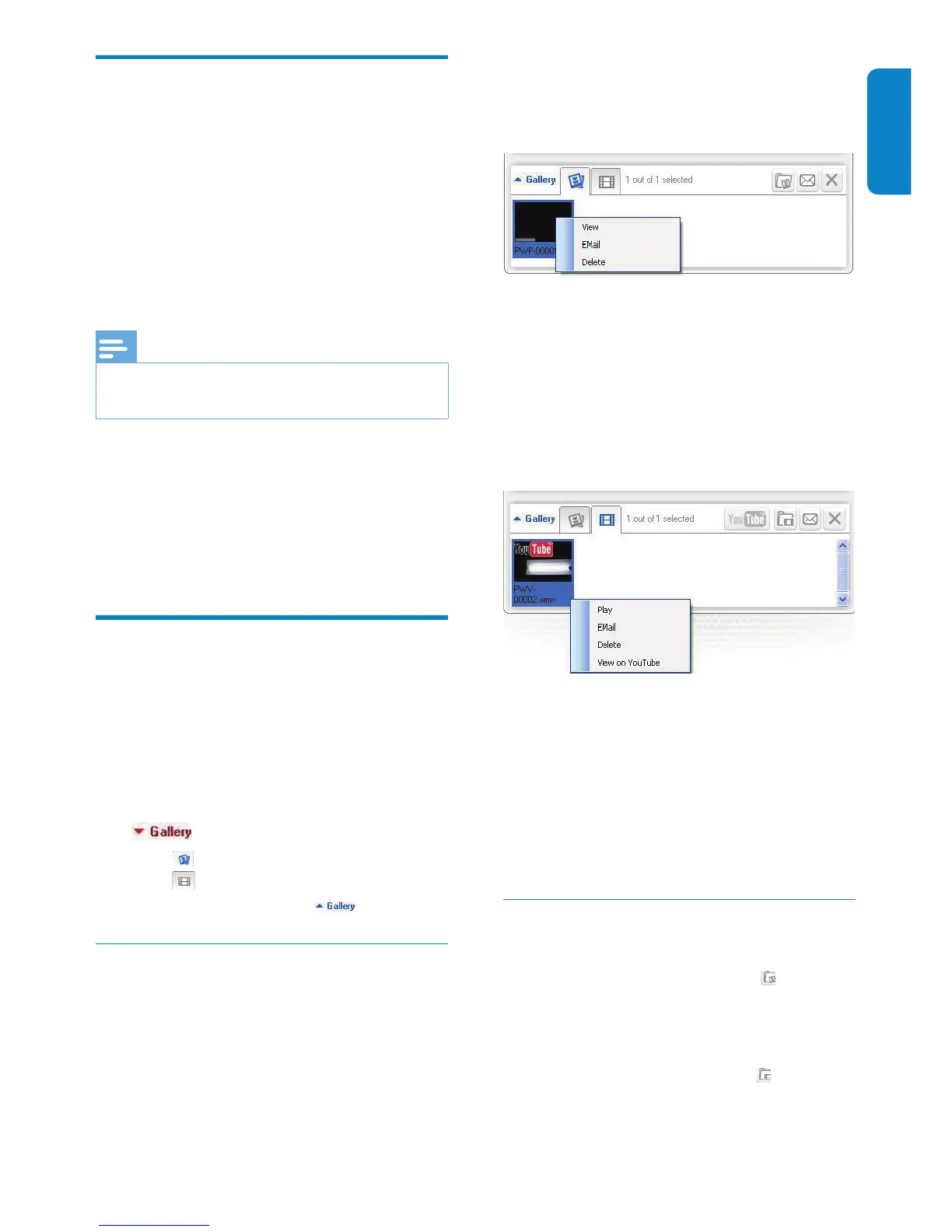
Photo/Video menu
To display the photo/video menu via right-
click on the mouse :
1 In the photo/video gallery, select a photo/
video.
2 Right-click the mouse.
The photo/video menu is displayed. »
3 Select an option to continue.
Options on the photo menu :
• [View] : To view the selected
photo(s)
• [Email] : To send the selected
photo(s) via email
• [Delete] : To delete the selected
photo(s)
Options on the video menu :
• [Play] : To play the selected video(s)
• [Email] : To send the selected
video(s) via email
• [Delete] : To delete the selected
video(s)
• [Upload video to YouTube] : To
upload the selected video(s) to
YouTube.
Open the photo/video folder
In the photo gallery :
1 Select a photo and then click to open
the photo folder.
In the video gallery :
1 Select a video and then click to open
the video folder.


 To Next Page