English
EN 17
Upgrade software via Philips
Intelligent Agent
Note
Ensure that you select Philips Intelligent Agent •
during software installation.
Philips Intelligent Agent has its own HTTP
download manager for retrieving software
from the Philips server. If an update is available
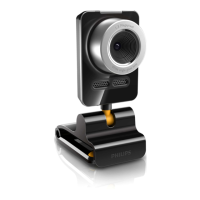
for Philips SPZ5000 webcam, Philips Intelligent
Agent provides a download button for the
appropriate update. After clicking the download
button, you can download the appropriate
update that will be automatically saved in a
dedicated folder located at My Documents\
Philips Intelligent Agent .
You can also enable an automatic check that
will periodically verify if the software of Philips
SPZ5000 webcam products are still up-to-date.
7 Upgrade
software
Software version of Philips
CamSuite
To know the software version of Philips
CamSuite:
1 In the Philips CamSuite Capture window,
click [Help] > [About] .
The software version of Philips »
CamSuite is displayed.
Download the latest software
and driver on line
1 At www.philips.com/support , click the
Choose country / language box to select
your country/language.
2 Click the Search box, enter SPZ5000 and
click the search button.
3 Click SPZ5000 under the search results.
4 Click Support .
Under » Product support , you will
nd information about Software and
drivers .
5 Download the software or driver installer
that you want.
6 Run the installer and follow the
instructions on the screen to complete
the installation.


 To Next Page