10 EN
Upload a video to YouTube
Note
To enjoy Instant YouTube upload feature •
with this webcam, you need to install Philips
CamSuite in the provided CD-ROM.
Before you upload a video to YouTube, you
•
need to have a YouTube account and Internet
access.
1 In the video gallery , select a video that
you want to upload to YouTube.
2 Click .
The » [Upload video to YouTube]
window is displayed.
3 For the rst time you use this feature,
follow the following steps A-C:
A . If you do not have a YouTube account,
click [Create account] to create one as
instructed on the YouTube website.
B . In the [YouTube account] pane, enter
the [Username:] and [Password:] of
your YouTube account.
C . Check the [Remember my account]
box.
Philips CamSuite will remember the »
account information.
Username
Send photo(s)/video(s) via email
1 In the photo/video gallery , select
photo(s)/video(s) that you want to send
via email.
2 Click .
An email message is displayed with the »
selected photo(s)/video(s) attached.
3 Send the email.
Delete photo(s)/video(s) from the
gallery
1 In the photo/video gallery , select
photo(s)/video(s) that you want to delete.
2 Click beside .
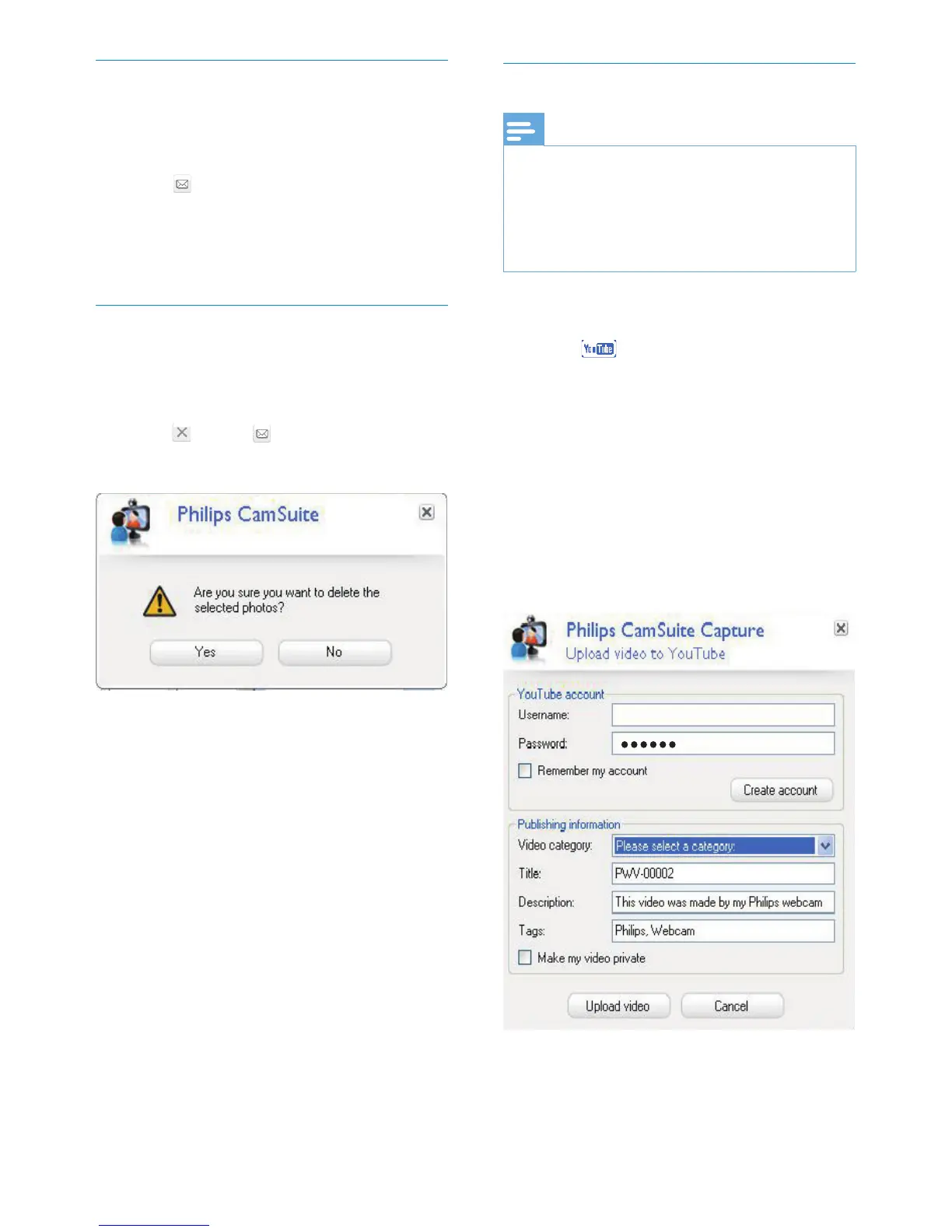
3 In the pop-up window, click [Yes] .
The selected photo(s)/video(s) are »
deleted from the gallery.
To cancel the deletion, click • [No] in the
pop-up window.


 To Next Page