English
EN 19
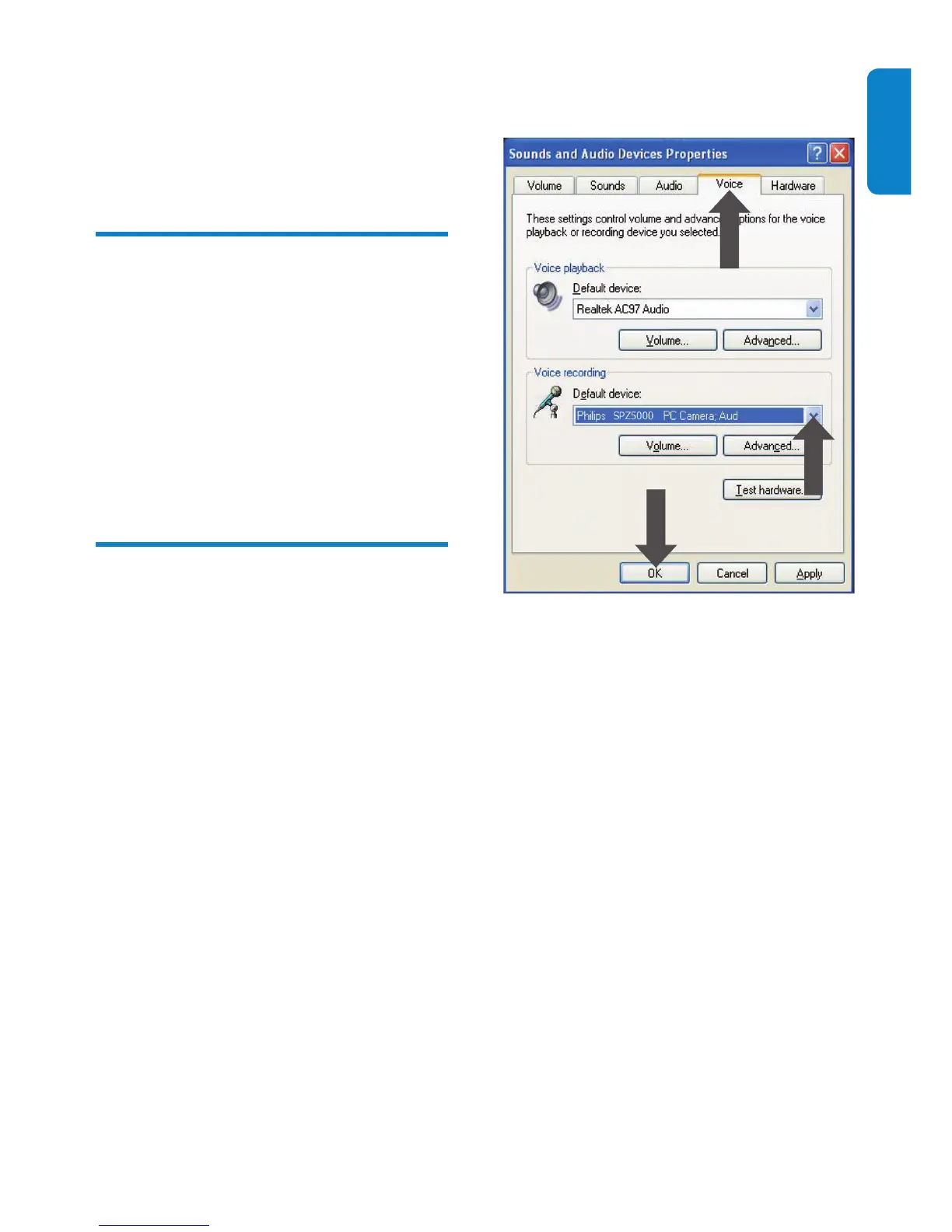
3 Click the Voice tab in the displayed
window.
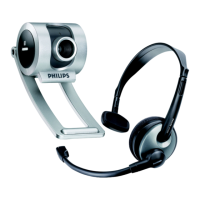
4 Set the Philips SPZ5000 webcam or the
connected headset as default device for
Voice recording .
5 Click OK to save your settings.
For Windows Vista :
1 On the PC/notebook, click Start >
Control panel .
2 Click Hardware and Sound .
3 Click Sound .
9 Frequently
asked questions
(FAQ)
How can I adjust image
quality?
The default settings of the Philips webcam
usually offer the best possible image quality. You
can also adjust image quality according to your
own personal preferences.
To adjust the image resolution, see • the
“Image resolution” section .
To adjust other properties of image, see •
the “Properties” section .
The microphone of my Philips
SPZ5000 webcam or headset
does not work (properly).
What should I do?
For Windows XP (SP2) :
1 On the PC/notebook, click Start >
Control panel .
2 Click Sounds and Audio Devices .


 To Next Page