— 18 —
A
DVANCED
O
PERATIONS
Selecting Monitor Sound
This VCR can receive and record
stereo and bilingual programmes.
including the NICAM broadcasts (for
VR888/55 ONLY).
If you want to change the sound you
listen to while playing back a HiFi
stereo or bilingual tape, press VCR
then press AUDIO/MUTE repeatedly.
Each time you press the button, the
sound changes as follows:
HiFi stereo = HiFi left channel =
HiFi right channel = Monaural sound
on normal audio track = Mixed (HiFi
stereo sound + normal audio)
HIFI:
Normally select this mode.
You can play back a HiFi tape in HiFi
stereo mode, and monaural tape in
monaural mode.
HIFI L:
Select this mode when you want to
play back the sound recorded on HiFi
left channel (usually main language)
of a bilingual programme.
HIFI R:
Select this mode when you want to
play back the sound recorded on HiFi
right channel (usually sub-language)
of a bilingual programme.
NORMAL MONO:
Select this mode when you want to
play back the sound recorded on the
normal audio track of the tape.
HIFI+NORMAL:
Select this mode when you want to
play back a mixed sound of the HiFi
tracks and the normal audio track.
Notes:
• The connections described in “VCR to AV
TV Connection” (
✈
P.10, P.11) are
required for HiFi stereo playback.
• Make sure that the correct playback
colour system is selected. (
✈
P.15)
When using the menu to
select monitor sound
Normally you do not need to use this
menu to select monitor sound.
When you select monitor sound by
pressing AUDIO/MUTE, this menu is
automatically set correctly.
1 Press VCR.
2 Press MENU.
3 Press 5 or ∞ to
select “VCR SET
UP” then press 3.
4 Press 5 or ∞ to
select “AUDIO OUT” .
Press OK/3 to select the sound.
5 Press EXIT/STATUS to exit from
the menu operations.
Using On-Screen Display
You can display the VCR operating
status on the TV screen.
For the information about what you can
see on the TV screen, see page 9.
1Select VCR Set Up Mode
1 Press VCR.
2 Press MENU.
3 Press 5 or ∞ to
select “VCR SET
UP” then press
OK/3.
The VCR Set Up menu appears.
2Select On-Screen Mode
1 Press 5 or ∞ to select “ON
SCREEN MODE.”
2 Press OK/3.
Each time you press the button, the
setting changes.
ON:
When you press a tape running
button (Stop, Play, etc.), the VCR
status appears for 5 seconds.
COUNTER:
When you press a tape running
button, the VCR operating status
appears for 5 seconds.
After 5 seconds, the VCR status
disappears except the time counter.
OFF:
The VCR operating status does not
appear even if you press a tape
running button.
3Finish Setting
Press EXIT/STATUS.
To display the VCR status on the TV
screen manually, press EXIT/
STATUS. The VCR status appears for
about 5 seconds.
• If “ON SCREEN MODE” is set to
“OFF,” no VCR status appears though
you press EXIT/STATUS.
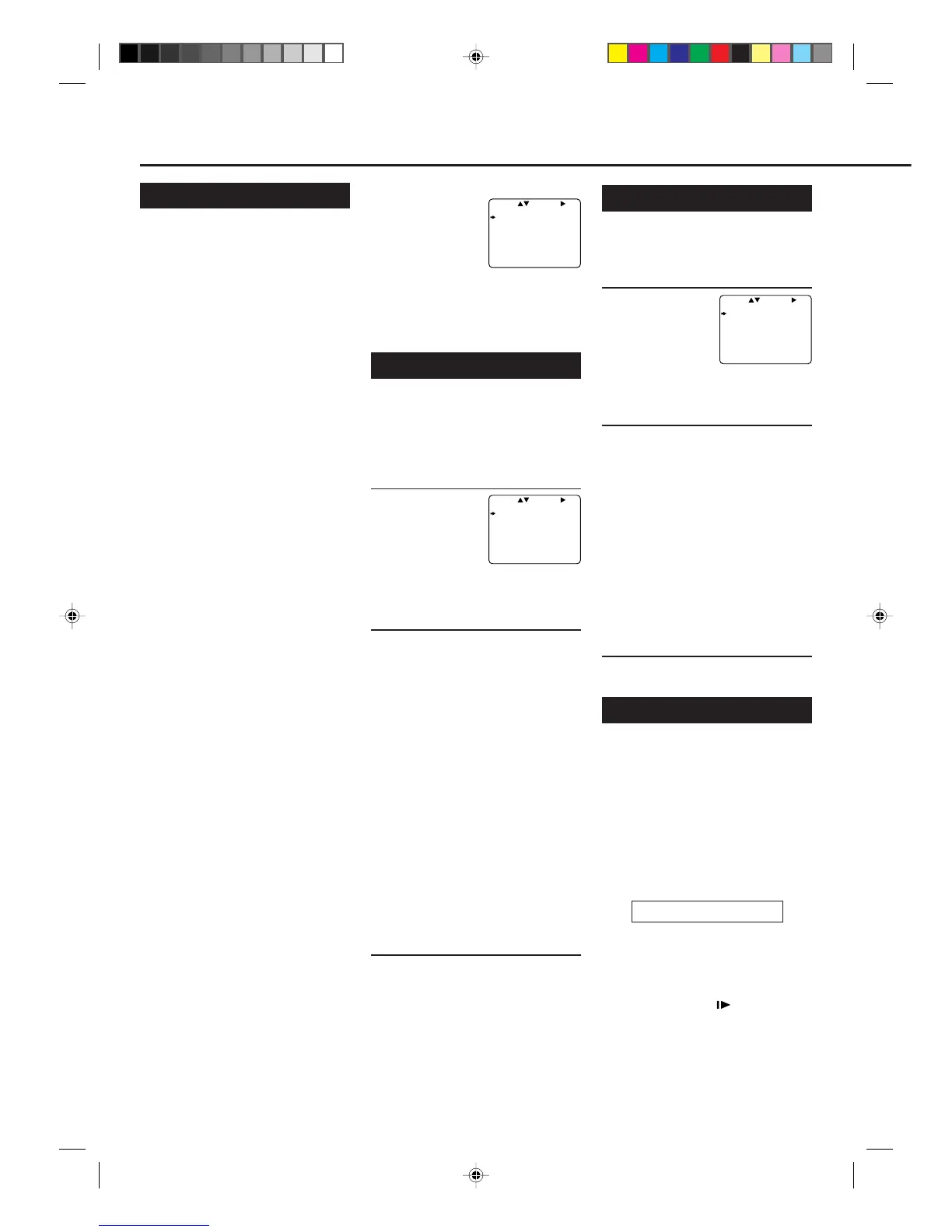
SELECT CHOOSE /OK
ON SCREEN MODE ON
TIMER REC SPEED MANUAL
PICTURE NORMAL
AUDIO OUT HIFI
TO END PUSH EXIT
SELECT CHOOSE /OK
ON SCREEN MODE ON
TIMER REC SPEED MANUAL
PICTURE NORMAL
AUDIO OUT HIFI
TO END PUSH EXIT
SELECT CHOOSE /OK
ON SCREEN MODE ON
TIMER REC SPEED MANUAL
PICTURE NORMAL
AUDIO OUT HIFI
TO END PUSH EXIT
Picture Control
To get a better picture when viewing
tapes with noise such as rental tapes.
1Select VCR Set Up Mode
1 Press VCR.
2 Press MENU.
3 Press 5 or ∞ to
select “VCR SET
UP” then press
OK/3.
The VCR Set Up menu appears.
2Select Picture Control Mode
1 Press 5 or ∞ to select “PICTURE.”
2 Press OK/3.
Each time you press the button, the
setting changes.
NORMAL:
Select this when you play back a
tape with no picture adjustments.
ENHANCER:
Select this when you want to make
a playback picture softer.
INCREDIBLE:
Select this when you want to make
a playback picture sharper.
3Finish Setting
Press EXIT/STATUS.
Special Effect Playbacks
Are you familiar with tape playback?
If so, you are ready to enjoy the special
effect playback features described
below.
To skip playback for a certain
period
Press SKIP SEARCH during playback
to search forward for 30 seconds by the
time counter reading.
Each time you press the button, the
search time increases as follows:
30=60=90=120 sec.
The VCR automatically resumes
normal playback after searching for the
specified period.
To view a still picture
Press STILL/SLOW briefly (or
STILL/PAUSE 8 on the front panel)
during playback.
Playback is freezed and a still picture
appears.
VR788/888-55 NEW 6/3/99, 11:51 PM18



 To Next Page