10
2 Create Job
Throughout this manual, it is assumed that you have a SurvCE job open on your data collector when you begin setting up
either Base or Rover configurations. This section describes in detail how to setup a new SurvCE job.
1. Power on Stonex S4 II Data collector.
Start SurvCE by clicking on Start and clicking on SurvCE
Note: the “Start” icon is the windows flag in the lower left of the screen.
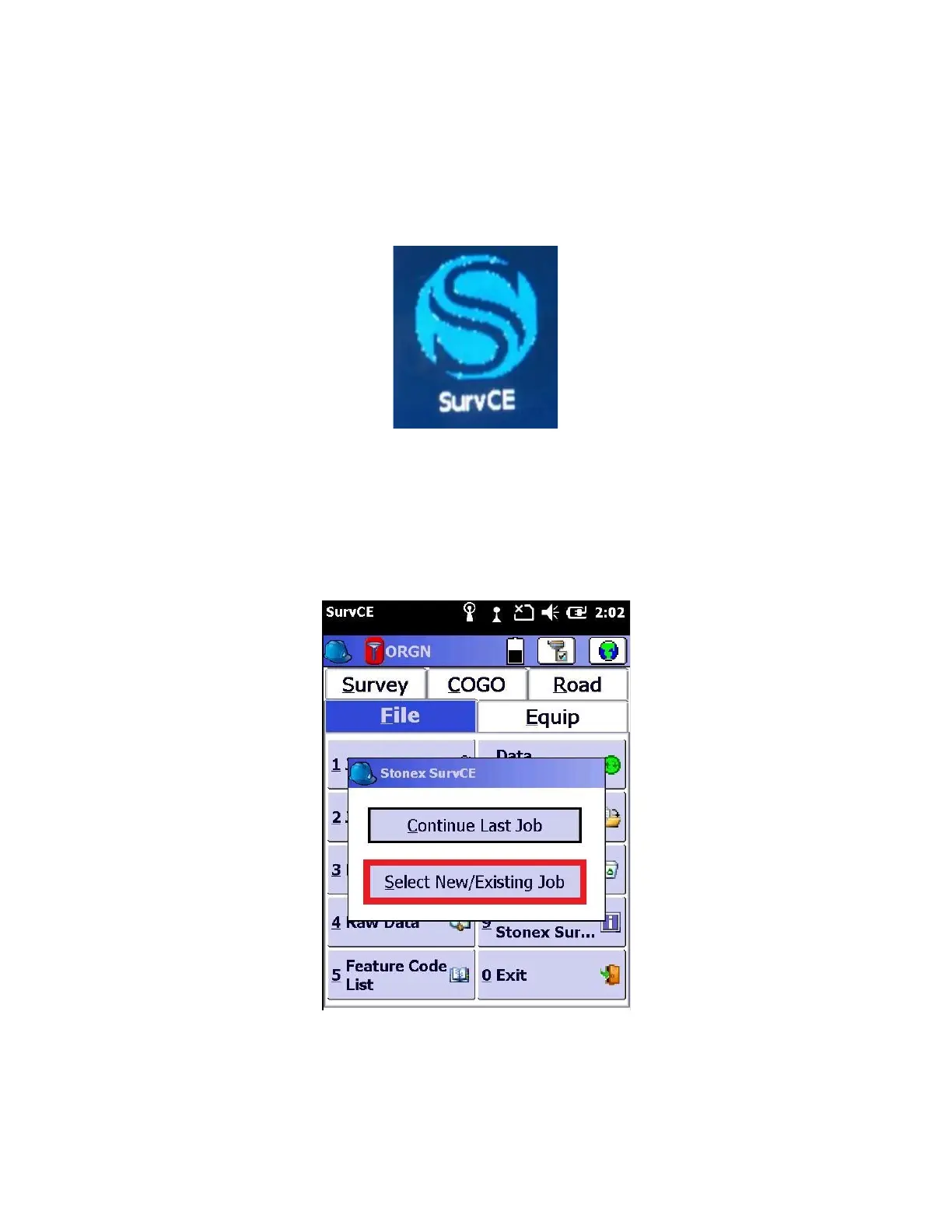
2. The opening screen will be shown, click on “Continue Last Job” or “Select New/Existing Job” as appropriate. For this
example, choose “Select New/Existing Job”
3. Enter the name of the new job at the bottom of the screen by tapping on the default name generated and entering in
an appropriate job name. Then click the green check mark at the top. Select the green check mark at the top again to
store the “.crd” file.



 To Next Page