Black plate (23,1)
2 Touch the following key.
Displays the AV source selection
screen.
3 Touch the source icon you want to se-
lect.
The AV operation screen of the selected
source appears.
Selecting a front source on the
source list
p This function is not available during a call
via this product.
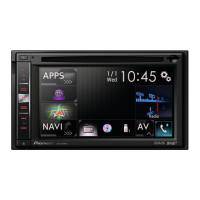
1 Press the HOME button to display the
Top menu screen.
2 Touch the AV operation key.
1
1 AV operation key
The AV operation screen appears.
3 Touch the following key.
Displays the source list.
4 Touch the source key you want to se-
lect.
The AV operation screen of the selected
source appears.
p “Camera View” is available only when
“Back Camera Input” or “2nd Camera
Input” is set to “On”.
Selecting a rear source
You can select a source output to the rear dis-
play.
= For details of the operations, refer to Select-
ing the video for the rear display on page
181.
Turning off the AV source
Turn off the AV source to stop playing or re-
ceiving the AV source.
1 Press the HOME button to display the
Top menu screen.
2 Touch the following key.
Displays the AV source selection
screen.
3 Touch [OFF].
The AV source is turned off.
Changing the display order
of source icons
You can change the display order of source
icons on the AV source selection screen.
p This setting is available only when you stop
your vehicle in a safe place and apply the
handbrake.
p This function is not available during a call
via this product.
1 Press the HOME button to display the
Top menu screen.
2 Touch the following key.
Displays the AV source selection
screen.
<CRB4523-A>23
Engb
23
Chapter
02
Basic operation
Basic operation



 To Next Page
 Loading...