The Piper Mobile App
!
The Piper mobile app is divided into three tabs—Dashboard, Events, and Rules—which cover
the present, past, and future states of your home respectively. This section expands on the
different features found in each tab and how to access them.
Dashboard
The Dashboard displays information about the present state of your home: the current
security mode, the status of your wireless accessories, and the latest snapshot captured
by Piper.
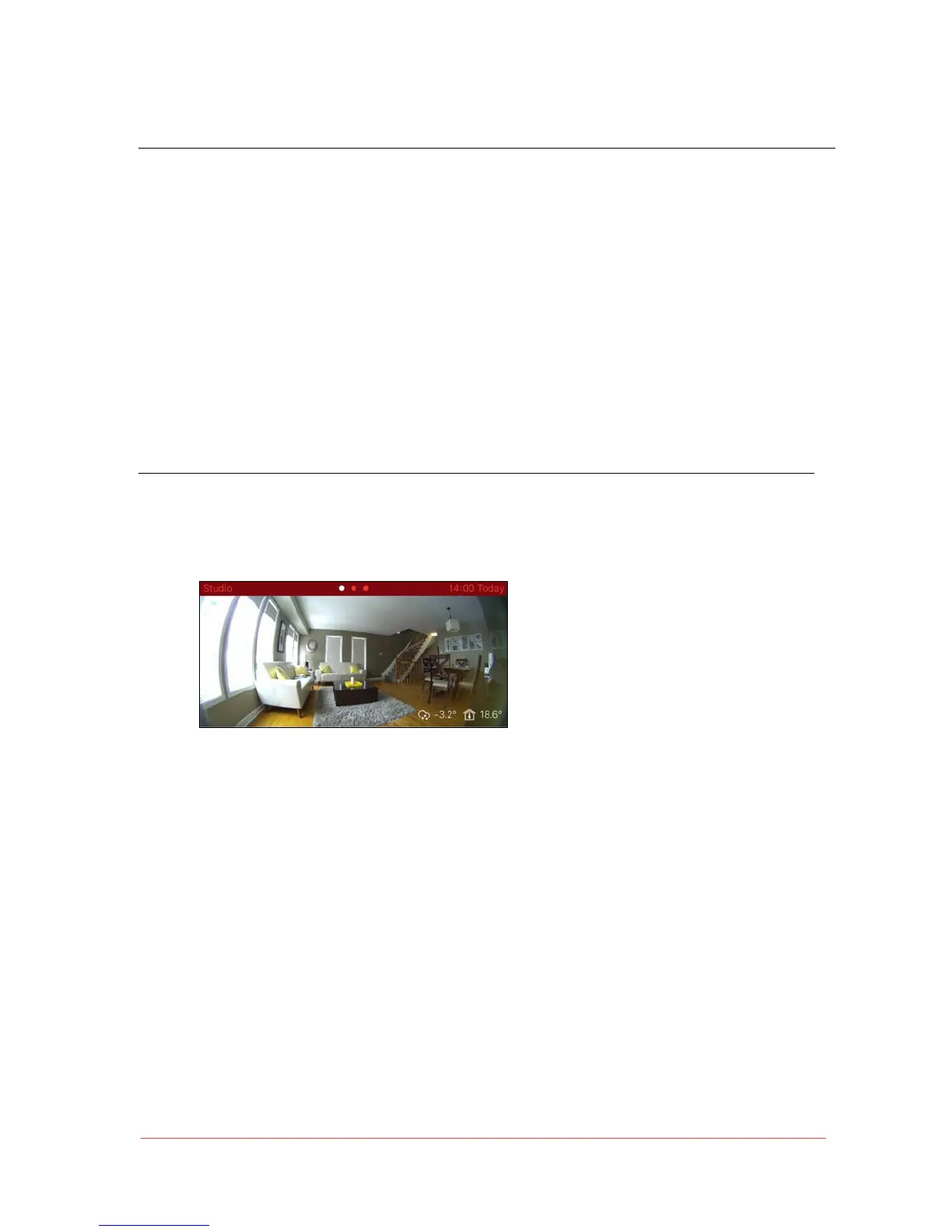
Piper View
The image at the top of the Dashboard
displays the latest snapshot captured
by Piper.
• Above the video snapshot is the name of the Piper in question (left) and the time it was
taken (right).
• If you’ve set up more than one Piper, you can swipe left to view their snapshots. Pipers
appear in the order they were initially set up.
• Current weather, as well as indoor and outdoor temperatures are displayed on the lower
right-hand corner of the snapshot.
Note: A description of all icons used in the Piper mobile app can be found at the end of
this document.


 To Next Page