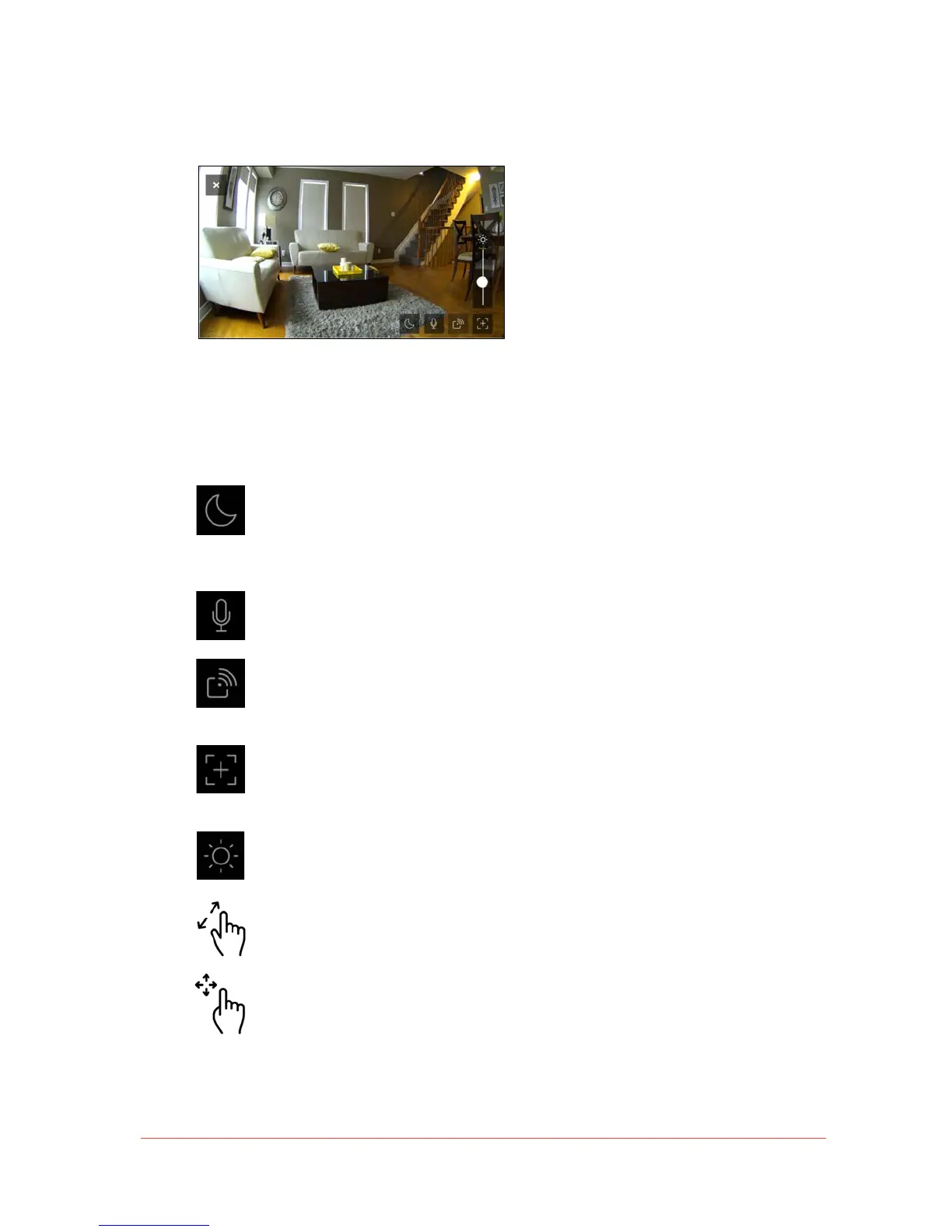
Live Video
Live video allows you to monitor what
Piper is currently viewing. To watch live
video from a Piper, tap its video
snapshot.
• Multiple features can be accessed while viewing live video. To bring up live video
features, tap the screen once. The icons automatically disappear after a few moments.
Tap on this icon to change your Piper’s night vision settings manually or
automatically. When set to ‘Auto’, Piper activates night vision if the ambient
light level has gone below the visible threshold, and automatically de-activates
night vision when there’s enough light.
To use two-way audio, tap and hold the microphone icon while speaking into
your mobile device. Release the icon when you’re done speaking.
Tap on the Wireless Accessory icon to display a list of connected wireless
accessories. You can turn switches on or off and adjust dimmer levels. Tap the
video once to dismiss these controls.
The quad-view icon divides live video into four screens. This enables you to
focus in on specific areas of a room while maintaining access to zoom, pan,
and tilt features within each quadrant.
You can use the brightness slider to adjust the brightness level of live video.
Drag the slider down to decrease brightness, or up to increase brightness.
Zoom in: Place two fingers on the area you would like to enlarge and separate
fingers to expand the live video. Zoom out: Perform the opposite action by
pinching or bringing fingers back together on the screen.
Pan/Tilt: Slide finger across the screen from top to bottom or side to side.


 To Next Page