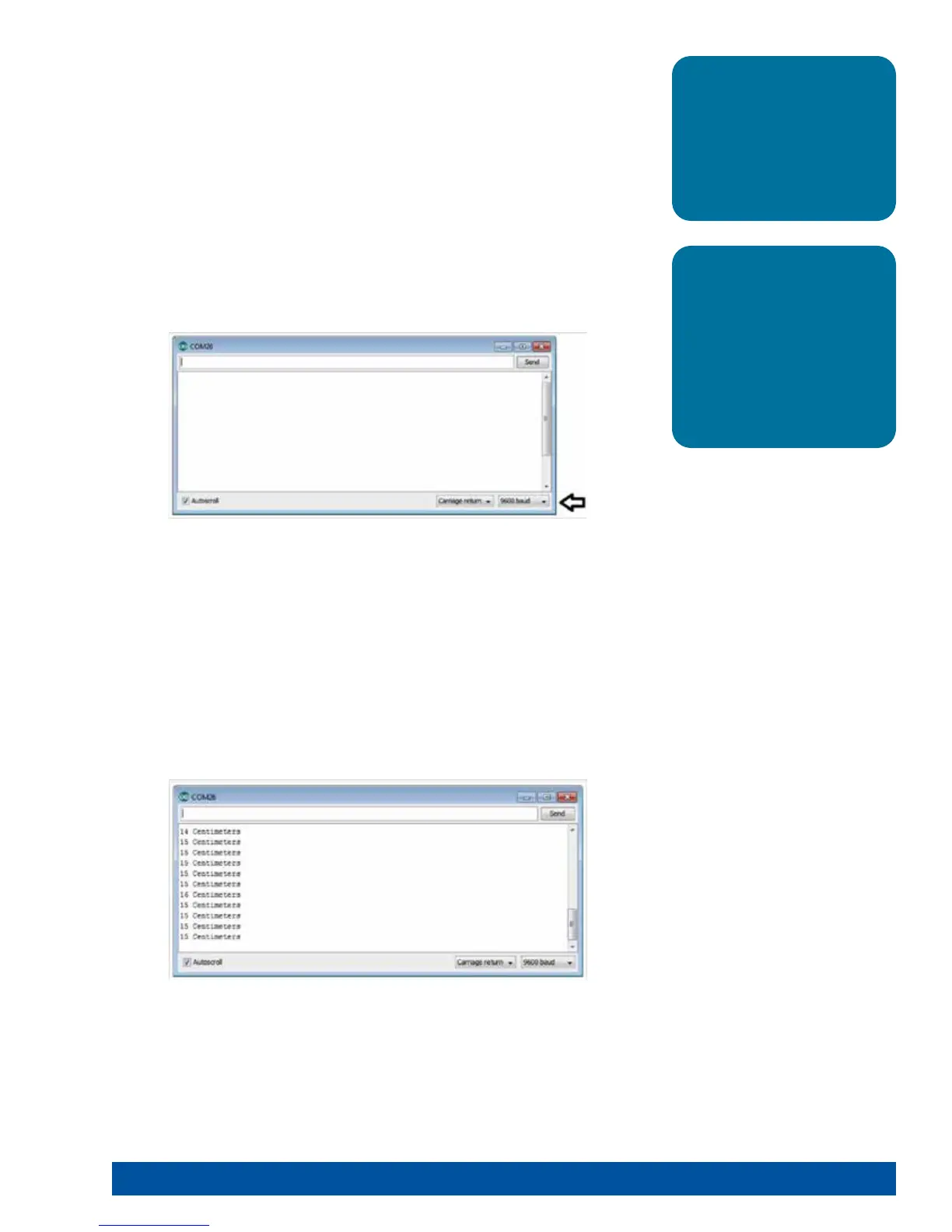
Figure 19
Figure 18
Hold an object above the sensor at varying distances and observe the serial
monitor to see the real-time data.
Press the red Reset button when you are ready to stop the sensor.
Moving Forward
This sketch introduces several new functions: Serial.begin(), Serial.print(),
prizm.readSonicSensorCM(), and Serial.println().
Serial.begin() enables the use of serial communication within the sketch. As an
initialization function that needs to be run only once, it belongs in the setup of the
sketch. An important part of Serial.begin() is the speed of communication in bits
per second, which is called baud rate. The default setting for baud rate in the serial
window is 9600, so that is what we use in Serial.begin().
Serial.print() prints data to the serial port as readable text. This can take the
form of dynamic information from another device or static information from the
programmer.
prizm.readSonicSensorCM() reads the state of the Ultrasonic Sensor and returns a
digital value within the designated measurement range. For our sensor, that range
is between approximately 3-400 centimeters. This value should reflect the distance
the Ultrasonic Sensor is from a detectable object.
Serial.println() prints data to the serial port as readable text followed by a built-in
command for a new line.
These four functions might seem complicated, but they actually work together
simply. In this sketch, Serial.begin(9600) enables and defines the speed of
communication in the setup. Serial.print() tells what type of data to print.
prizm.readSonicSensorCM() provides the type of data to print because it is within
the parentheses of Serial.print(). And Serial.println(“ Centimeters”) clarifies the type
of data being printed – in this case, with the modifier “ Centimeters.”
Tip: Want to see this in
action? You can by watching
our RoboBench video series
for the PRIZM Programming
Guide. You can find the
entire series at video.
tetrixrobotics.com or on
the TETRIXrobotics YouTube
channel.
Tip: Remember that you
can print and use the TETRIX
PRIZM Arduino Library
Functions Cheat Sheet within
the appendix on page 153 as
a quick reference for all the
functions available to you.
Getting Started Activities 31


 To Next Page