www.pivotcycles.com info@pivotcycles.com 1.877.857.4868
9
FAZUA SOFTWARE
Download Software
NOTE: All software downloads can be accessed via the Fazua website: https://fazua.com/en/drive-system/software/
Download Desktop Software (Fazua Toolbox)
1. Go to the website listed above and click on the "Desktop Software" link.
2. On the next page, select the operating system of your device click on the plus to view the system
requirements and the "Download" link.
3. If all device requirements are met, click on the "Download" link.
4. Fill out the form that appears with your email address and rst and last name. Fazua requires this
information, so they can contact end users when updates are made available.
5. Go to the le location of the downloaded ".exe" le, and open the le. This will open the Fazua Toolbox,
where all adjustments and updates can be made.
Connect to the Fazua Toolbox
NOTE: Before connecting to the Fazua Toolbox, download the desktop software and remove the drivepack from the
bike. A detailed video outlining the procedure for connecting the drivepack to the Fazua Toolbox software can
be found on the Fazua website: https://fazua.com/en/magazine/update-motor-software-toolbox/
1. Turn on the battery by pressing the power button located on the battery.
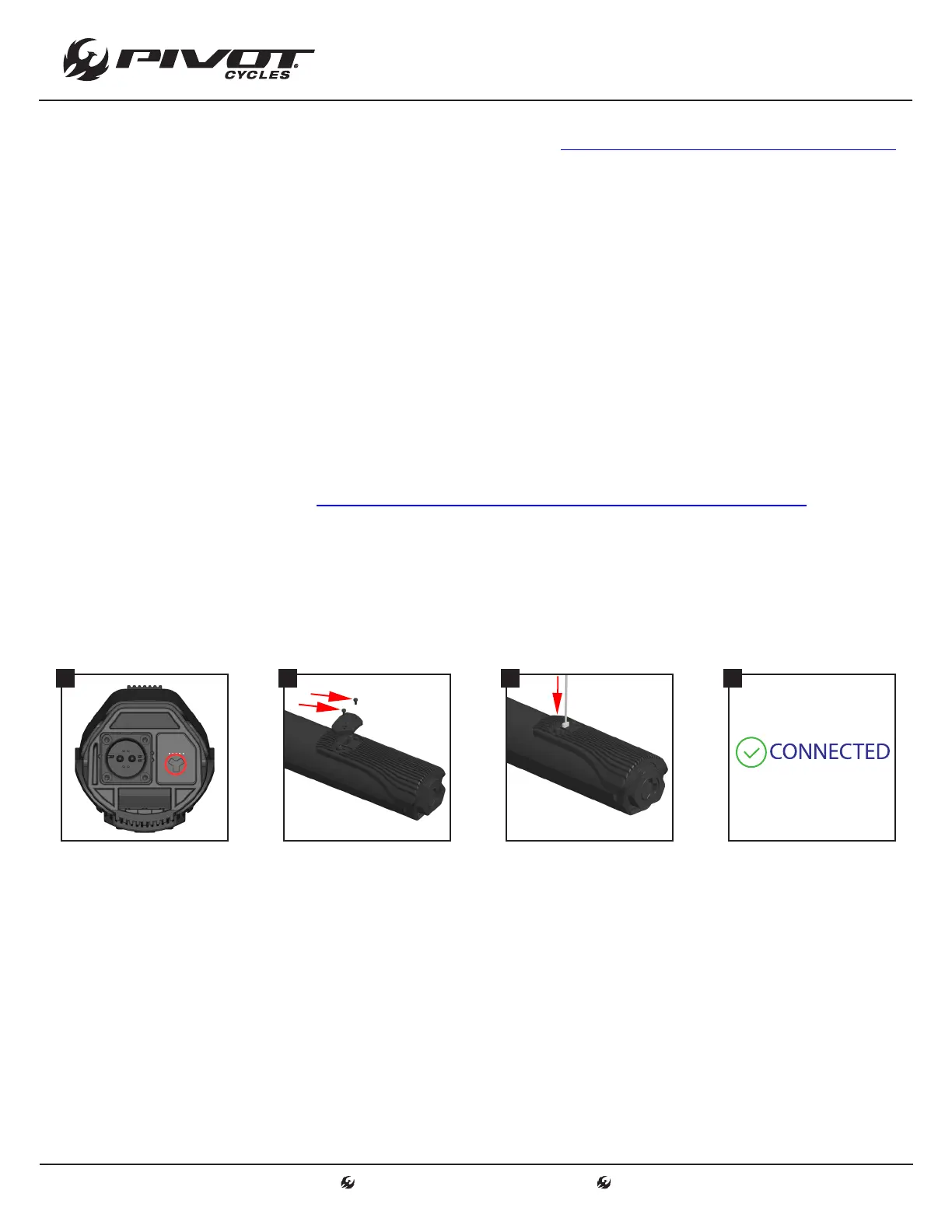
2. Remove the USB cap with a Torx T10 screwdriver and carefully lift o the USB cap with a soft plastic lever.
(When re-installing the USB cap, the Torx T10 screws should be torqued to 1.5 Nm)
3. Connect the drivepack to the comupter using a mini USB cable.
4. Open the Fazua Toolbox software and conrm that the drivepack has successfully connected by checking
the lower left corner of the Fazua Toolbox. Once successfully connected, all information and settings
currently saved to the drivepack will be displayed under the various tabs in the left navigation panel.
1 2 3 4
Fazua Toolbox Navigation Panel
NOTE: The left panel of the Fazua Toolbox provides categorized information relating to the connected drivepack.
Product Information: System and component serial numbers and software versions.
Bike Usage: System odometer, temperature, max speed, power output, & battery cycles.
Diagnosis: Runs system diagnostics and outputs any system faults detected.
Live Data: Displays current system status.
Conguration: Displays OEM system congurations.
Customizer: Allows end user customization of each support level.
Software Update: Upload software updates to the system.


 To Next Page