Administration Settings
5-43
5
Administrator Settings
To protect access to the management interface, you need to configure a new
Administrator’s user name and password as soon as possible. If a new user name and
password are not configured, then anyone having access to the Multimedia Router may
be able to compromise the unit's security by entering the default values. Once a new
Administrator has been configured, you can delete the default “admin” user name from
the system.
• Username – The name of the user. The default names preset for access to the unit is
“admin”. (Length: 3-16 characters, case sensitive)
• Password – The password for management access. The default password preset for
access to the unit is “admin” (Length: 3-16 characters, case sensitive)
• Confirm Password – Prompts you to enter the password again for verification.
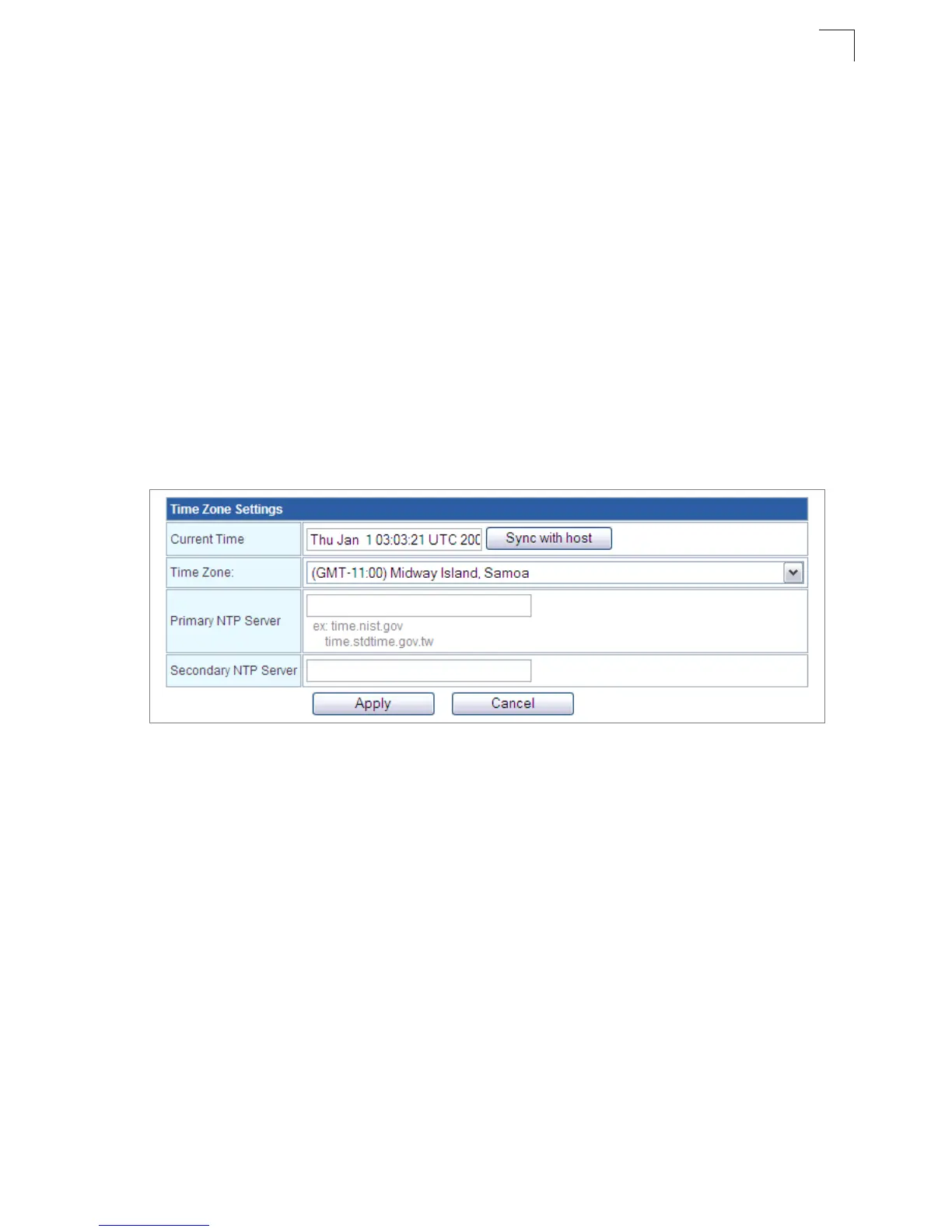
Time Zone Settings
The System Management page allows you to manually configure time settings or enable
the use of an Network Time Protocol (NTP) server.
Figure 5-31. Time Zone Settings
• Date Time Set By – Allows you to manually configure time settings or select the use of
an NTP server.
• Time Zone – Specifies the time zone in Greenwich Mean Time (GMT).
• Primary/Secondary NTP Server – The IP address or URL of the NTP server to be
used.
Green AP Settings
The GreenAP feature is used for reducing the Multimedia Router's power consumption.
Before setting the Green AP duration, you need to configure the Time Zone Settings first,
then choose one of the options from Action drop-down list. The WiFi Tx Power indicates
how much antenna power you want to use. Less power means the Multimedia Router can
only cover a shorter range. The final step is to set the GreenAP duration. For example,
you might set the TxPower 25% during your sleeping hours, or TxPower OFF while you
are away.


 To Next Page