Docking Station with Video User’s Manual
14
Video Port
Display Modes
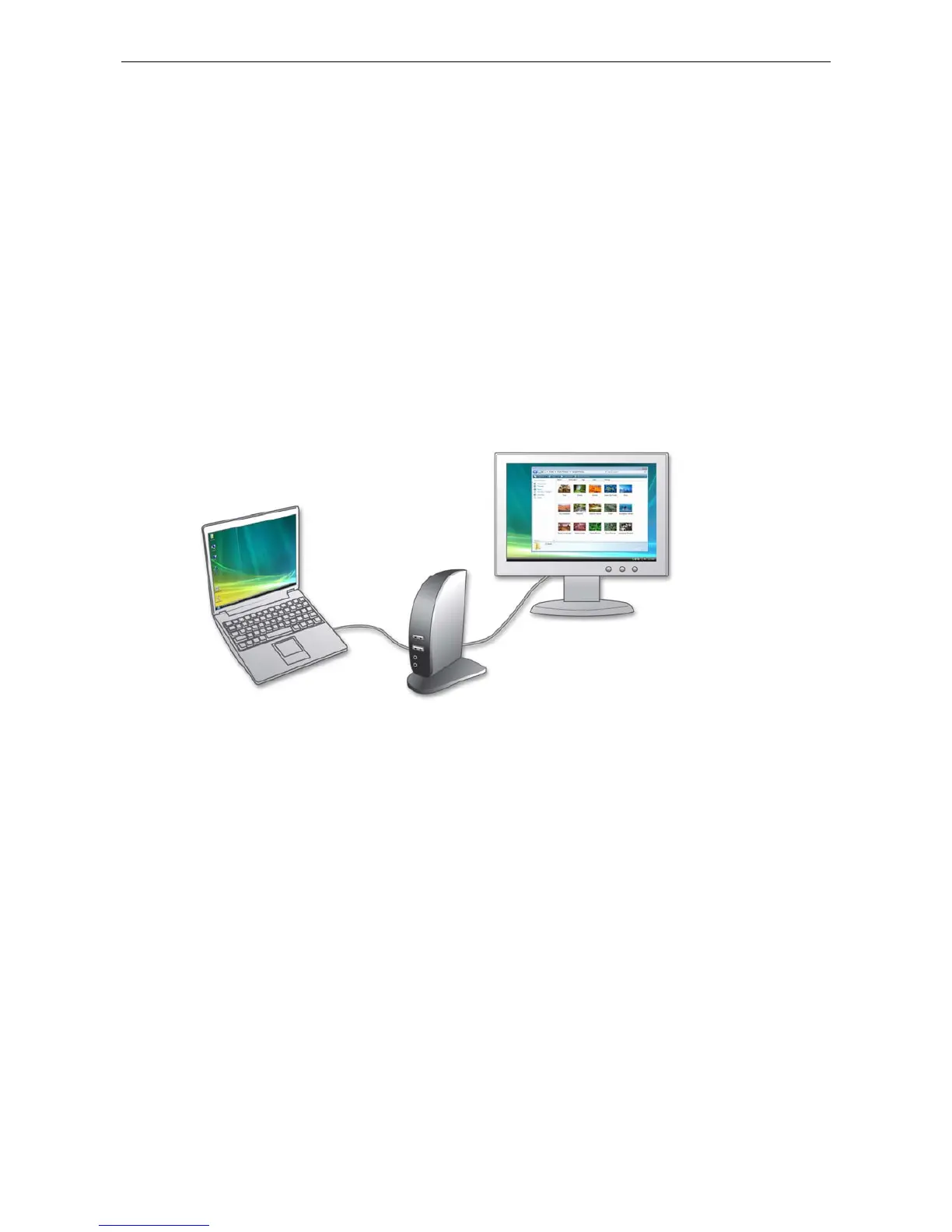
There are several ways you can utilize the monitor attached on the docking station.
The add-on monitor can be configured to use either “mirror mode”, “extended
mode” or be the primary display as described in this section.
Extend Your Windows Desktop to Add-on Monitor (Default)
In this so-called “extended mode”, your display will be spread over the add-on
monitor(s). This mode allows you to perform multiple tasks more effectively without
overlapping windows.
Extended mode is the default setting. To set up the video component to use or
restore extended mode, follow these steps:
1. Position the mouse anywhere on your computer desktop, right-click and select
Screen Resolution on Windows
®
7, Personalize > Display Settings on
Windows Vista
®
or Properties > Settings on Windows
®
XP/ Windows
®
2000.
2. In the Display drop-down menu, select the option with the string “DisplayLink
Graphics Adapter”.
3. Check the Multiple Displays> Extend these displays on Windows
®
7,
Extend the desktop onto this monitor box on Windows
®
Vista or Extend my
Windows desktop onto this monitor box on Windows
®
XP/ Windows
®
2000.
4. Drag the icons in the window at the top of the screen to match the physical
arrangement of your primary monitor and add-on monitor.
The add-on monitor connected to the docking station may be identified as
either "2" or “3”, depending on your computer, although there may not be a total
of 3 screens connected.


 To Next Page