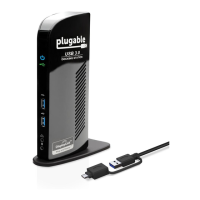
Docking Station with Video User’s Manual
19
cloned desktop. It is recommended that the primary display resolution be changed
to closer match the default resolution of the add-on monitor.
To configure the three components (resolution, color depth and refresh rate) of a
screen mode, follow these steps:
1. Position the mouse anywhere on your computer desktop, right-click and select
Screen Resolution on Windows
®
7, Personalize > Display Settings on
Windows Vista
®
or Properties > Settings on Windows
®
XP/ Windows
®
2000.
2. In the Display drop-down menu, select the option ends with DisplayLink
Graphics Adapter.
3. To change the screen resolution or color quality, select those options on the
screen. Be sure to select one of the supported resolutions and color quality
numbers in the table above. For an add-on monitor, you can also select any
resolution or color quality supported by that monitor.
4. To change the refresh rate, click Advanced… and then click Monitor.
5. Select a refresh rate from the Screen refresh rate drop-down list and then click
Apply.
6. Click OK to close the settings screen.
Disconnecting the Docking Station
If the docking station is unplugged from the computer, the add-on monitor goes
blank. All windows and icons move to the primary screen.
On reconnection of the docking station, the docking station returns to the same
mode as it was before disconnection. However, windows and icons that were
previously on the screen will not be moved back.


 To Next Page