PMDG 737NGX 0.00.133
TUTORIAL #2
For Simulator Use Only DO NOT DUPLICATE 27FEB15 RTM
Pull up the AS window and click the Flight Plan button.
Select Load or Import and select the EHAM-LOWI.PLN file from
the next window and click Open or press Enter.
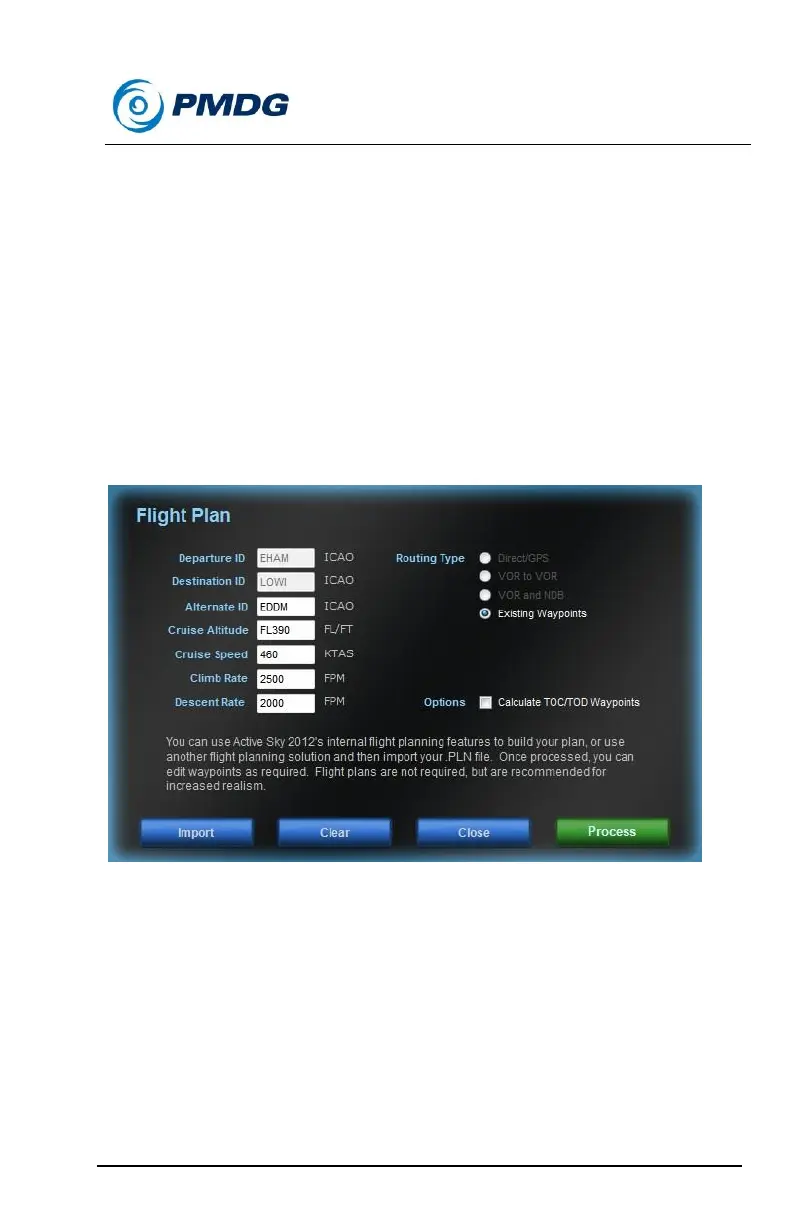
Type EDDM into the Alternate ID box.
Type 460 into the Cruise Speed box.
Type 2500 into the Climb Rate box.
Type 2000 into the Descent Rate box.
The window should look like this:
Click the green Process button.
Cancel out of the graphics install dialog.
AS is now set to correctly interpolate P3D weather stations along our
exact route of flight and we now have some extremely useful wind
information on this screen that we can use to give the FMC predictions.
If you do not have a flight planning tool to create an P3D flight plan file to
import, here’s another way, however it will be a little less accurate.
Starting from the AS main window:



 To Next Page